


If you sell anything over WhatsApp, you already know the routine. Someone messages asking what you have. You scroll your gallery, send six photos, type out prices, answer "is this available?" three times, and repeat the whole thing for the next customer an hour later.
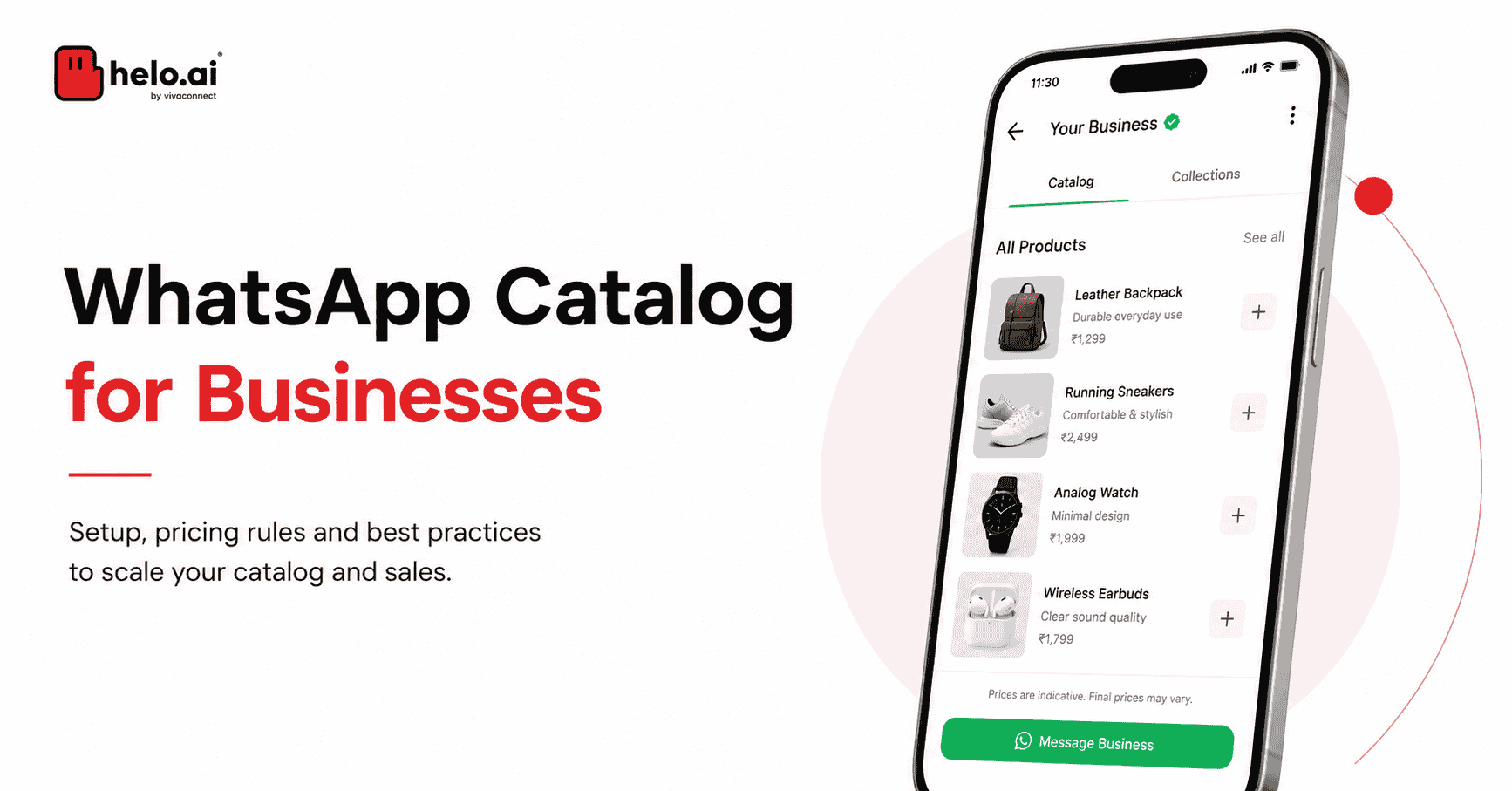
A WhatsApp catalog exists to end that loop. It turns your business profile into a browsable product list — images, prices, descriptions, links — that a customer can scroll through on their own, inside the chat they are already in. For Indian businesses in particular, where WhatsApp is often the primary sales channel rather than a support add-on, the WhatsApp Business catalogue is the difference between a chat thread and a storefront.
This guide covers the setup on every device, the limits and specs that actually matter, and two things most guides skip entirely: what changed in 2026, and what to do when your catalog stops working.
What is a WhatsApp Catalog?
A WhatsApp catalog is a structured list of products or services connected to your WhatsApp Business account, which customers can browse directly inside WhatsApp. It replaces one-by-one photo sharing with a single, permanent, shareable product list.
Technically, the catalog does not live on your phone. You upload the inventory to Meta, and it connects to your WhatsApp Business Account (WABA). That is why it costs you no storage, and why every item passes through Meta's review before it appears.
Think of it as a mobile storefront: your profile stops being a contact point and starts being a shop.
What can you add to a catalog item?
Each item in a WhatsApp product catalog can carry:
- Product title — required, and must be unique
- Country of origin — required
- Images — up to 10 per item, or one video
- Price and sale price — available in select countries only
- Description — up to 5,000 characters
- Website or checkout link
- Product code / SKU — for your own inventory tracking
Only the title, one image and country of origin are mandatory. Everything else is optional but every field you skip is a question a customer has to ask you in chat.
Why do businesses use a WhatsApp catalog?
The value is not "it looks nice." It is specific and measurable:
- Faster product discovery. Customers browse instead of asking. The conversation starts at "I want this one" rather than "what do you have?"
- Fewer repetitive chats. Your team stops answering price, size and availability twenty times a day.
- Sharper sales conversations. When someone enquires about a specific catalog item, your team already knows the intent.
- One-tap sharing. Customers forward individual products to friends. That is organic reach you did not pay for.
- Instant credibility. A clean catalog makes a small brand look established, which matters most to first-time buyers.
One honest caveat before you go further: a catalog is not a checkout. It is a discovery layer. Where the money actually changes hands — in-chat cart, payment link, UPI, your website — is a separate decision, and it is covered further down.
WhatsApp catalog limits, specs and approval times
Most guides bury this at the bottom. It is the thing people search for most, so here it is up front.
Specification | Limit |
|---|---|
Products per catalog | 500 |
Catalogs per account | 1 |
Images per item | 10 (or 1 video) |
Video file size | 50 MB max |
Recommended image size | 1080 × 1080 px (1:1 square) |
Image formats | JPEG or PNG |
Description length | Up to 5,000 characters |
Items per Multi-Product Message | 30 |
Review time | A few minutes to 24 hours |
A note on the 500 figure, because the internet disagrees with itself here. Several widely-read guides claim the Business app caps out at 50 items. The WhatsApp Business catalog limit is 500 products on the app. What genuinely changes on the API is the upload method — you move from manual entry to feed-based sync through Meta Commerce Manager, which is what makes large inventories manageable rather than merely permitted. Check Meta's catalogs documentation if you want the primary source.
The 30-item cap on a Multi-Product Message is the one that catches teams out. You can hold 500 products, but a single interactive message can only surface 30 of them. Plan your collections around that number.
Why do items get rejected, and how do you appeal?
Items are reviewed against the Meta Commerce Policy. Rejections almost always trace to one of four causes:
- Unclear or non-compliant images — blurry, heavily text-overlaid, or showing something the policy restricts.
- Restricted product categories — alcohol, supplements, medical items, and others that vary by region.
- Misleading pricing or descriptions — including before/after claims.
- Missing required fields — usually country of origin.
If you believe a rejection is wrong, you can appeal directly in the app. Fix the underlying issue first; resubmitting the same listing unchanged rarely works. If you have dealt with WhatsApp template rejections before, the logic is the same — Meta is checking content against policy, not judging your business.
How to create a WhatsApp catalog (step by step)
There are four routes, depending on where you are working and whether you are on the app or the API. Pick the one that matches your setup.
On Android
- Open WhatsApp Business.
- Tap the three dots (⋮) at the top right.
- Go to Business Tools → Catalog.
- Tap Add New Item.
- Upload your images (up to 10, or one video under 50 MB).
- Enter the required details: Product title (unique) and Country of origin.
- Add optional details — price, description, product code, website link.
- Tap Save.
Your item goes to review before it appears publicly.
On iPhone (iOS)
- Open WhatsApp Business.
- Tap Settings at the bottom right.
- Go to Business Tools → Catalog.
- Tap Add New Item.
- Upload 1–10 images or a video.
- Fill in Product title and Country of origin.
- Add price, description, link and code if relevant.
- Tap Save and wait for review.
On WhatsApp Web or Desktop
- Open web.whatsapp.com or the desktop app and link your account.
- Click the three dots → Business Tools → Catalog.
- Click Add New Item.
- Upload images and enter details.
- Click Save to submit for review.
Web is usually the fastest route if your product photos already live on your computer — you skip the phone-to-desktop transfer entirely.
Via Meta Commerce Manager (WhatsApp Business API)
This is the path most guides get wrong. On the API, there is no "Business Tools" menu. You are not building the catalog inside WhatsApp at all — you are building it in Meta's commerce infrastructure and connecting it.
- Open Meta Commerce Manager in Meta Business Suite.
- Select Add Catalog, choose the inventory type, and create it.
- Add items by uploading a CSV/XML feed, or connect a data feed from your store platform. This is the step that makes 500+ SKUs viable — you stop entering products by hand.
- Note your catalog ID.
- Connect the catalog to your WABA in your provider's dashboard.
- Configure commerce settings for your business phone number, including whether the cart is enabled and whether the catalog is visible.
If you have not set up API access yet, start with creating a WhatsApp Business account and then setting up the WhatsApp Business API.
How do you organise products into collections?
A flat list of 200 items is a wall, not a shop. Collections group products so customers land on what is relevant.
To create a collection: open Catalog → Collections → Add Collection, name it clearly, select your products, and tap Done. Collections can take up to 24 hours to be reviewed.
To update one: open Catalog → Collections, select it, then add or remove items as stock changes. Rename and reorder to push whatever matters this week to the top.
Group by how people actually shop, not by how your warehouse is organised:
- Festive drops — Diwali, Raksha Bandhan, wedding season
- Under ₹999 — price-led browsing converts fast
- Bestsellers — social proof without a review system
- Back in Stock — the highest-intent collection you will ever build
- New Arrivals — gives repeat customers a reason to reopen the catalog
Collections cut scrolling and decision fatigue. That is the entire mechanism less friction between interest and enquiry.
How to share your WhatsApp catalog
A catalog nobody sees is a spreadsheet. Sharing is where it earns its keep.
- Send a single product in chat. Open the conversation, tap the attachment (paperclip) icon, select Catalog, and choose the item.
- Send the whole catalog. Go to Business Tools → Catalog and use the share icon.
- Share the catalog link. Grab the link from the catalog screen and put it in your Instagram bio, WhatsApp Status, email signature, or on printed material.
- Share individual product links when you post about a specific item.
There is a ceiling here worth naming early. On the free app, sharing is manual and one conversation at a time. You cannot broadcast your catalog to a segmented list of ten thousand customers — that requires the API and a WhatsApp broadcast setup, or Click-to-WhatsApp ads that drop people straight into a catalog conversation from Facebook or Instagram.
How to edit or delete catalog products
On mobile: open Catalog, then either long-press (Android) or swipe left (iPhone) on the item and tap Delete. Or open the item, tap More options (⋮) → Delete → confirm.
On web or desktop: Three dots → Catalog, select the product, click Edit, scroll down, and choose Delete Item.
One habit worth building: archive rather than delete when something goes out of stock temporarily. Deleting means re-uploading and re-approval later. Archiving keeps the listing intact. For short stockouts, the Hide availability toggle does the job without touching the listing at all.
What changed for WhatsApp catalogs in 2026?
This is where most catalog guides currently sit out of date, some by more than a year. Four changes matter.
Per-message pricing (effective 1 January 2026)
Meta replaced conversation-based billing with per-message pricing for template messages. Each template message is now charged individually, and — critically — charged at the rate of the recipient's country, not yours. An Indian business messaging a customer in the UK pays UK rates.
If your catalog strategy involves broadcasting product collections to a large list, this changes your unit economics directly. Volume that was previously bundled into a 24-hour conversation window is now itemised. Free service conversations inside the 24-hour customer-initiated window remain unchanged, which quietly makes inbound catalog traffic more valuable than outbound.
We have broken the full structure down in our January 2026 WhatsApp API pricing update and the India-specific pricing guide.
The general-purpose chatbot restriction (15 January 2026)
Meta amended its Business API terms to bar general-purpose chatbots from the platform. Task-oriented automation flows remain permitted; open-ended general-purpose assistants do not.
Practically: the advice you will read on most catalog blogs — "plug a general AI chatbot into your catalog and let it sell" — no longer maps cleanly to what the policy allows. Structured, task-specific flows built around your catalog are the compliant path. Our WhatsApp API compliance guide covers where the lines now sit.
Flows 2.0 and dynamic catalogs
Dynamic catalogs sync inventory and pricing in real time, which closes the single biggest failure mode of manual catalogs: selling something you ran out of yesterday. Paired with WhatsApp Flows, you can run a product configurator in chat — size, colour, variant — and surface the exact matching item at the end, then take payment without the customer leaving the thread. See our guide to the native WhatsApp catalog and checkout flow for how that assembles in practice, and WhatsApp UPI payment integration for the India payment path.
Cloud API catalogs do not show a cart icon
A small detail with large consequences, straight from Meta's documentation: catalogs connected via the Cloud API do not display a shopping cart icon in the chat thread header. If you assumed the API gives you everything the app gives you plus more, this is the exception. Design your flow around it rather than discovering it in production.
Who cannot use a WhatsApp catalog?
Three restrictions that almost no catalog guide mentions — and getting these wrong risks the whole account, not just the listing.
Digital and downloadable goods are prohibited
Several widely-ranking guides state that you can sell eBooks, courses, software licences or subscriptions through a WhatsApp catalog. Under the Meta Commerce Policy, you cannot. Digital and downloadable products, digital subscriptions, game accounts and virtual currencies are prohibited. Keep listings physical. If you sell courses or digital services, the catalog can showcase them as services with an enquiry path — it cannot be the transaction mechanism. Read the Meta Commerce Policy directly rather than trusting a blog on this one.
Regulated verticals cannot run commerce on the Business App
Under the WhatsApp Business Policy, businesses in regulated verticals are prohibited from providing commerce experiences on the WhatsApp Business App, and messaging about regulated verticals is limited to specific countries on the Business Platform.
For BFSI, insurance, healthcare and pharma, this is the single most important sentence in this article. The free-app route is not available to you. Compliant engagement runs through the API with the right approvals — which is exactly why enterprise teams in these sectors work through WhatsApp for banking and WhatsApp for insurance use cases rather than a catalog on a phone.
Enforcement hits the account, not the item
Violations are flagged via the account_update webhook, and enforcement applies at the account level. One non-compliant listing can put your entire WABA at risk — which is why quality rating and policy hygiene are worth monitoring before a problem escalates.
Why is my WhatsApp catalog not showing?
The most-asked question with the least-written answer. Here are the real causes.
Problem | Likely cause | Fix |
|---|---|---|
Catalog not visible to customers | Items still pending review, or not marked Active | Check item status; allow up to 24 hours |
Products not reflecting after upload | Review queue delay, or app cache | Refresh, update the app, re-upload if it persists |
Item stuck "under review" | High review volume, or a borderline listing | Wait 24 hours; if still stuck, check the images against policy |
Price not showing | Price display is region-gated — not available in every country | Verify your market supports price display; use the description as a fallback |
Images rejected | Below quality bar, heavy text overlay, or restricted content | Use clean 1080×1080 shots, minimal text |
Cart orders not reaching your CRM | Cart order events not wired to your backend | Requires API-level integration — the app alone won't push orders into a CRM |
Catalog not syncing with your store | Manual catalog with no feed connection | Move to feed-based sync via Commerce Manager |
Catalog limit reached | You have hit 500 items | Archive dead stock, or move to feed-managed inventory |
The price one deserves emphasis, because it generates enormous confusion. If prices are not appearing, your listing is probably fine price display simply is not supported in every country. It is a market limitation, not a mistake you made.
If the problem is messages rather than the catalog itself, our guides on WhatsApp messages not being delivered and WhatsApp Business API error codes go deeper.
WhatsApp Business App vs API: which catalog setup do you need?
Features | Business App | Business API |
|---|---|---|
Product limit | 500, entered manually | Feed-managed inventory |
Inventory sync | Manual | Real-time via data feed |
Broadcasting the catalog | Not available | Segmented campaigns |
Automation | Basic away messages | Task-oriented flows |
Cart in chat | Yes (region-dependent) | No cart icon on Cloud API |
Analytics | Basic views and clicks | Full delivery and engagement data |
Regulated verticals | Prohibited | Permitted with approvals |
Pricing | Free | Per-message, by recipient country |
Best for | Single-location shops, small SKU counts | Multi-SKU, multi-market, regulated, or high-volume |
When the free app is genuinely enough
If you run one shop, hold under 100 SKUs, update stock weekly, and sell physical goods in an unregulated category — use the free app. It costs nothing and it does the job. Do not let anyone talk you onto the API before you need it.
When you have outgrown it
You have outgrown it when any of these are true:
- Inventory drift. You have sold out on your website and your catalog does not know.
- Reach. You want to put a new collection in front of 50,000 customers, not 50.
- Compliance. You are in BFSI, insurance or healthcare and the app is not an option.
- Governance. You are running multiple numbers, need opt-out enforcement across campaigns, frequency capping, business-hours windows, or an audit trail.
- Attribution. You cannot tell which catalog items actually drove revenue.
That last cluster is where a catalog stops being a feature and becomes an operations problem. Helo.ai's WhatsApp Business API connects catalog inventory to campaign execution, real-time analytics and the governance controls — centralised opt-out, frequency capping, business windows — that regulated and high-volume brands need in place before scaling. If you are weighing this properly, our Business App vs Business API comparison is the honest version.
WhatsApp catalog best practices
- Shoot square, shoot clean. 1080 × 1080, natural light, neutral background, product centred. WhatsApp compresses on upload, so start high.
- Skip text on images. Compression blurs small fonts and it looks amateur.
- Write descriptions that answer objections, not descriptions that restate the title. Material, fit, dimensions, use case.
- Put your fastest-moving items first. Most customers do not scroll far.
- Review weekly. An outdated catalog is worse than no catalog — it converts interest into frustration.
- Archive, don't delete. Saves you the re-approval wait.
- Rotate collections seasonally so returning customers see something new.
Once your catalog is solid, the next lever is traffic. Abandoned cart recovery, Click-to-WhatsApp ads, and WhatsApp marketing for eCommerce all feed people into it.
Frequently asked questions
Is the WhatsApp Business catalog free?
Yes. The catalog feature is free in the WhatsApp Business app. Costs only appear when you move to the Business API, where Meta charges per template message sent — and that pricing changed in January 2026.
How many products can I add to a WhatsApp catalog?
500 per catalog, one catalog per account. Some guides claim a 50-item cap on the app; that is incorrect. What changes on the API is that inventory becomes feed-managed rather than hand-entered.
How long does WhatsApp catalog approval take?
Usually a few minutes to a few hours. During heavy review periods it can take up to 24 hours. Collections can also take up to 24 hours to appear.
Why was my product rejected?
Almost always unclear images, a restricted product category, misleading pricing or descriptions, or a missing required field. WhatsApp shows the reason. Fix it, then resubmit — or appeal in the app if you believe it is wrong.
Can I sell digital products or online courses through a WhatsApp catalog?
No. The Meta Commerce Policy prohibits digital and downloadable goods, including subscriptions, PDFs and virtual currencies. Several popular guides say otherwise and they are wrong. You can list a service and drive an enquiry — you cannot transact digital goods.
Do I need a website to use a WhatsApp catalog?
No. You can run the catalog and take orders entirely inside WhatsApp. A website link is optional.
Can customers pay inside WhatsApp?
Sometimes. The in-chat cart is region-dependent, and Cloud API catalogs do not show a cart icon at all. In India, UPI-based payment integration is the practical route.
Can a bank or insurance company use a WhatsApp catalog?
Not on the WhatsApp Business App. Regulated verticals are barred from commerce experiences there. Compliant engagement runs through the Business Platform with the appropriate approvals and country restrictions.
Did WhatsApp catalog pricing change in 2026?
The catalog itself is still free. What changed on 1 January 2026 is how messages are billed — per template message rather than per conversation, priced by the recipient's country. If you broadcast catalog content, this affects your costs directly.
What is a Multi-Product Message?
An interactive message that shows several catalog items at once. It caps at 30 items per message, even though your catalog can hold 500.
The short version
Setting up a WhatsApp catalog takes an afternoon. Keeping it accurate, compliant and profitable at scale is the actual work — and that is where the 2026 rules bite. Per-message pricing changes what broadcasting costs. The commerce policy decides what you are allowed to list, and whether your industry can use the app at all. Inventory sync decides whether your catalog is telling customers the truth.
Get the basics right first: clean images, honest descriptions, tight collections, weekly maintenance. Move to the API when inventory drift, reach or compliance forces your hand — not before.
If you are at that point, talk to our team about connecting your catalog to campaign execution, real-time analytics and the governance controls that keep a large WhatsApp programme compliant.



.png&w=828&q=75)