


At some point, the regular WhatsApp Business app stops being enough. Conversation volume increases, multiple teams get involved, automation becomes necessary, and the business needs infrastructure that can actually support customer communication at scale. Then businesses decide to set up the WhatsApp Business API. Ten minutes into researching it, things get confusing fast.
Businesses are left trying to figure out what they actually need, which documents matter, what order the steps happen in, and how the setup works in India specifically. The good part is WhatsApp Business API setup is not actually complicated once the process is broken down properly. You just need the steps in the right order, the right business documents, the right BSP, and a clear understanding of how the approval flow works from start to finish.
What You Need Before You Start
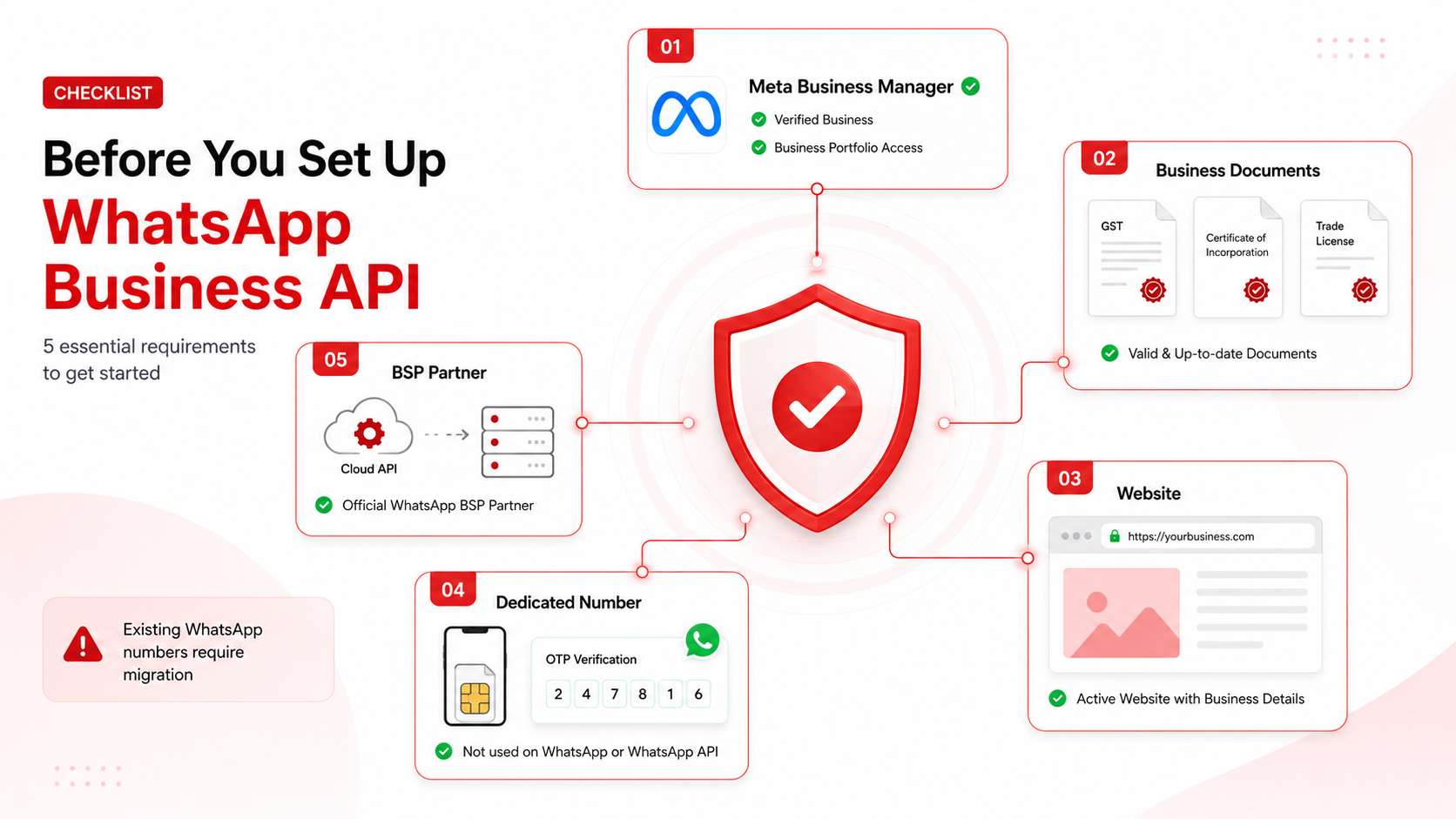
WhatsApp Business API setup itself does not take long. What slows most businesses down is starting the process without the right pieces in place. By the time something is missing midway, verification stalls, the number gets stuck, or the BSP has to wait on documents that should have been ready on day one.
The Basics to Sort First
- Meta Business Manager account that is active and ready to go through verification
- Registered business name that lines up exactly with official documents
- Website or active online presence Meta can actually verify against
- Dedicated phone number for the WhatsApp Business API
- BSP onboarded and ready to start the setup
The phone number piece trips most businesses up. Anything already running on personal WhatsApp or the Business App will not connect cleanly without going through migration first, and that is where a lot of WhatsApp Business API setups quietly lose a week or two.
Documents Indian Businesses Usually Submit
- GST registration
- Certificate of Incorporation
- MSME registration
- Shop Establishment Certificate
- Other PAN-linked business documents
Whichever document is used, the business name and address have to match across everything submitted. Otherwise the approval cycle keeps looping.
Without the BSP onboarded and ready, the process cannot move forward at all.
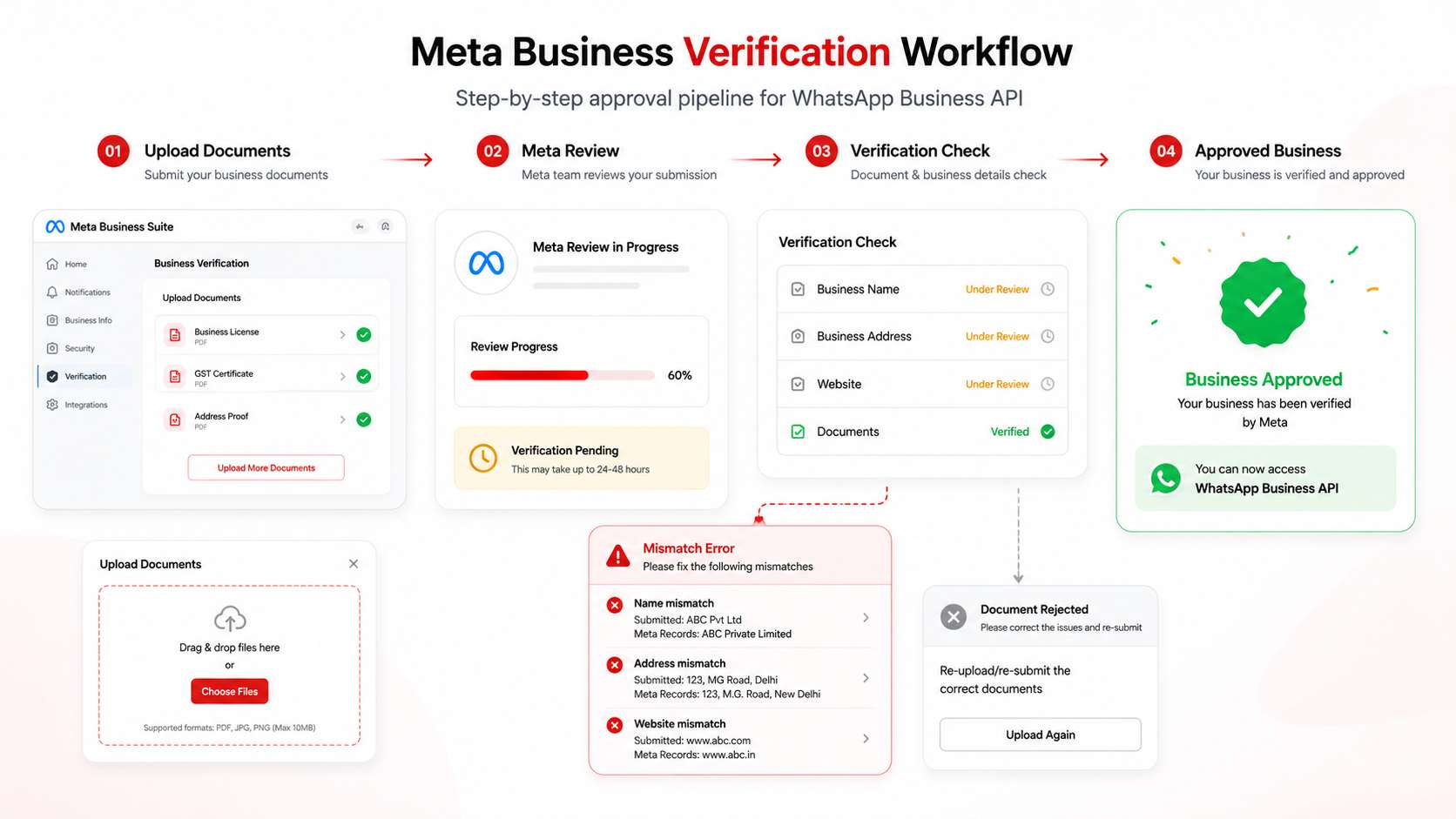
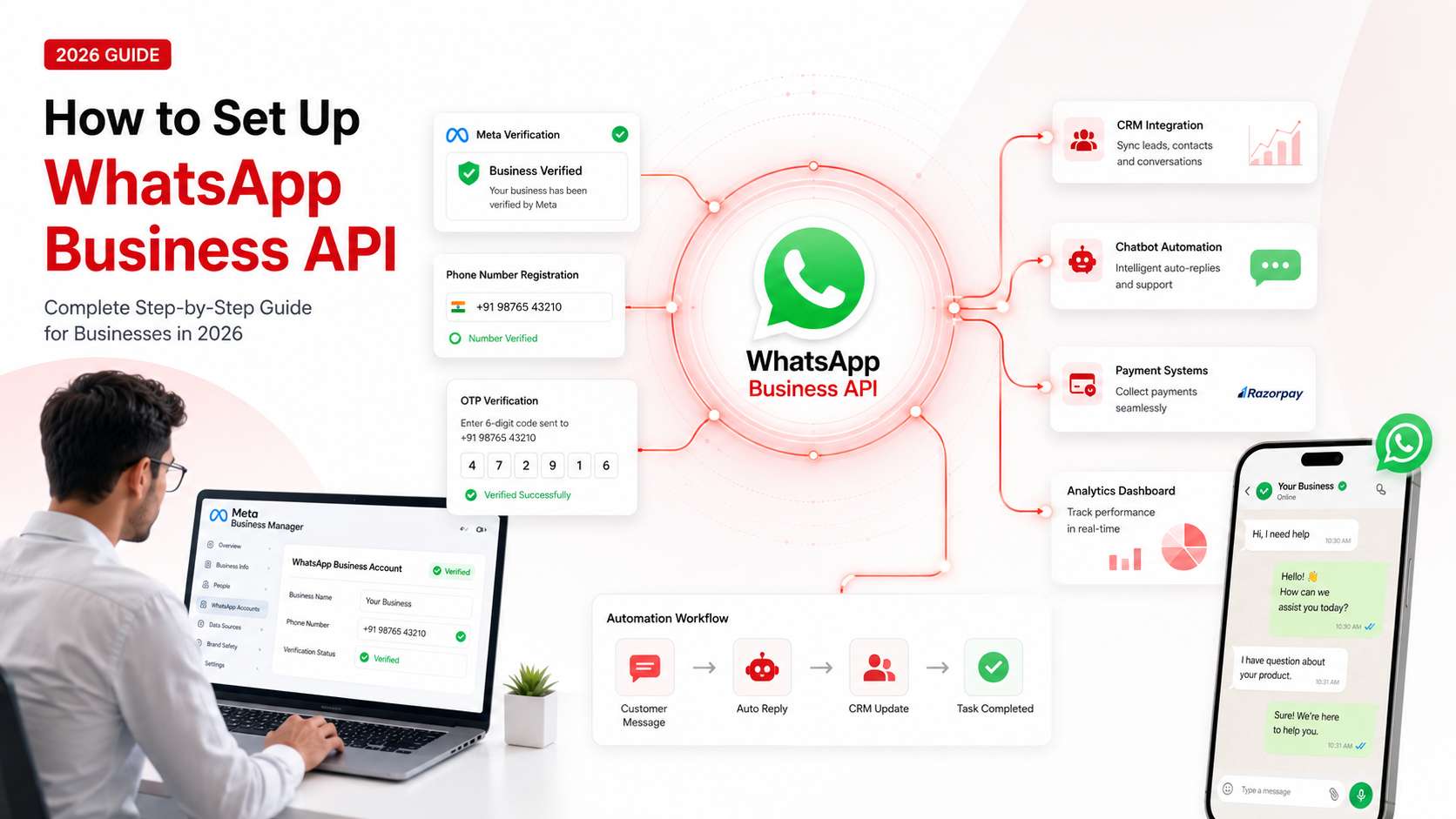
Step 1: Create or Verify Your Meta Business Manager Account
Everything in the WhatsApp Business API setup sits on top of one thing: your Meta Business Manager account. API access, billing, templates, business verification, it all runs through here.
If the account already exists, jump straight to checking whether it is verified. If verification has not happened yet, that becomes the next thing to clear before anything else moves.
What Meta Wants You to Submit
To prove the business is legitimate, Meta asks for a few official documents. For Indian businesses, the usual ones accepted are:
- GST registration certificate
- Certificate of Incorporation
- Business registration certificate
- A utility bill listed under the business name
Upload happens directly inside the Meta Business Manager dashboard. Approval typically lands in a few working days, though it stretches longer when something on the form does not match cleanly.
Where Verification Usually Falls Apart
This is the bit of WhatsApp Business API setup that quietly eats the most time. Every detail submitted, business name, address, phone number, website, has to read the same across the documents, the website, and the Meta account. One small mismatch is enough for Meta to reject the verification, and the whole cycle resets.
Sorting these details before hitting submit is usually the difference between a quick approval and weeks of back and forth.
Step 2: Choose a WhatsApp Business Solution Provider
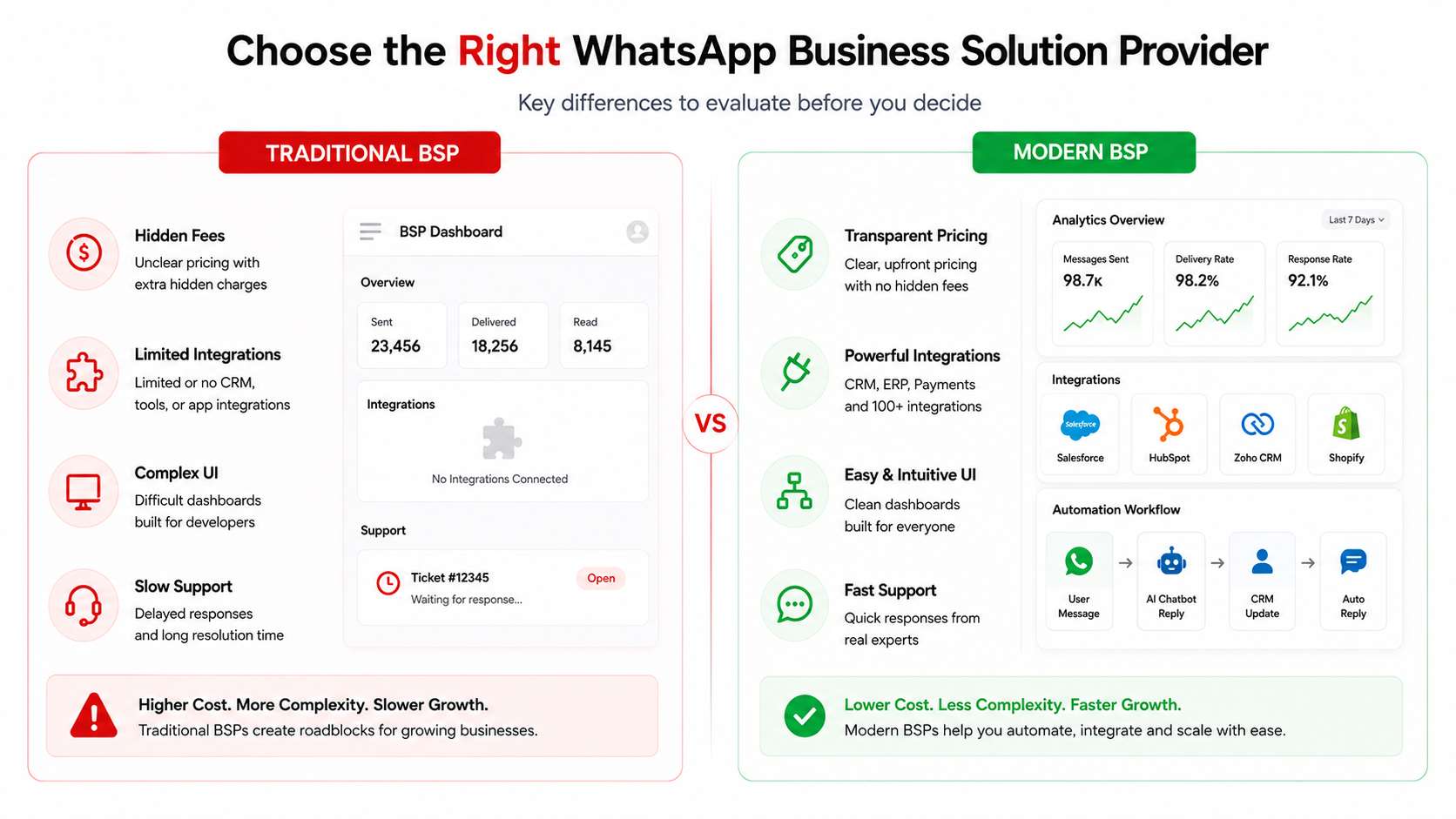
Businesses do not connect to the WhatsApp Business API directly. The setup runs through a Business Solution Provider, or BSP, which sits between Meta and the business and makes the API actually usable.
What a BSP Handles
- WhatsApp API access and onboarding
- Dashboard, automation, and chatbot builders
- CRM, ERP, and payment integrations
- Template approvals, analytics, and ongoing support
What to Look at Before Choosing One
- Transparent pricing. Some BSPs add a quiet markup on Meta's conversation rates. Always ask for a clean breakdown.
- India support. A BSP that understands DLT, regional language templates, and BFSI compliance moves faster than a global-only player.
- No-code dashboard. For teams without developers, the platform has to work without writing code.
- Integration depth. CRM, ERP, payment gateways. The deeper the integrations, the more useful WhatsApp becomes inside the business.
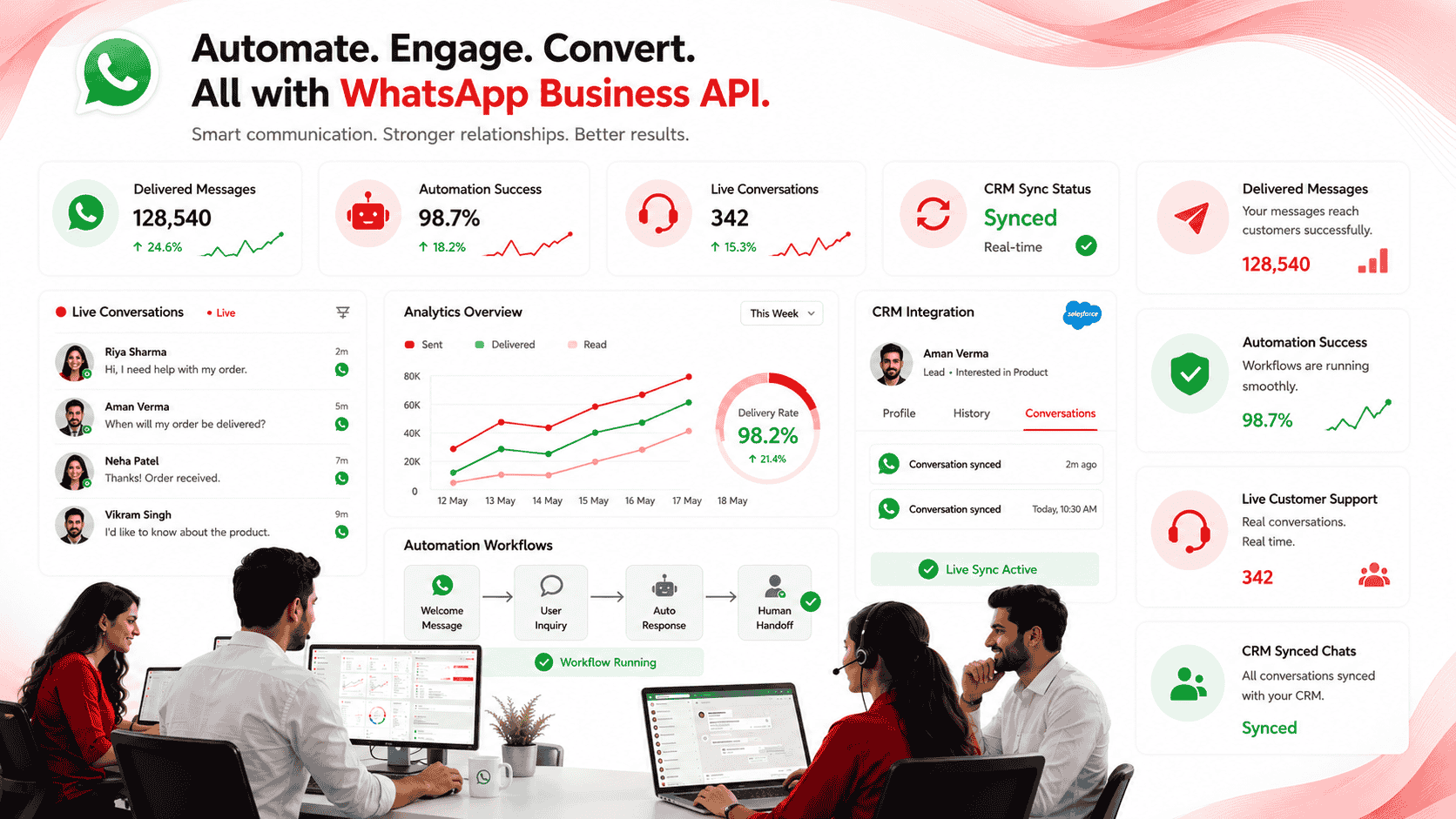
helo.ai is built for exactly this layer. WhatsApp Business API setup, automation, chatbot infrastructure, and enterprise communication tools run on one platform, with Meta's rates passed through directly and no hidden markup on top.

Step 3: Register Your Phone Number
The WhatsApp Business API needs a dedicated phone number. It cannot be a number already running on personal WhatsApp or the Business App, unless the business is going through migration first.
This is one of the most common WhatsApp Business API setup mistakes. Businesses try plugging in an existing WhatsApp number directly and get blocked halfway through the process.
Registration usually runs through the BSP. The number is submitted, Meta sends a verification code, the BSP closes out the verification, and the number gets connected to the API.
Display Name Rules
Along with the number, a display name has to be submitted. That is what customers see when a message from the business lands in their inbox. Meta is strict here:
- The display name should closely mirror the registered business name
- Generic terms get rejected
- All-caps and promotional wording are not allowed
When the details line up with the documents and the website, display name approval usually comes through in a day or two. When they do not, Meta rejects it and the business has to resubmit.
Step 4: Complete WhatsApp Business API Integration
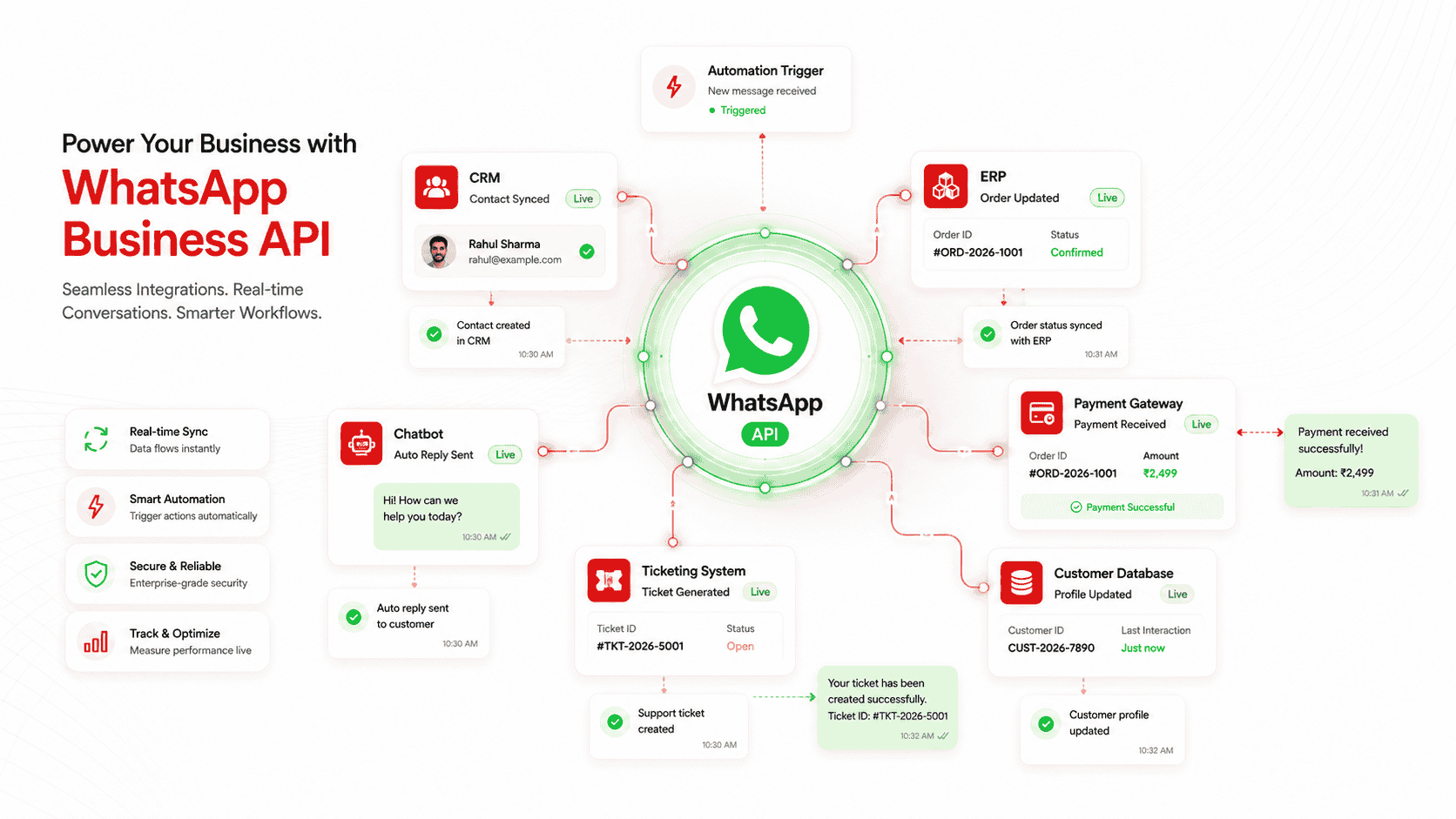
This is where the WhatsApp Business API setup stops being prep work and starts being operational.
Everything up to this point has been about getting access. Integration is where WhatsApp moves out of the inbox and into the way the business actually runs.
What the API Connects To
The WhatsApp Business API plugs into the systems the business is already running on:
- CRM platforms
- ERPs
- Ticketing systems
- Payment gateways
- Marketing automation tools
- Internal customer databases
Once connected, conversations stop sitting in isolation. Customer data shows up inside the chat. Workflows trigger on their own. Tickets open as the query comes in. Payments happen inside the conversation. Records update in real time.
.png)
For Technical and Non-Technical Teams
For engineering teams, integration usually means API configuration, authentication, and webhook setup. For teams without developers, most BSPs now offer no-code integration and automation builders that handle the heavy lifting without anyone writing code.
The India Piece : DLT Registration
For Indian businesses, this is also the stage where DLT registration becomes important. For transactional updates, reminders, and follow-up messaging tied to telecom compliance, getting DLT sorted early avoids problems down the line.
Step 5: Create and Submit Message Templates
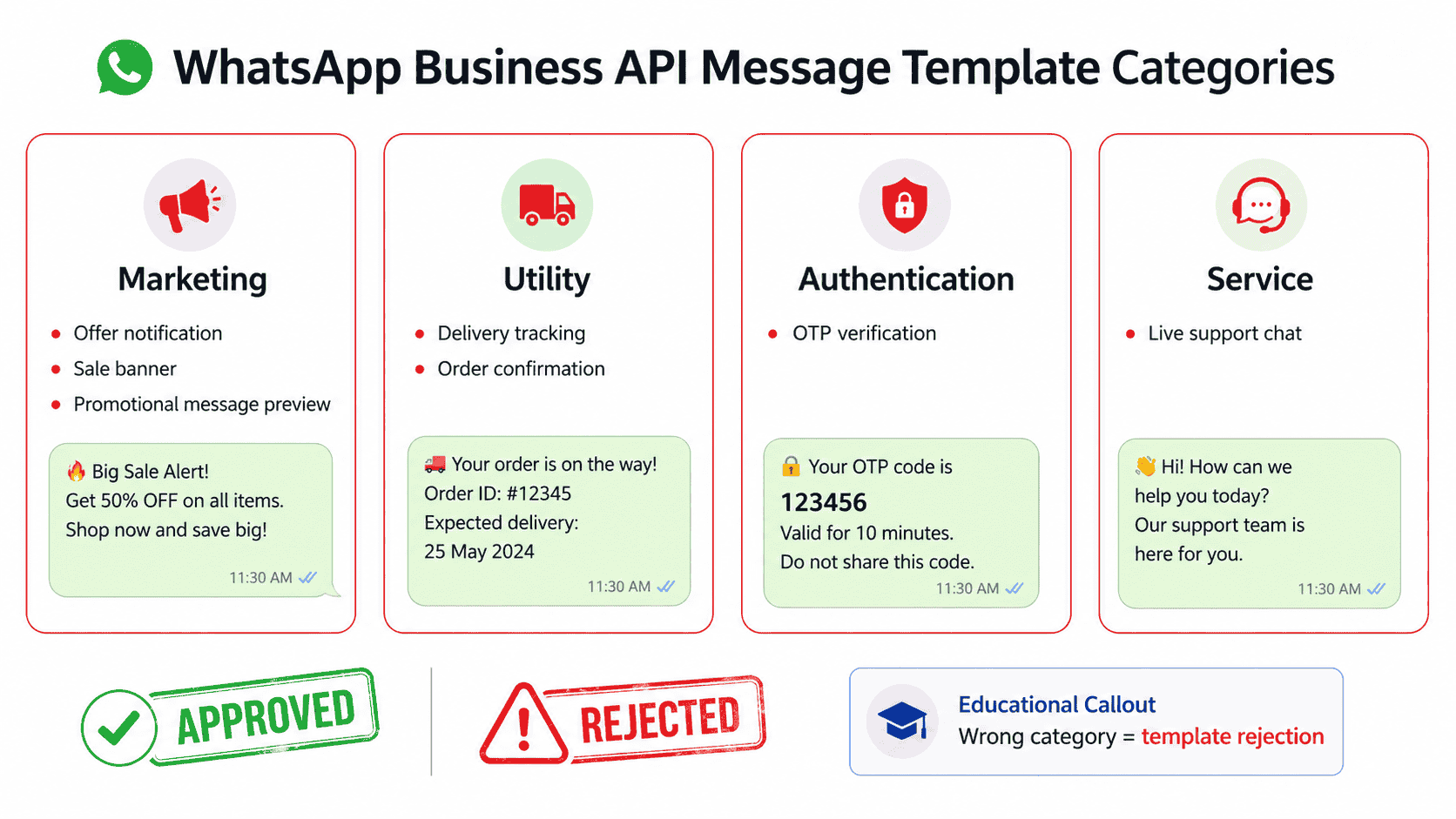
WhatsApp does not let businesses send outbound messages whenever they feel like it. Anything sent outside the active customer service window has to go through a pre-approved WhatsApp Business API template. Every template is reviewed by Meta before it goes live.
The Four Template Categories
Templates currently sit in four buckets:
- Marketing. Promotional campaigns, offers, product launches, reminders.
- Utility. Order updates, payment confirmations, delivery alerts.
- Authentication. OTPs and verification codes.
- Service. Customer-initiated conversations inside the active support window.
Templates are created and submitted through the BSP dashboard. Approval ranges from a few hours to a couple of days, depending on the category and the language.
Why Templates Get Rejected
Each category follows its own rules and its own pricing. Getting it right the first time saves the business from paying more than it should and from running the whole approval cycle twice.
Most rejections come down to two things:
- The template gets submitted under the wrong category
- The wording feels more promotional than the category allows
A utility template that reads like a sales pitch gets flagged almost instantly. The fix is simple. Keep templates short, match the wording to the category, and pick the right bucket before submitting.
Step 6: Test and Go Live
Before going live on the WhatsApp Business API setup, run a few proper test flows through the system first. Push test template messages out, trigger the automation journeys, check chatbot replies, verify integrations, and confirm delivery on real customer numbers.
This is the stage that catches what setup misses. Broken automation paths, failed CRM syncs, templates firing on the wrong triggers, chatbot flows that do not behave the way they were built to.
Once everything checks out, the business is officially live on the WhatsApp Business API.
From there, the dashboard takes over. Message sends, delivery tracking, customer responses, automation, analytics, reporting, all of it sits in one place.
Going live is the easy part. The real work begins after launch. Refining the flows, sharpening templates, and tuning automation based on how customers actually respond inside conversations.
WhatsApp Business API Setup: Common Mistakes to Avoid
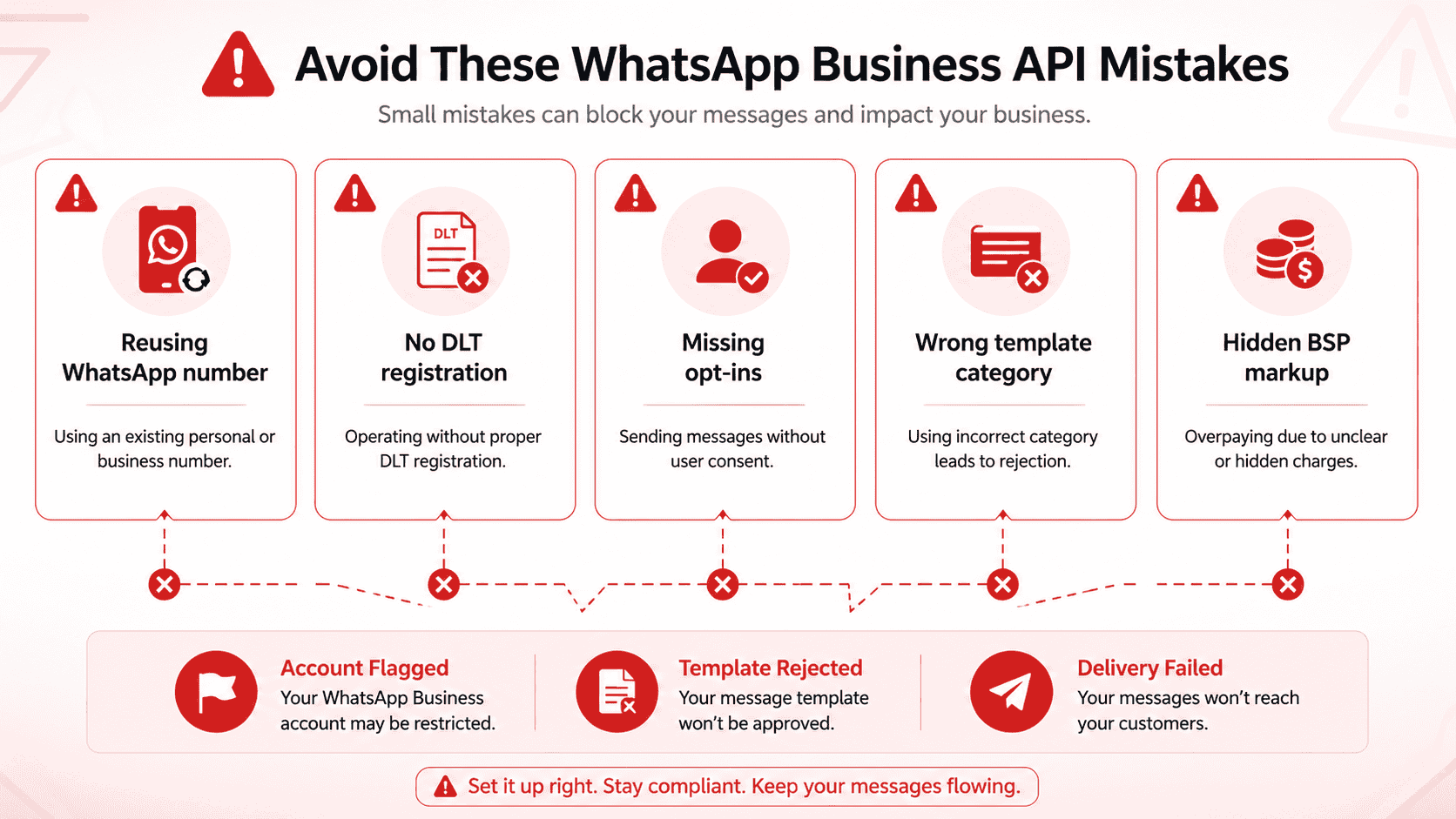
A few mistakes show up across most failed WhatsApp Business API setups, and nearly all of them are avoidable once businesses know where the process usually breaks.
- Using an existing WhatsApp number. The number connected to the WhatsApp Business API has to be dedicated. Trying to reuse a personal WhatsApp or Business App number without going through migration first stalls the whole setup midway.
- Skipping DLT registration in India. For regulated sectors and SMS-linked workflows, missing DLT registration creates compliance and delivery issues later. Most businesses only catch this once they are already live, which is the worst time to catch it.
- Not collecting customer opt-ins. Every customer receiving WhatsApp messages has to actively consent first. Buying lists or pushing outbound messages without proper opt-ins gets accounts flagged fast under Meta’s policies.
- Using unapproved templates. Outbound messages need pre-approved templates. Sending without approval, or pushing them through the wrong category, leads to delivery failures, rejected campaigns, and account warnings.
- Choosing a BSP with hidden markup. Some BSPs add their own markup on Meta’s conversation rates without flagging it clearly. At scale, that quietly inflates the monthly WhatsApp Business API cost well beyond what the business signed up for.
FAQs
How long does WhatsApp Business API setup take?
For most businesses, the setup takes anywhere between a few days to two weeks. Delays usually happen because of verification issues or display names getting rejected.
Do I need a developer to set up WhatsApp Business API?
Not necessarily. Most BSPs like helo.ai already handle the technical setup, and the workflows can usually be managed through a no-code dashboard.
Can I use my existing WhatsApp number for the API?
Not directly. The number has to be removed from regular WhatsApp or the WhatsApp Business App before it can move to the API.
What documents are needed for verification in India?
Usually GST registration, incorporation certificate, business registration certificate, or a utility bill. The details should match across the website and Meta account.
Is DLT registration mandatory in India?
DLT applies directly to SMS, but regulated industries usually handle it alongside WhatsApp setup because the workflows overlap heavily.
Do I need a green tick to use WhatsApp Business API?
No. The API works perfectly without it, though the green tick does improve trust and open rates noticeably.
Can I send bulk messages through the API?
Yes, but only through approved templates and to customers who have opted in to receive communication.
How much does WhatsApp Business API cost in India?
There are usually three layers involved: Meta conversation charges, BSP platform fee, and automation or chatbot costs on top.
Can I integrate WhatsApp API with my CRM?
Yes. Most WhatsApp Business API platforms support integrations with CRMs, payment gateways, and internal systems.
What happens to chat history when moving from the App to the API?
The chat history does not transfer during migration. Businesses usually plan the switch carefully before moving fully to the API.
What is the difference between WhatsApp Business App and WhatsApp Business API?
The App is built for small-scale manual communication. The API is built for automation, integrations, chatbots, and large-scale messaging.
Can I send promotional messages through the API?
Yes, but only through approved marketing templates and only to customers who have explicitly opted in.