

.png)


Let's be honest — reaching customers today feels like trying to shout across a stadium. Emails? They're drowning in spam folders. SMS? Feels ancient. But WhatsApp? That's where the magic is happening. WhatsApp offers an open rate of 98% along with a conversion rate of 45–60%, which is way higher than any other platform. That's not a typo. Nearly every single message you send on WhatsApp gets opened.
But here's the catch you can't just fire off messages willy‑nilly. You need predefined messages (i.e., templates) that are approved by Meta's team before you can start conversations with customers who haven't messaged you first. If you're scratching your head wondering what a WhatsApp message template even is, or how to create one that actually gets approved, you're in the right place.
In this massive guide, I'm going to walk you through absolutely everything from what a WhatsApp template is, to how to create one, to 50+ copy‑paste‑ready WhatsApp template message examples covering promotions, offers, broadcasts, onboarding, customer support, and more. Whether you need a WhatsApp business message template, a WhatsApp promotion message template, or a WhatsApp broadcast message template, I've got you covered. Let's dive in.
What Is a WhatsApp Message Template?
Think of a WhatsApp message template as a pre‑written letter that Meta (WhatsApp's parent company) has stamped "approved" before you send it. A WhatsApp template message, also known as a highly structured message (HSM), is a pre-built standardized message that you can reuse for your WhatsApp campaigns.
Templates can be text‑only or include media, like images, videos, documents, and action buttons. You can personalize your templates by adding variables that will adjust based on the user's demographics, order details, or any other factor.
In simple terms, imagine you run an online store. When someone places an order, you want to automatically send them a confirmation on WhatsApp. You can't manually type that for every customer. Instead, you create a template for WhatsApp message like:
"Hi {{1}}, your order #{{2}} has been confirmed! Track it here: {{3}}." |
Those {{1}}, {{2}}, and {{3}} are variables — placeholders that get filled in automatically with the customer's name, order number, and tracking link. Pretty slick, right?
Template messages are the only type of message brands can send to customers who haven't sent them a WhatsApp message first, or haven't sent them a WhatsApp message over the previous 24 hours. This means that you don't need a template to respond to customers who messaged you first, provided you don't miss the 24‑hour window to do so.
Why Do You Need WhatsApp Business Message Templates?
You might be thinking, "Can't I just text my customers normally?" Well, not exactly. Here's why WhatsApp business message templates are non‑negotiable:
1. The 24‑Hour Rule
Templates are required to start a conversation with a customer who hasn't written to you in the last 24 hours (or ever). If that window closes and you haven't replied, or you want to reach out proactively, you *must* use an approved template.
2. Scale Without Spam
Because Meta wants to protect the end user experience, it requires every mass message to be submitted for approval before it can be sent. This keeps the ecosystem clean and ensures customers aren't bombarded with junk.
3. Insane Engagement
With a click-through rate ranging from 45–60% — five times that of emails and SMS — WhatsApp is the trusty digital bridge linking you to your customers. No other channel even comes close.
4. Versatility Across Industries
WhatsApp message templates can be adapted for various industries. For instance, they can be used by educational institutions for course updates, by healthcare providers for appointment reminders, or by travel agencies for itinerary notifications. The versatility of these templates makes them suitable for a wide range of businesses.
The Three Categories of WhatsApp Templates
Before you create any WhatsApp template message, you need to understand the three Meta‑approved categories. WhatsApp requires you to classify all message templates into one of three specific categories that determine pricing and approval requirements. Getting this right is crucial choosing the wrong category is the #1 reason templates get rejected.
Marketing Templates
Marketing: Send promotional offers, product announcements, and more to increase awareness and engagement. This is your go‑to category for any WhatsApp promotion message template or WhatsApp offer message template. Flash sales, seasonal discounts, new product launches, loyalty rewards, re‑engagement campaigns all fall under marketing.
Important 2026 Update: Starting April 1, 2025, Meta paused brands' ability to send WhatsApp marketing template messages to US‑based phone numbers. Utility, authentication, and responses during a 24‑hour customer service window will still be allowed. So if you're targeting US audiences, take note.
Utility Templates
Utility: Share important information related to a specific, agreed-upon transaction and accomplish one of the following: confirm, suspend, or change a transaction or subscription. Think order confirmations, shipping updates, appointment reminders, payment receipts — the nuts‑and‑bolts WhatsApp text message templates that keep customers informed.
Authentication Templates
Authentication: Authenticate users with one-time passcodes. Meta determines the body text and you cannot change it. These are your OTP and verification code templates. Short, sweet, and locked down by Meta for security.
Pro Tip: Meta will classify any template that has a mix of utility and marketing content as a marketing template. So if your "order update" sneaks in a promo code, it's getting reclassified — and it'll cost you more. |
How to Create a WhatsApp Message Template (Step‑by‑Step)
Ready to build your first message template for WhatsApp? Let's walk through it.
Step 1: Log In to Your Helo Broadcast Account
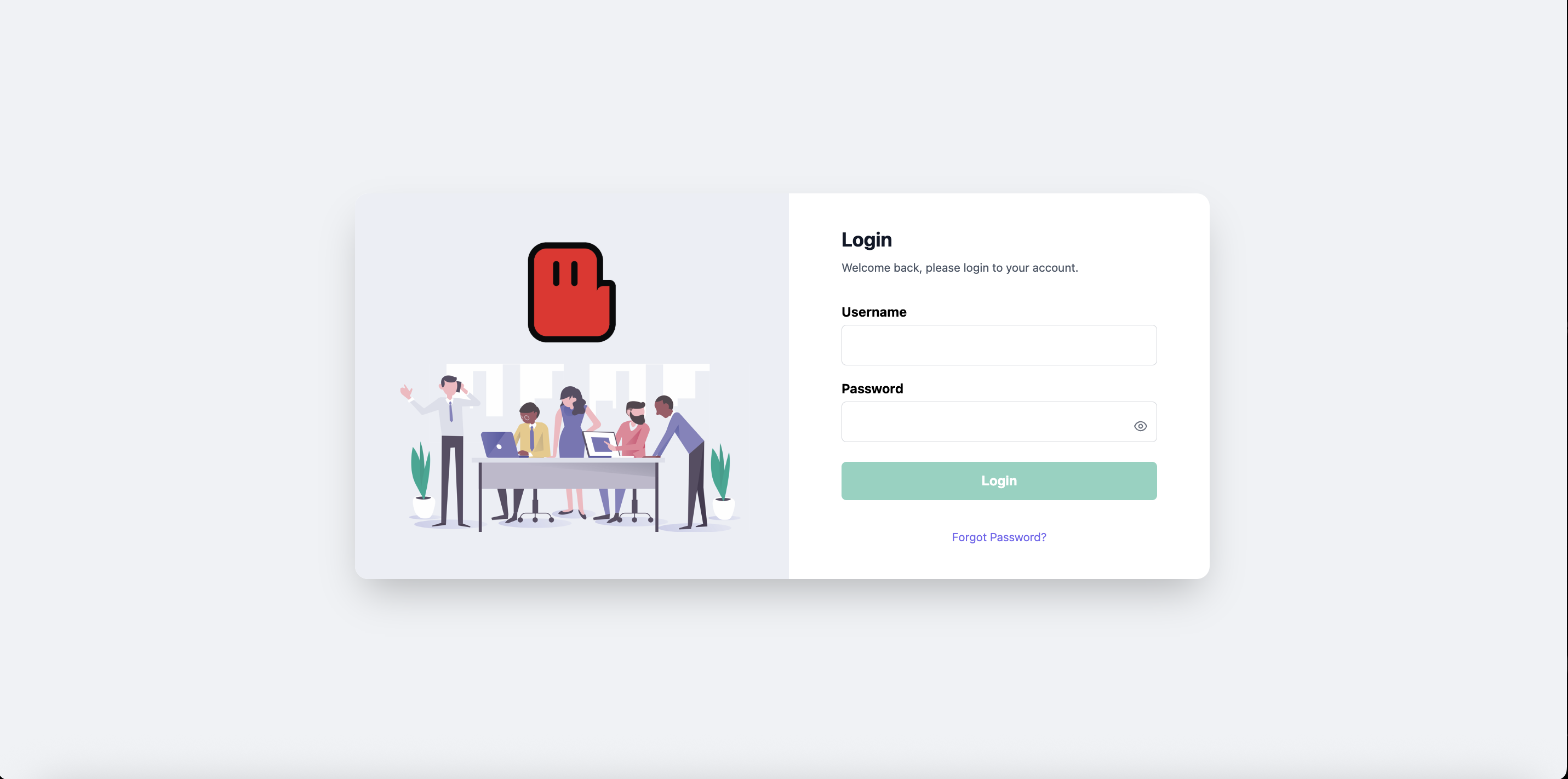
Getting started is simple. Head to the Broadcast platform and log in with your username and password. First-time users can Contact to the helo.ai team to get their account provisioned. Once inside, you'll have full access to the Campaigns, Templates, Analytics dashboards and more.
Step 2: Go to the WhatsApp Templates Section
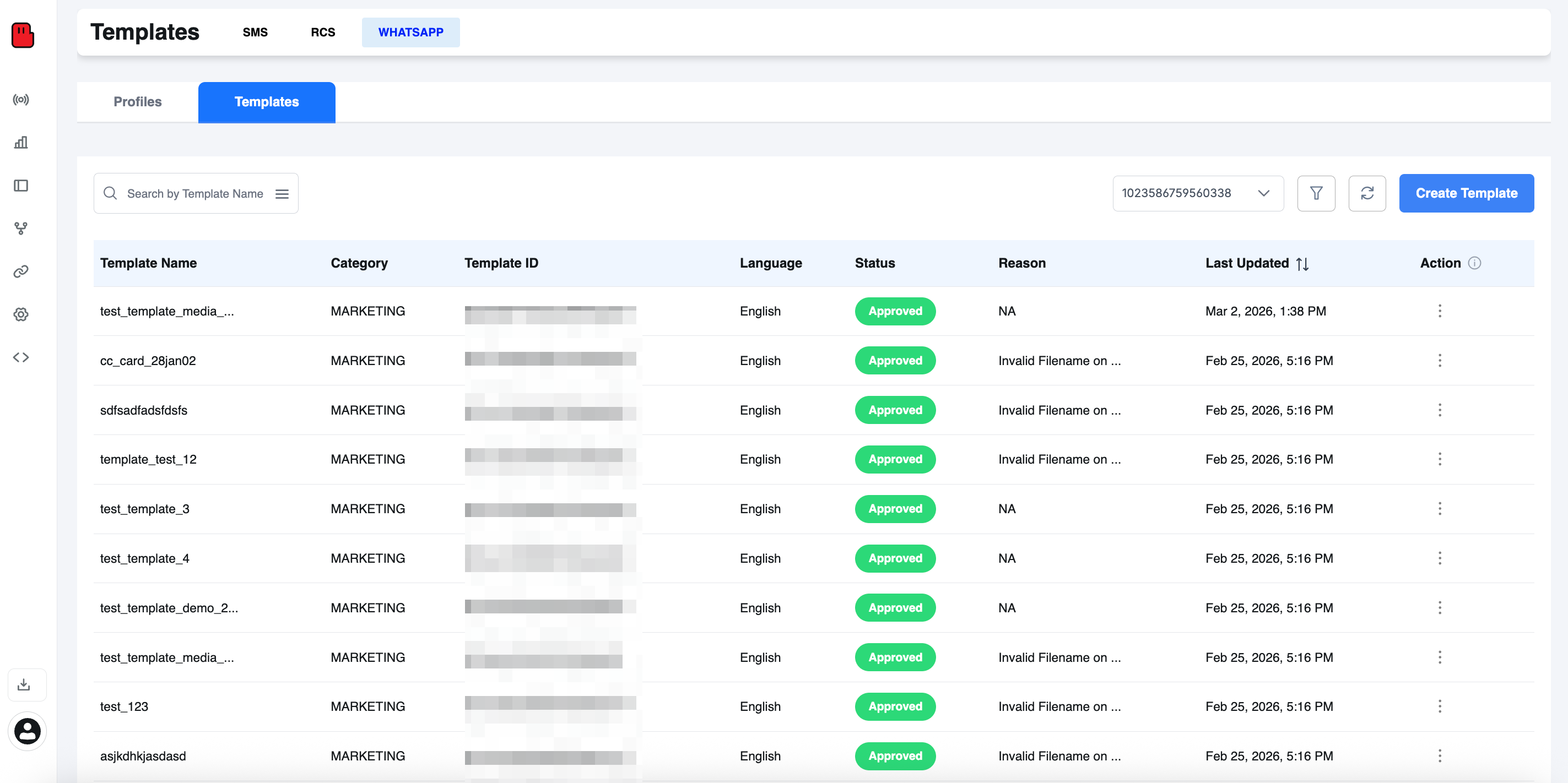
- Click on Templates from the left-hand menu.
- Select the WHATSAPP tab.
- Click on the Create Template button (top right corner).
Here you can also:
- View existing templates
- Check template status (Approved, Pending, Rejected)
- See category and language
Tip: The WhatsApp template dashboard allows you to manage all your approved and pending message templates in one place.
Step 3: Enter Basic Template Details
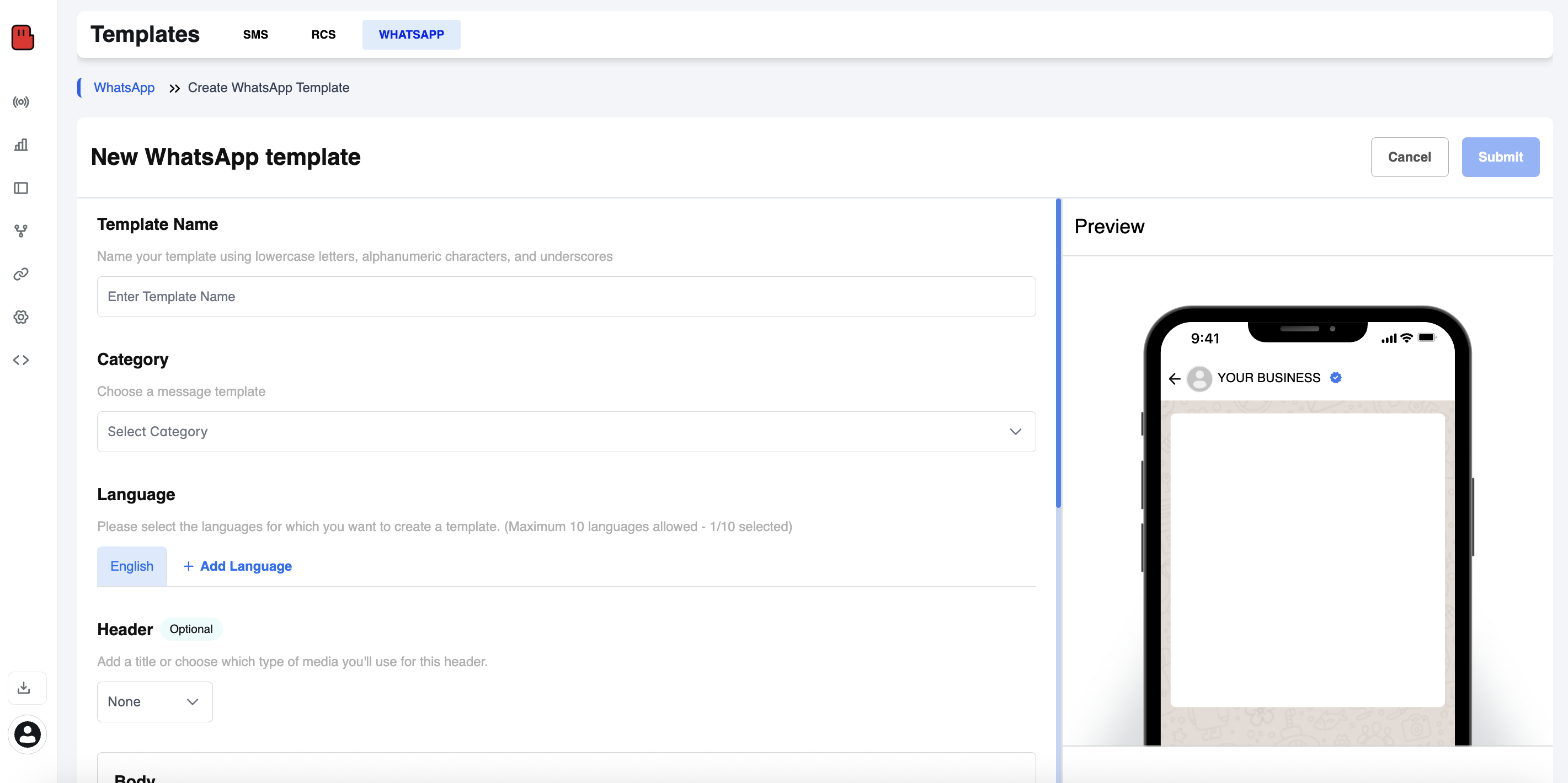
After clicking Create Template, you’ll land on the template creation screen.
Fill in the following details:
Template Name
- Use only lowercase letters, numbers, and underscores
- Example: order_confirmation_v1
- This name is for internal reference
Category
Choose the correct category:
- Marketing – Promotions, offers, campaigns
- Utility – Order updates, reminders, confirmations
- Authentication – OTP and verification messages
Choosing the correct category improves approval chances.
Language
- Select the language of your template
- You can add multiple languages if needed
Step 4: Add Message Content (Header, Body, Buttons)
.png)
This is where you design your WhatsApp message.
Header (Optional)
You can add:
- Text header
- Image
- Video
- Document
Headers make marketing templates more engaging.
Body (Required)
This is the main message content.
- Write clear and concise text
- Use variables for personalization
Example:
Hi {{1}}, your order {{2}} has been shipped and will arrive on {{3}}. |
Variables allow you to send personalized WhatsApp messages at scale.
Footer (Optional)
- Add small supporting text
- Example: "Reply STOP to unsubscribe"
Call-to-Action / Reply Buttons (Optional)
You can add:
- Website button
- Call button
- Quick reply buttons
Buttons increase customer engagement and response rates.
Step 5: Preview and Submit for Approval
Before submitting:
- Check the live preview on the right side
- Make sure formatting looks correct
- Verify variables are properly placed
Click Submit.
Your template will now go for Meta (WhatsApp) approval.
Approval Time
- Usually takes a few minutes to 48 hours
- Status can be checked in the Templates dashboard
Once approved, you can:
- Go to Broadcast → Campaigns
- Click New Campaign
- Select your approved WhatsApp template
- Send it to your audience
WhatsApp Template Approval: Tips to Get Approved Fast
Getting rejected is frustrating. Here's how to avoid it based on the most common rejection reasons:
1. Choose the Correct Category
Incorrect category selection is the most common reason why templates are rejected. Don't try to sneak promotional content into a utility template.
2. Never Start or End with a Variable
Because placeholders can resolve to many words, WhatsApp does not allow a placeholder at the beginning or end of the message. Such placement results in automatic rejection.
3. Provide Sample Values
For each template, you must provide examples of what will go into that template. If you say an image will be included in that template, you must provide a demo image.
4. Avoid Duplicate Content
Duplicate templates with identical body or footer text are automatically rejected, except when categorized as authentication templates.
5. Keep It Clean and Compliant
Focus on clear, honest communication that provides genuine value to recipients. Use appropriate categories, avoid promotional language in utility templates, include clear business identification, and ensure all placeholders make sense in context.
6. Watch the Variable Formatting
Variable parameters are missing or have mismatched curly braces. The correct format is {{1}}. Variable parameters contain special characters such as a #, $, or %. Variable parameters are not sequential. For example, {{1}}, {{2}}, {{4}}, {{5}} are defined but {{3}} does not exist.
50+ WhatsApp Template Message Examples (Copy‑Paste Ready)
Here's the goldmine. I've organized these WhatsApp template message examples by category so you can find exactly what you need, copy it, tweak the variables, and submit for approval.
Welcome & Onboarding Templates
These WhatsApp business message templates are your first impression. Make them count.
1. Simple Welcome
"Hi {{1}}, welcome to [Brand Name]! 🎉 We're thrilled to have you. Browse our latest collection here: {{2}}"
2. Welcome with Discount
"Hello {{1}}! Thanks for signing up with [Brand Name]. Here's a special 15% off your first purchase — use code: {{2}}. Shop now: {{3}}"
3. Onboarding Guide
"Hi {{1}}, welcome aboard! Here's a quick-start guide to help you make the most of [Product/Service]: {{2}}. Questions? Just reply here!"
4. Account Activation
"Hi {{1}}, your [Brand] account is now active! Log in here: {{2}}. Need help getting started? Reply HELP."
5. Referral Welcome
"Hey {{1}}, {{2}} referred you to [Brand Name]! As a welcome gift, here's {{3}}% off your first order. Claim it: {{4}}"
6. VIP Greeting
"Welcome to the VIP circle, {{1}}! 🌟 You now get exclusive early access and special perks. Check what's waiting for you: {{2}}"
WhatsApp Promotion Message Templates & Offer Templates
These are your revenue drivers — every WhatsApp offer message template and WhatsApp promotion message template you'll ever need.
7. Flash Sale
"⚡ FLASH SALE, {{1}}! Get up to 50% off on {{2}} for the next 24 hours only. Don't miss out: {{3}}"
8. Birthday Offer
"Happy Birthday, {{1}}! 🎂 Here's a gift from us — enjoy {{2}}% off everything today. Use code: {{3}}. Celebrate in style: {{4}}"
9. Seasonal Promotion
"{{1}}, the festive season just got better! 🎁 Enjoy up to 70% off on {{2}}. Offer ends {{3}}. Shop now: {{4}}"
10. Limited‑Time Coupon
"Hi {{1}}, we have an exclusive offer just for you! Use code {{2}} to get {{3}}% off. Valid until {{4}}. Grab it: {{5}}"
11. Abandoned Cart Recovery
"Hey {{1}}, looks like you left {{2}} in your cart! Complete your purchase now and enjoy free shipping. Checkout here: {{3}}"
12. Loyalty Reward
"Congratulations {{1}}! 🎉 You've earned {{2}} loyalty points. Redeem them for exciting rewards here: {{3}}"
13. New Product Launch
"{{1}}, something exciting just dropped! 🚀 Introducing {{2}} — be among the first to try it. Learn more: {{3}}"
14. Bundle Deal
"Hi {{1}}, buy {{2}} and get {{3}} absolutely free! Limited stock available. Order now: {{4}}"
15. Referral Bonus
"{{1}}, share the love! Refer a friend and you both get {{2}} off your next purchase. Share your link: {{3}}"
16. Clearance Sale
"Last chance, {{1}}! 🔥 Our clearance sale ends {{2}}. Grab your favorites at up to 60% off: {{3}}"
WhatsApp Broadcast Message Templates
Perfect for newsletters, announcements, and mass updates — your essential WhatsApp broadcast message template collection.
17. Weekly Newsletter
"Hi {{1}}, here's your weekly roundup from [Brand]! 📰 Top stories and deals this week: {{2}}. Read more: {{3}}"
18. Event Announcement
"{{1}}, you're invited! 🎉 Join us for {{2}} on {{3}} at {{4}}. Reserve your spot: {{5}}"
19. Product Restock Alert
"Great news {{1}}! {{2}} is back in stock and selling fast. Get yours before it's gone: {{3}}"
20. Company Update
"Hi {{1}}, exciting news from [Brand]! {{2}}. Read the full update: {{3}}"
21. Content Promotion
"{{1}}, we just published a new guide: '{{2}}.' We think you'll love it! Read here: {{3}}"
22. Survey/Feedback Broadcast
"Hi {{1}}, we value your opinion! 📝 Help us improve by completing this quick 2‑minute survey: {{2}}. Thank you!"
Order & Shipping Notification Templates
These WhatsApp text message templates handle the transactional backbone of your business.
23. Order Confirmation
"Hi {{1}}, your order #{{2}} has been confirmed! 🛒 Estimated delivery: {{3}}. Track your order: {{4}}"
24. Shipping Update
"{{1}}, your order #{{2}} has been shipped! 📦 It's on its way and should arrive by {{3}}. Track it: {{4}}"
25. Out for Delivery
"Almost there, {{1}}! Your package #{{2}} is out for delivery today. Keep your phone handy! Track: {{3}}"
26. Delivery Confirmation
"Hi {{1}}, your order #{{2}} has been delivered! 🎉 We hope you love it. Need help? Reply here or visit: {{3}}"
27. Refund Processed
"Hi {{1}}, your refund of {{2}} for order #{{3}} has been processed. It should reflect in your account within {{4}} business days."
28. Payment Reminder
"Hi {{1}}, a friendly reminder that your payment of {{2}} for invoice #{{3}} is due on {{4}}. Pay securely here: {{5}}"
29. Subscription Renewal
"Hi {{1}}, your {{2}} subscription is up for renewal on {{3}}. Renew now to keep enjoying uninterrupted access: {{4}}"
Customer Support & Utility Templates
Every message template for WhatsApp you need to provide stellar customer service.
30. Appointment Reminder
"Hi {{1}}, this is a reminder for your appointment with {{2}} on {{3}} at {{4}}. Reply CONFIRM or RESCHEDULE."
31. Support Ticket Created
"Hi {{1}}, your support ticket #{{2}} has been created. Our team will get back to you within {{3}} hours. Thanks for your patience!"
32. Issue Resolved
"Great news {{1}}! Your issue (ticket #{{2}}) has been resolved. If you need further help, simply reply to this message."
33. Feedback Request
"Hi {{1}}, how was your recent experience with [Brand]? Rate us from 1 to 5 by replying with a number. Your feedback means the world to us! ⭐"
34. FAQ Auto‑Reply
"Hi {{1}}, thanks for reaching out to [Brand]! Our team will respond shortly. Meanwhile, check our FAQ for instant answers: {{2}}"
35. Holiday/Office Closure Notice
"Hi {{1}}, [Brand] will be closed from {{2}} to {{3}} for the holidays. For urgent matters, email us at {{4}}. Happy Holidays! 🎄"
Re‑engagement & Win‑Back Templates
Bring dormant customers back with these powerful template for WhatsApp message designs.
36. We Miss You
"Hi {{1}}, it's been a while! We miss you at [Brand]. Here's an exclusive {{2}}% off just for you. Come back and explore: {{3}}"
37. Browse Abandonment
"{{1}}, still thinking about {{2}}? It's waiting for you! Plus, we're offering free shipping for the next {{3}} hours: {{4}}"
38. Inactive Customer Offer
"{{1}}, we haven't seen you in a while and wanted to check in. Here's a special welcome‑back offer: {{2}} off your next order. Shop: {{3}}"
39. Cart Recovery with Urgency
"Hi {{1}}, your cart is about to expire! {{2}} is still available, but stock is running low. Complete your order now: {{3}}"
40. Win-Back Survey
"Hi {{1}}, we noticed you haven't visited us recently. We'd love to know how we can improve. Quick survey (1 min): {{2}}"
Authentication & OTP Templates
41. Standard OTP
"Your [Brand] verification code is {{1}}. Do not share this code with anyone. It expires in {{2}} minutes."\
42. Login Verification
"Hi {{1}}, a login attempt was detected on your [Brand] account. Your security code is {{2}}. If this wasn't you, contact support immediately."
43. Password Reset
"Hi {{1}}, we received a request to reset your [Brand] password. Use this link to set a new one: {{2}}. This link expires in {{3}} minutes."
Advanced Templates with Buttons & Media
Take your template messages WhatsApp game to the next level with rich media and interactive buttons.
44. Product Promo with Image + CTA
Header: [Product Image] "{{1}}, check out our newest arrival — {{2}}! Limited edition, limited time." Button: [Shop Now → {{3}}]
45. Catalog Browse
"Hi {{1}}, explore our full collection right here on WhatsApp!" Button: [View Catalog]
46. Quick Reply Template
"Hi {{1}}, how can we help you today?" Quick Replies: [🛒 Track Order] [💬 Talk to Agent] [📋 Browse Products]
47. Video Promo
Header: [Promotional Video] "{{1}}, watch how {{2}} can transform your daily routine!" Button: [Order Now → {{3}}]
48. Contest Entry
"Hi {{1}}, our giveaway is live! 🎁 Win a free {{2}}. Enter now by tapping below:" Button: [Enter Giveaway → {{3}}]
49. Limited‑Time Offer with Expiry
Header: [Offer Image] "{{1}}, hurry! This exclusive {{2}}% off deal expires on {{3}}." Button: [Claim Offer → {{4}}] | Copy Code: {{5}}
50. Feedback with Quick Reply
"Hi {{1}}, thanks for choosing [Brand]! How would you rate your experience?" Quick Replies: [⭐ Excellent] [👍 Good] [👎 Needs Improvement]
WhatsApp Message Template Best Practices for 2026
Having 50+ templates is great, but using them effectively is what separates amateurs from pros. Here are battle‑tested best practices:
Personalize Everything: Don't just use {{1}} for the name. Map variables to order IDs, product names, specific dates — the more personalized, the better the engagement.
Keep It Concise: Nobody reads essays on WhatsApp. Get to the point fast, put the most important info first, and use line breaks for readability.
Use Emojis Sparingly: A couple of emojis add warmth and catch the eye. Too many look spammy and can trigger rejections.
Always Include a CTA: Every message should tell the recipient what to do next — shop, confirm, reply, track. Include a clear call to action in every message. Prompt your customers to take the desired next step.
Respect Opt‑In: Explicit opt-in is mandatory for initiating any WhatsApp conversation. Never send templates to people who haven't consented.
Monitor Quality Ratings: Template statuses (like "Active - Low Quality" or "Paused") reflect customer feedback. Monitor these statuses to ensure you're only sending high-quality, well-received templates. If your template receives negative feedback or low engagement, it may be paused automatically to protect the quality rating of your phone numbers.
Common Mistakes That Get Your WhatsApp Templates Rejected
Let's save you the headache. Here's what not to do:
Formatting errors (mismatched variables, dangling placeholders), wrong category selection (marketing vs utility confusion), vague content that looks spammy, prohibited links (shorteners, wa.me URLs), and policy violations are the most common culprits.
Avoid These Specifically:
- Requesting sensitive data: Content that requests sensitive identifiers, such as full credit card numbers, bank details or government IDs will get instantly rejected.
- Threatening language: Content that is potentially abusive or threatening, such as threatening a customer with legal action or threatening to publicly shame them is a hard no.
- Category gaming: Starting April 9, 2025, Meta may automatically update a template's category (example: utility → marketing). They're watching, and miscategorization leads to reclassification or rejection.
- Template hoarding: Most businesses operate effectively with 20–50 templates covering their primary communication needs. Quality and relevance matter more than quantity.
WhatsApp Template Pricing: What You Need to Know in 2026
Pricing changed significantly at the start of 2026. Meta announced important updates regarding WhatsApp Business API pricing. The revised WhatsApp per message pricing became effective starting January 1, 2026.
Here's the quick breakdown:
- Marketing – Promotions, offers, reminders. Utility – Order updates, payment reminders, delivery info. Authentication – OTPs and account verification. Service – User-initiated support conversations. Each category has its own pricing model based on the recipient's country.
- Service and utility messages sent within an active 24-hour customer service window are free.
- Marketing templates are considered promotional content and are priced higher to encourage businesses to focus on valuable customer communications rather than spam. Utility templates provide essential service information and are priced lower to support necessary business communications.
The bottom line? Choose your categories wisely — it's not just about approval anymore, it directly impacts your wallet.
Conclusion
If there's one thing you take away from this guide, let it be this: WhatsApp message templates are the backbone of modern business communication. With nearly 98% open rates, unmatched CTR, and the ability to personalize at scale, they're unlike any other marketing channel available today.
Whether you're crafting a WhatsApp business message template for onboarding, a WhatsApp promotion message template for your flash sale, an WhatsApp offer message template for loyal customers, or a WhatsApp broadcast message template to reach your entire list — the templates above give you a massive head start.
Remember: get your categories right, keep your formatting clean, personalize with variables, respect opt‑in consent, and always deliver genuine value. Do that, and you won't just get approved by Meta — you'll win the hearts (and wallets) of your customers.
Now go copy those templates, submit them for approval, and start crushing it on WhatsApp! 🚀
FAQs About WhatsApp Message Templates
1. What exactly is a WhatsApp message template?
WhatsApp Business message templates are pre-approved message formats used by businesses to initiate conversations with customers, especially when the 24-hour customer service window has closed. These templates are crucial for sending notifications, reminders, or information outside of active conversations, and must be approved by Meta before use.
2. How long does WhatsApp template approval take?
after you submit a template, WhatsApp typically approves or rejects it within minutes through a machine-learning assisted process. However, more complex or manually reviewed templates can take up to 48 hours. Always submit templates well in advance of when you need them.
3. Can I edit a WhatsApp template after it's been approved?
Templates can't be edited after submission or after sending. If you need changes, you'll have to create a brand new template, submit it for approval, and then delete the old one. WhatsApp prevents reuse of the same template name for 30 days.
4. How many WhatsApp templates can my business have?
The number of WhatsApp message templates a business can use depends on its verification status: Unverified businesses can have up to 250 templates per WhatsApp Business Account (WABA), while verified businesses can have up to 6,000 templates.
5. What happens if my WhatsApp template gets rejected?
If your template is rejected, WhatsApp will typically provide a reason for the rejection. You can make the necessary adjustments to the template and resubmit it for review. Common fixes include correcting variable formatting, choosing the right category, removing prohibited content, and ensuring your template isn't a duplicate. When a template is rejected, you can edit the content based on feedback and resubmit for approval. Appeals with sample variable values and clear context help Meta reviewers reconsider faster.


.png&w=828&q=75)