


Your customers are already messaging brands, asking questions, and buying or booking via WhatsApp. If you’re still using your personal WhatsApp number for business, you’re mixing personal and professional, risking slow replies, lost chats, and a less-professional image.
In this blog, I will walk you through exactly how to set up a WhatsApp Business account, why it’s worth doing, and how you can get started today—no tech skills needed. By the end, you will have a working account and the confidence to use it well.
What is WhatsApp Business
A version of WhatsApp designed for business: it looks like the normal chat app but gives you tools for business (a profile with business info, quick replies, and catalogues).
This helps you separate personal from business chats, appear more professional, and manage customer conversations more effectively.
Why it matters:
- Customers expect brands to respond quickly and be reachable where they chat. Having a business profile helps you meet that expectation.
- Brands with clear business profiles and fast replies build trust.
- For small shops, freelancers, and service providers: this gives you a simple way to talk to customers, show your offerings, and stay organized.
WhatsApp vs. WhatsApp Business: What is the Difference?
.png&w=3840&q=75)
Feature | WhatsApp (Normal Account) | WhatsApp Business |
Main Purpose | Talk with family and friends. | Talk with customers and clients. |
Profile | Name, picture, and a simple "About" section. | Full business profile (address, description, email, website, hours). |
Product Showcase | Not available. | Product Catalogue lets you show your items. |
Quick Replies | Not available. | Use saved messages to answer common questions fast. |
Automated Messages | Not available. | Send greeting messages to new customers. Send away messages when you are closed. |
Chat Organization | Simple chat list. | Use labels (tags) to sort chats. Example: "New Customer" or "Pending Order." |
Messaging Stats | Not available. | See basic reports like how many messages were sent and read. |
Blue Checkmark | Not available. | Eligible businesses can get a verified badge (Blue Tick). |
Short Link | Not available. | Create a simple link for people to start a chat right away. |
Read Complete Comparison: difference between WhatsApp Business App and API
How to Create a WhatsApp Business Account Step-by-Step (for Everyone)
Here’s a detailed walkthrough, with explanations of why each step matters and how to do it correctly.
Step 1: Download the App
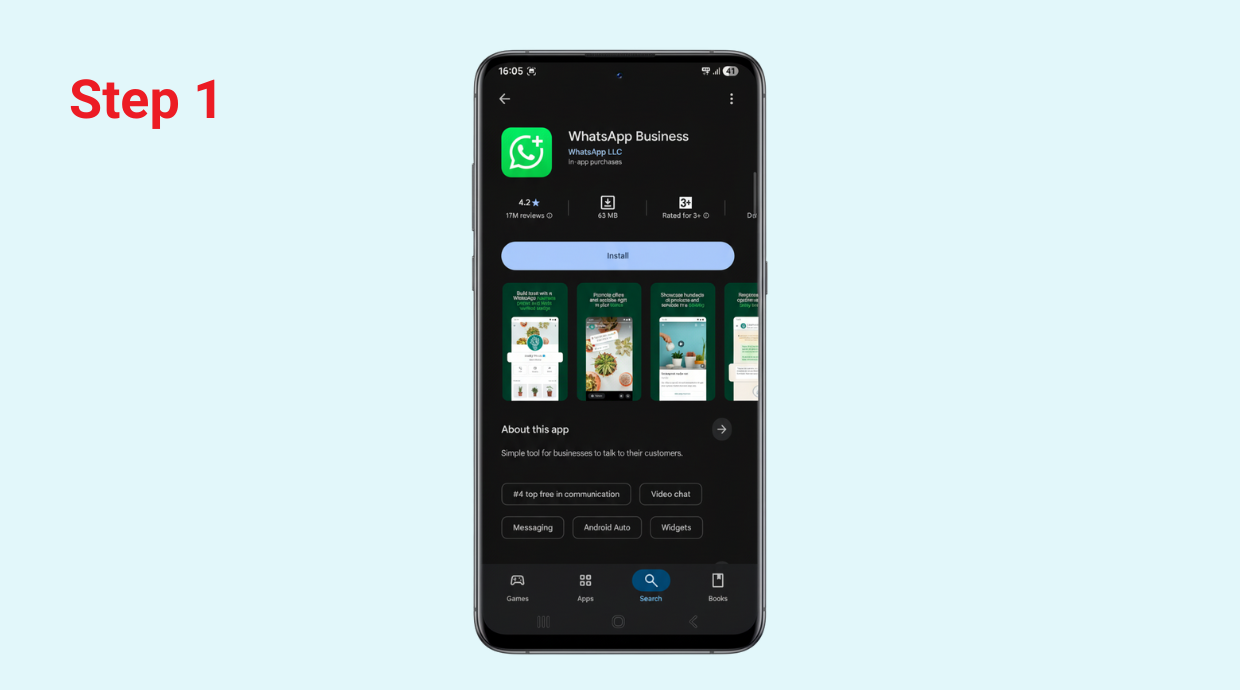
- Go to your phone’s app store (Google Play Store for Android or App Store for iPhone) and search for “WhatsApp Business.”
- Install the app
Step 2: Agree to Terms
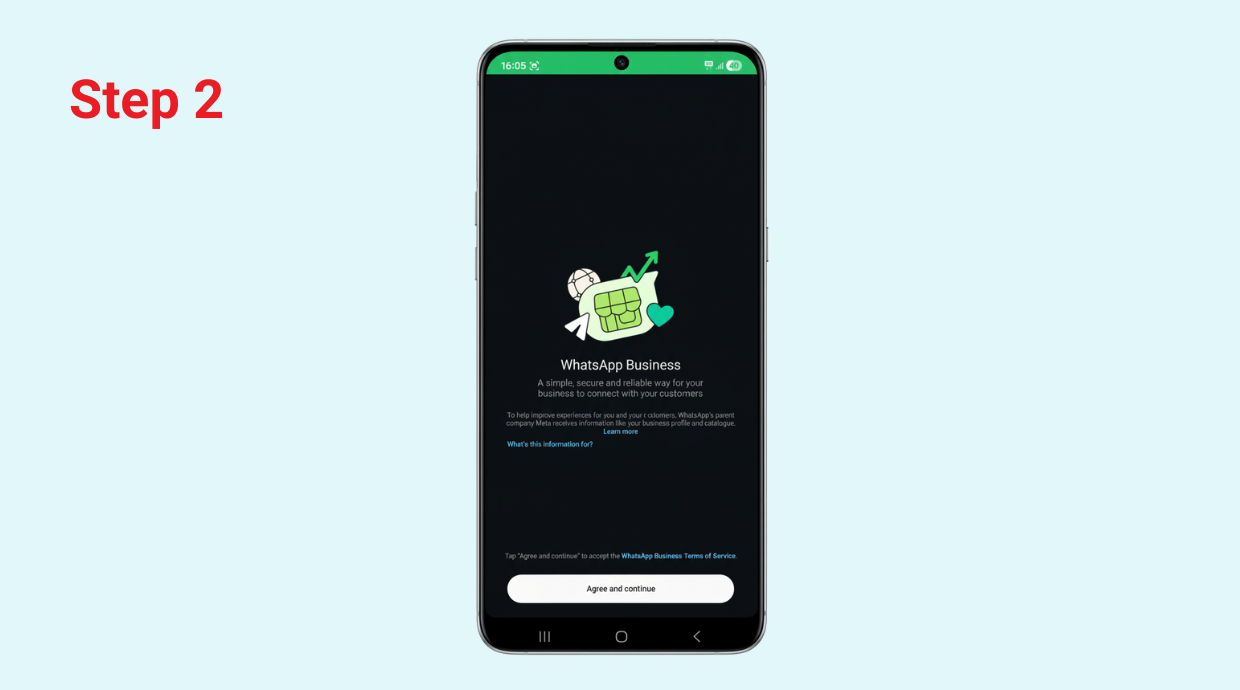
You will immediately see a screen asking you to read and agree to the legal documents: the Terms of Service and Privacy Policy
Step 3: Use a Business-Only Number and Verify Your Number
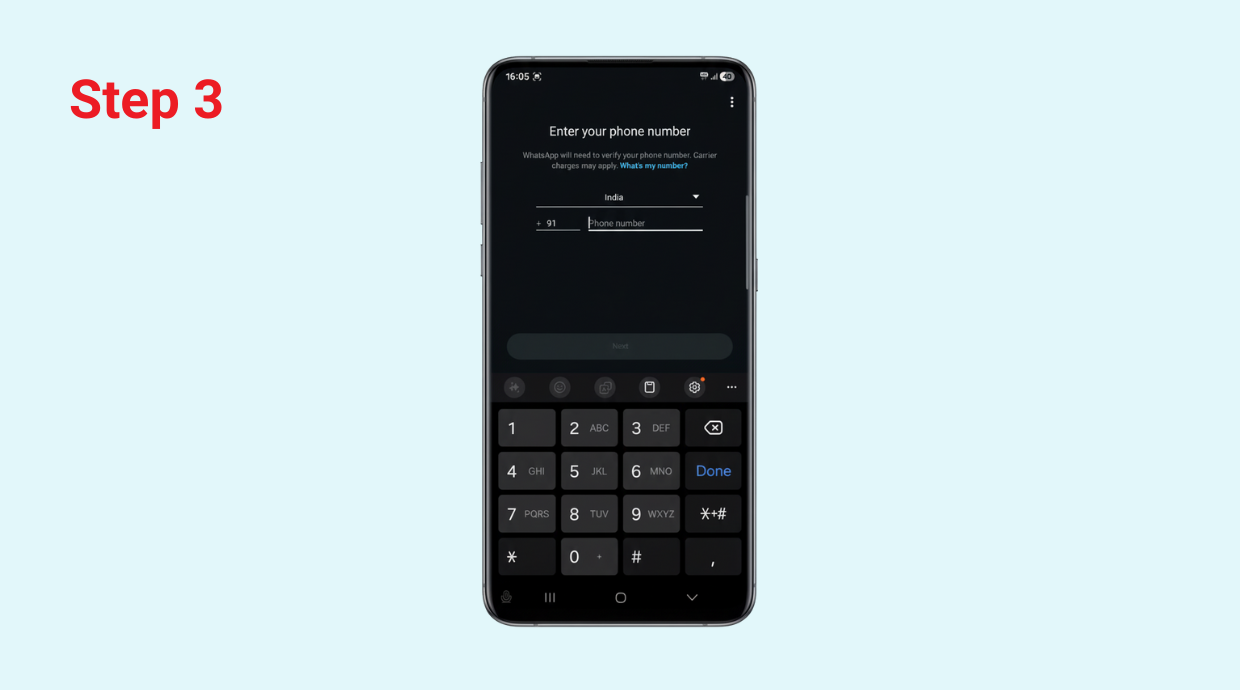
- Enter the phone number you want to use for your business. This can be your existing number only if you are okay with moving all business chats to this account and separating your personal number.
- After entering the number, you’ll receive a code (via SMS or phone call). Enter it to verify.
- Why: Verification means the app knows you own the number and ensures messages are delivered correctly.
Q. Can I use the same phone number on WhatsApp and WhatsApp Business at the same time? A. You can’t use the same phone number on WhatsApp and WhatsApp Business at the same time. Once a number is registered on one, it’s automatically deactivated on the other. To use both apps, you’ll need two different numbers, ideal if your phone supports dual SIM. |
Step 4: Enter Your Business Name
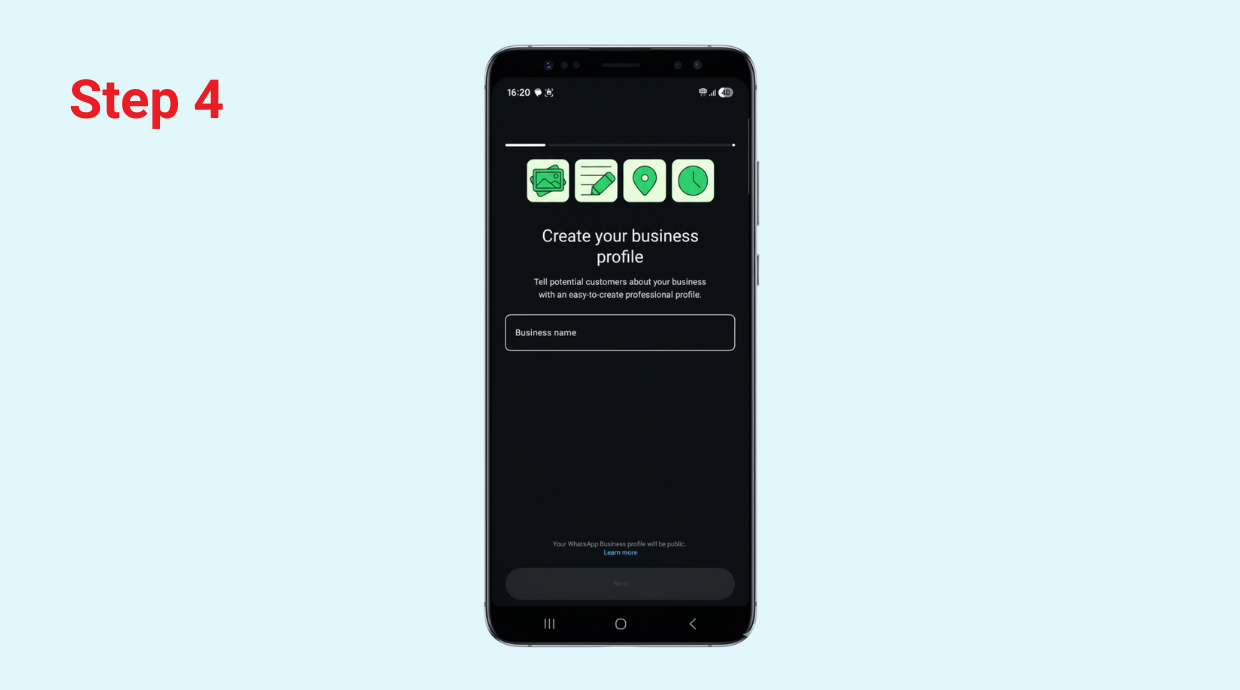
Type your official business name exactly as you want customers to see it.
⚠️ Note: Once you set the name, WhatsApp doesn’t allow you to change it easily. To modify it later, you’d need to reinstall the app or start a new account, so double-check spelling before saving. |
Step 5: Choose the Right Business Category
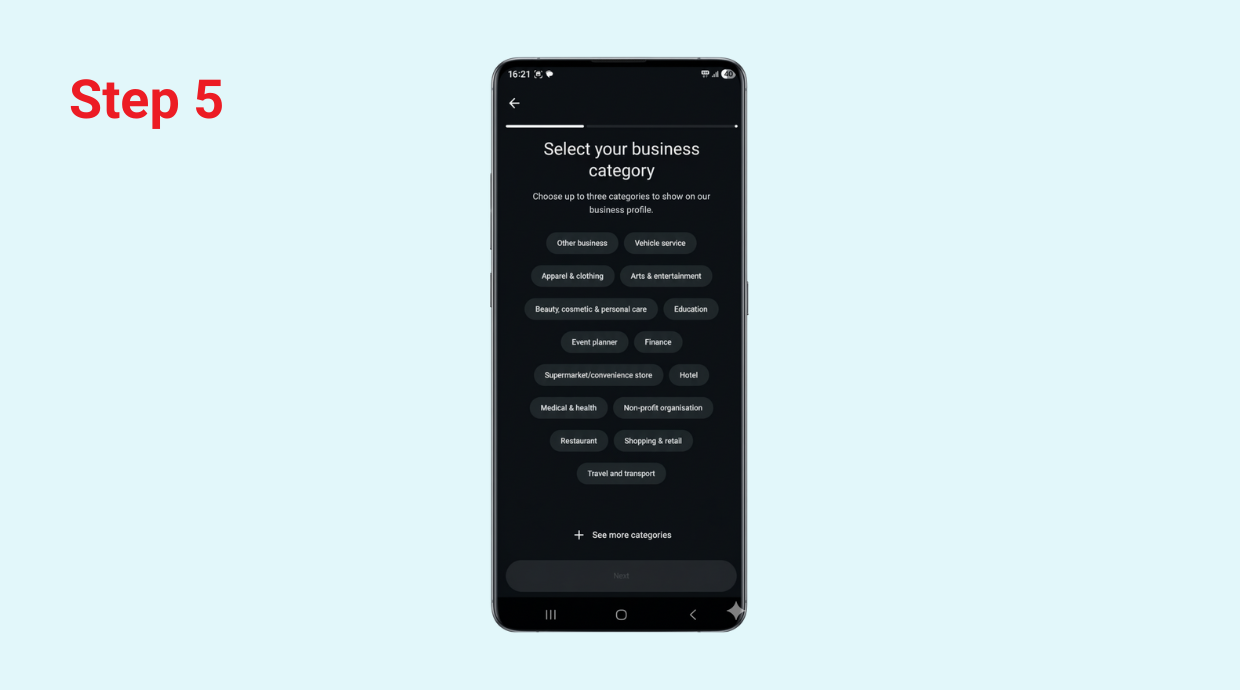
Next, you’ll be asked to pick a category that best describes what your business does.
WhatsApp provides plenty of options, such as
- Retail Store
- Restaurant/Cafe
- Clothing Brand
- Education Service
- Marketing Agency
- Healthcare Provider
- Technology or IT Service
Step 6: Set Your Business Hours
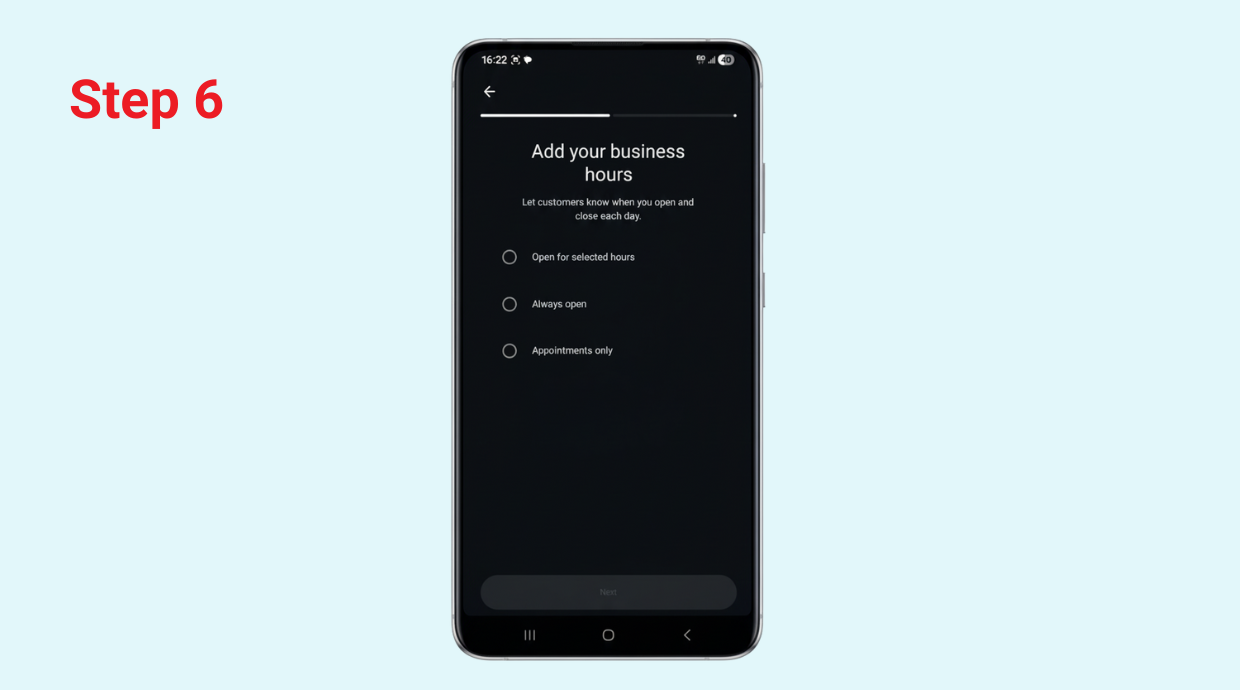
Setting your hours is essential for managing customer expectations and using automated messaging features effectively. This step helps customers know exactly when they can expect a quick response.
You will typically be given three main options to choose from:
- Always open: Select this if your business operates 24 hours a day, 7 days a week (e.g., purely automated online stores).
- Appointment only: Ideal for businesses where meetings are scheduled, like consultants, doctors, or specialized service providers.
- Selected hours: The most common option. This allows you to set specific opening and closing times for each day of the week.
Step 7: Upload Your Logo or Profile Picture
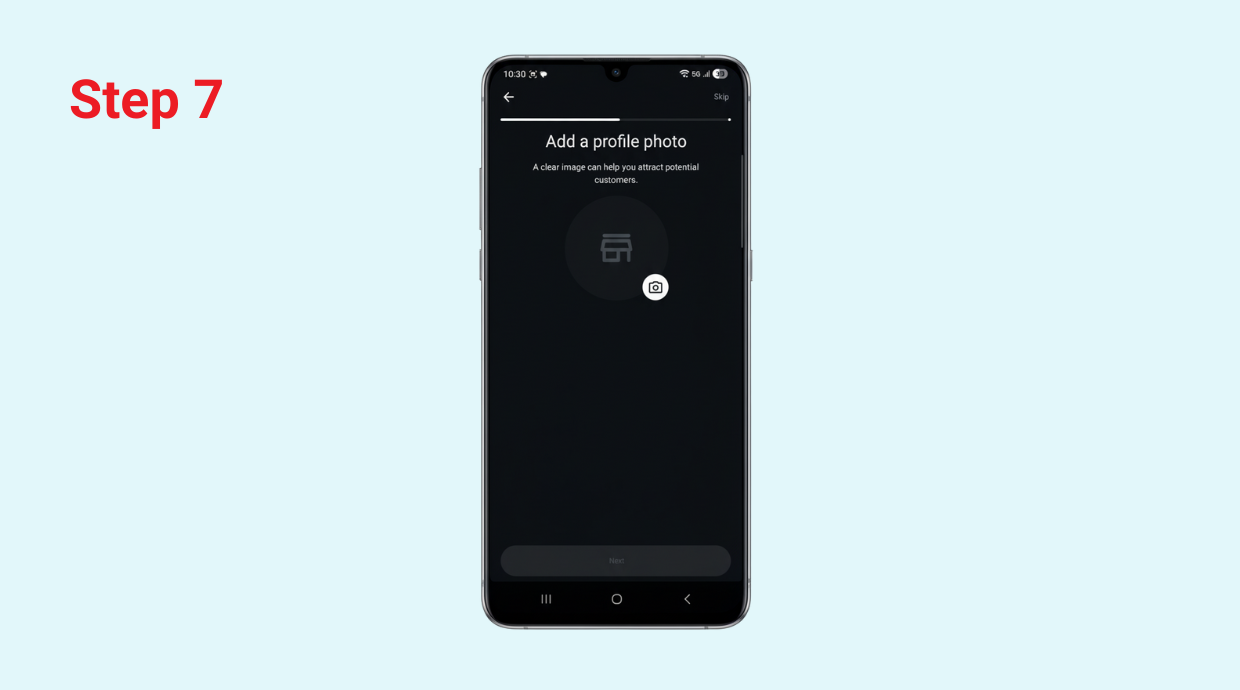
Upload an image that represents your business. Tap the camera icon and choose a photo from your gallery—ideally, your brand logo or a clear picture of your storefront.
💡 Tips for a professional profile picture:
|
Step 8: Add Your Business Address and Website (Optional but Recommended)
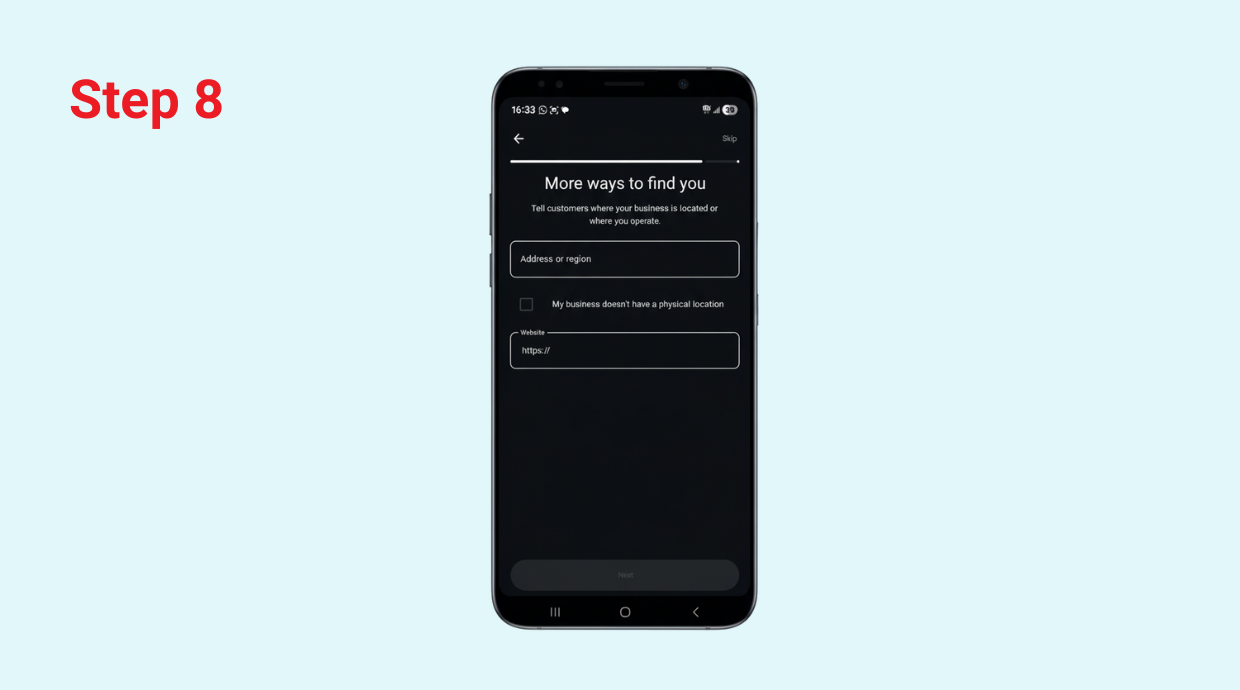
Enter your store or office address exactly as customers would search for it.
If you operate online, you can simply mention your service area instead (for example, “Serving customers across Mumbai” or “Pan-India delivery available”).
If you have a website, paste the link here. You can also use a link to your:
- Online store
- Instagram or Facebook Page
- Google Business Profile
If you don’t have a website yet, you can skip this step or add it later.
But adding one helps customers explore your business beyond WhatsApp.
Step 9: Add Your Business Description
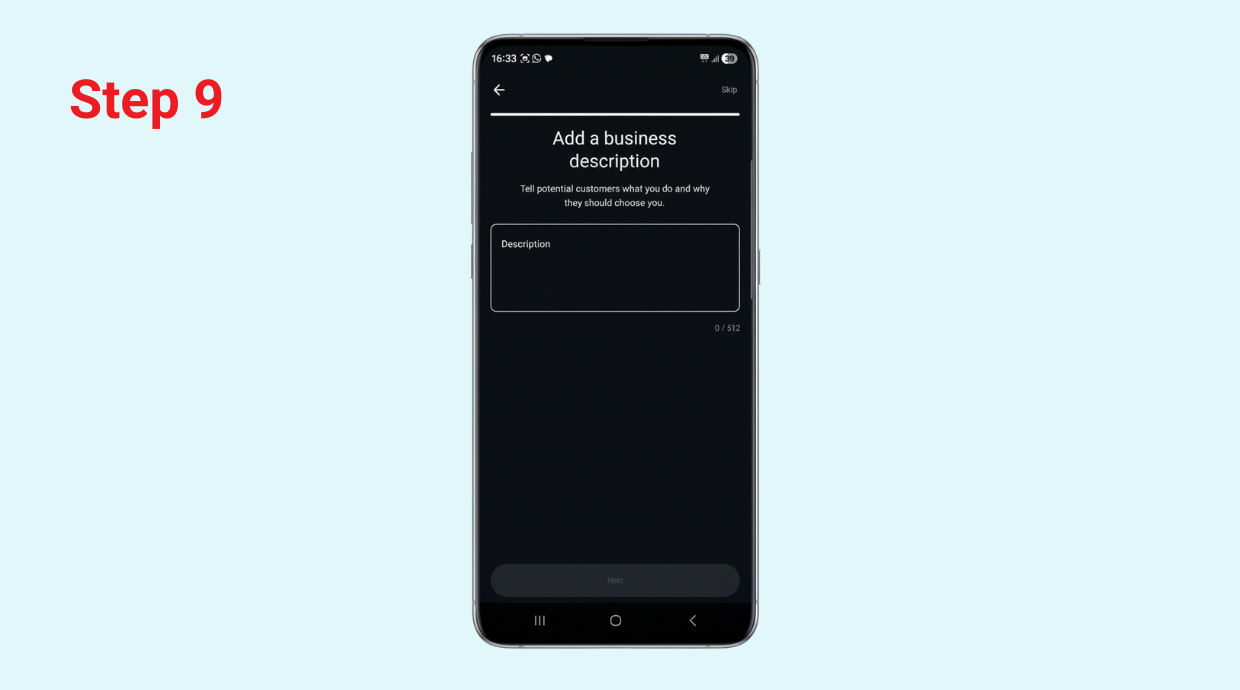
The description is a short, visible summary (usually max. 256 characters) that tells customers instantly what you do.
Step 10: Add Your Email Address
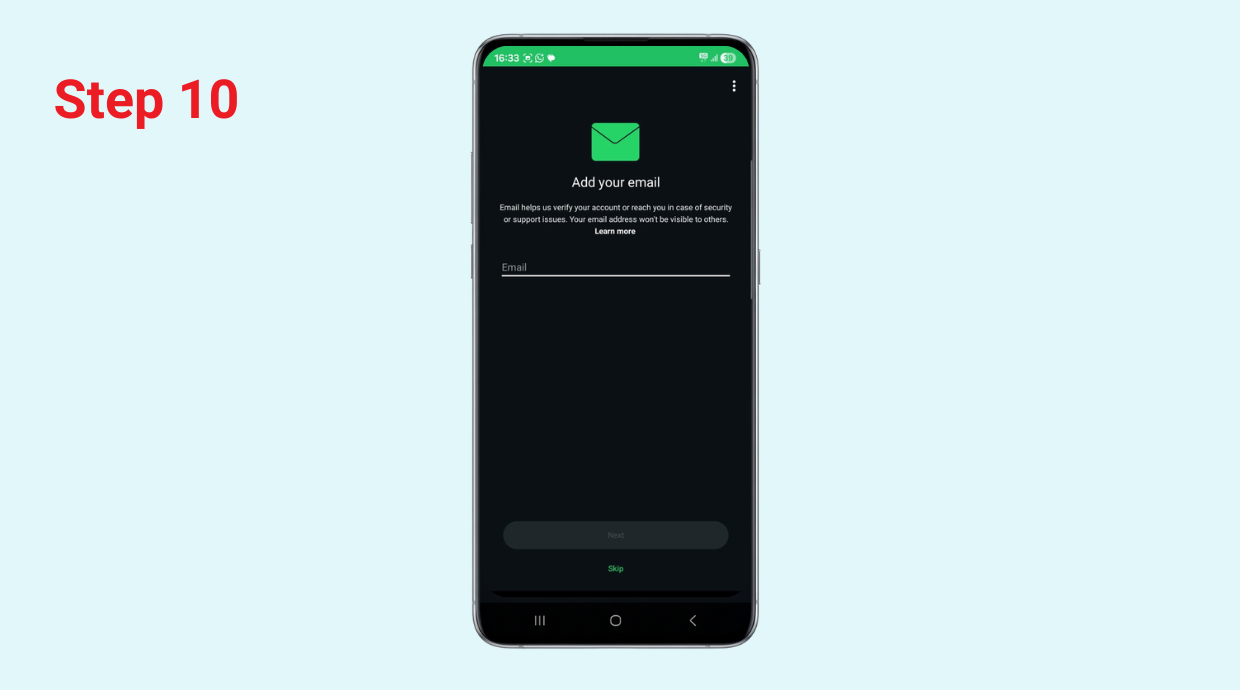
Adding an email address provides customers with a professional and reliable secondary contact method outside of WhatsApp.
Look for the designated Email field in your Business Profile settings and enter your primary business contact email.
Profile Complete! Your WhatsApp Business is ready. 😍
Congratulations! Your foundational WhatsApp Business Profile is now ready to use.
This profile is what every customer sees when they click on your name, establishing your brand's legitimacy and providing all necessary contact information.
The next step is to set up the powerful messaging tools that make WhatsApp Business so effective!
Common Mistakes to Avoid
- Using your personal WhatsApp number for business. This can mix personal and business chats and look unprofessional.
- Leaving business information blank (no description, no hours). This makes it look incomplete and less trustworthy.
- Sending messages to people without their permission. This can upset customers and harm your reputation.
- Ignoring messages or taking too long—long reply times kill trust.
- Uploading blurry profile pictures—first impressions matter.
What You Can Do After Setup to Grow Your Presence
- Share your WhatsApp link everywhere. Put it on social media, business cards, and your website. This makes it easy for customers to reach you.
- Encourage happy customers to message you. Tell them, "If you liked our service, message us on WhatsApp next time. We will reply faster."
- Use the WhatsApp catalogue often. Send regular updates about new offerings or seasonal deals.
- Plan for future growth. If you get many chats daily, consider better tools. These let several team members reply from the same number. This is for when your business grows bigger.
- Watch your performance. Track how many messages you get. Note your response speed. See what questions people ask. This gives you ideas for new products or services.
Image not found
Limitations of the WhatsApp Business App
The free WhatsApp Business app is best for small owners. It has limits for bigger companies.
- Limited Team Size: Only one main phone and four other devices can use the account. It is hard for large teams to manage chats.
- Basic Automation: You only get simple features like greeting and away messages. You cannot build a full chatbot for customer service.
- Broadcast Limits: You can only send a broadcast message to 256 contacts. Those people must also have saved your business number.
- No System Integration: The app cannot connect to systems like a Customer Relationship Management (CRM) tool. You must handle customer data by hand.
- Simple Reports: The app gives you very basic message statistics. You do not get deep reports on sales or customer behavior.
- No Green Checkmark: Only businesses using the paid API can get the official green tick verification badge.
If your business grows fast, you will likely need the WhatsApp Business API for more advanced tools.
Also read: Understand the difference between WhatsApp Business App and API.
Grow Your Business with WhatsApp Business API with Helo.ai
Use the official WhatsApp API to connect with over two billion customers. Helo.ai helps you automate messages and drive sales instantly.
Key Features and Benefits:
- Complete assistance on setting up your WhatsApp Business API
- Verified Business: Get the blue tick verification to build customer trust. This makes your account look safe and professional.
- No-Code Chatbot Platform: Set up your WhatsApp chatbot without writing code.
- AI Chatbots: Automate support with smart bots. They can answer common questions and even schedule appointments.
- Multilingual Chat: Talk to customers in their preferred language. This lets you serve a wider range of people easily.
- Marketing Campaigns: Send bulk messages for updates, promotions, and real-time alerts. Get instant data to track how your campaigns perform.
- Click-to-Action: Run ads that start a direct chat on WhatsApp. Customers can start a conversation from social media or your website.
Helo.ai helps you make every conversation smart, leading to more conversions.
Conclusion
Setting up a WhatsApp Business account takes less than 10 minutes but unlocks a powerful way to talk to your customers. You’ll look more professional, respond faster, stay organised, and be where your customers already are.
Next step for you: Download the app, pick your business number, and complete your profile today. Then send your first message: “Hello! We’re now on WhatsApp—how can we help you?”
Want help with setup, automation, or growing your messaging strategy? Helo.ai is here to help you make the most of WhatsApp and turn chats into conversions.
Frequently Asked Questions
1. Is WhatsApp Business free?
Yes, the standard WhatsApp Business app is free to download and use. WhatsApp Business Platform (API) has costs.
2. Can I convert my personal WhatsApp to a business account?
Yes, you can convert your personal account to a business account. You will lose your chat history if you do not back it up first.
3. Can I have a personal and business WhatsApp account with the same number?
No, one phone number can only be used for one WhatsApp account at a time. It must be either personal or business.
4. Can I have two WhatsApp accounts on one phone?
Yes, you can often run both the personal WhatsApp and WhatsApp Business apps on the same phone. They must use two different phone numbers.
5. Which type of WhatsApp is best?
The best type depends on your needs. Use the regular WhatsApp for personal chats. Use WhatsApp Business if you own a company or sell products.
6. How to create a WhatsApp Business account without a phone number?
You must have a valid phone number to create any WhatsApp account. You cannot sign up without one.
7. How to create a WhatsApp Business account with a landline number?
Yes, you can use a landline number to sign up. During verification, choose the "Call me" option instead of SMS.

.png&w=828&q=75)


.jpeg&w=96&q=75)