


Why does WhatsApp API error code 0 suddenly block everything?
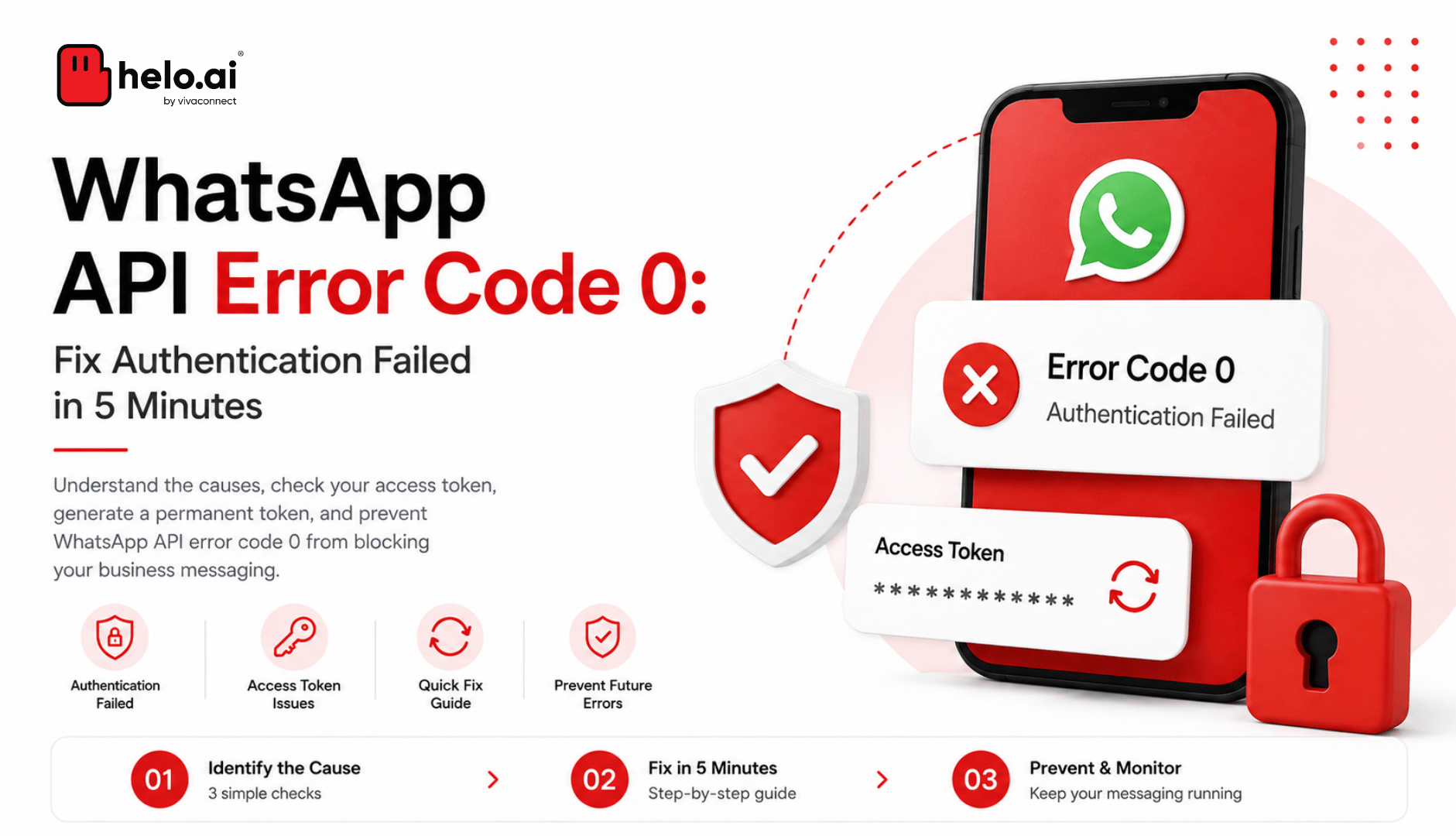
WhatsApp API error code 0 appears when Meta's servers reject your access token — the credential that proves your business is allowed to send messages. Because every API request uses that same token, one failure blocks 100% of your messaging at once: campaigns, chatbot replies, and customer conversations all stop simultaneously.
Here's Meta's official wording: "We were unable to authenticate the app user. Typically this means the included access token has expired, been invalidated, or the app user has changed a password."
In our experience managing enterprise WhatsApp deployments, error 0 is the single most disruptive authentication error precisely because it's total. A template error blocks one campaign. Error 0 blocks your entire channel.
The Keycard Rule: Your access token works exactly like an office keycard. Error 0 isn't WhatsApp being broken — it's WhatsApp checking your keycard at the door and saying "this card no longer works." You don't fix the door. You replace the card.
That one idea solves most of the confusion around this error. Keep it in mind through everything below.
What are the 3 causes of error code 0?
Every error 0 case we've seen traces back to one of three causes. This is the 3-Question Triage — answer these in order and you'll know your cause within a minute:
# | Question | If YES → |
|---|---|---|
1 | Did it work yesterday and fail today on nothing changed? | The 24-Hour Trap — your token expired. Meta's free test tokens live less than 24 hours. |
2 | Did it work for weeks, then die after someone changed Meta settings, a password, or permissions? | Token cancelled — security changes silently kill existing tokens. |
3 | Has it never worked, even once? | Token sent incorrectly — the key is fine, but your system isn't presenting it properly. |
Cause 1 —The 24-Hour Trap (≈ most common). When you first set up the WhatsApp API, Meta's dashboard hands you a temporary token for testing. It's designed to die in under a day. Thousands of businesses launch on it, celebrate day one, and wake up to a dead channel on day two. If this is you, you haven't done anything wrong — you've just hit the trap every first-timer hits.
Cause 2 — Someone changed something. Tokens are cancelled when a connected Facebook password changes, when the token is regenerated, or when the WhatsApp asset is unassigned in Meta Business Suite. Ask your team before debugging anything.
Cause 3 — The keycard held upside down. A perfectly valid token fails if your system sends it in the wrong format or place. This one belongs to your developer or platform provider — and takes them minutes to correct.
How do you check if your token is the problem?
You can confirm the diagnosis in about two minutes, without writing a single line of code, using Meta's free Access Token Debugger:
- Open the Access Token Debugger (Meta for Developers → Tools)
- Paste your access token, click Debug
- Read one field:
- Valid: No → token is dead. Go straight to the fix below.
- Valid: Yes, but messages still fail → it's a permission or sending-format issue (Cause 3)
This one check prevents the most common mistake we see: businesses regenerating tokens, reinstalling integrations, and re-verifying numbers — when the debugger would have told them the answer in 30 seconds.
How do you fix error code 0 permanently?
The permanent fix is a system user token — a credential that belongs to your business, not to any individual employee. Unlike the 24-hour test token, it doesn't expire on its own, and it survives password changes and staff departures. Setup takes about five minutes in Meta Business Suite:
- Log in to business.facebook.com → Business Settings
- Users → System Users → Add — name it clearly (e.g., "WhatsApp API – Production")
- Add Assets → Apps → select your app → full access
- Add Assets → WhatsApp Business Accounts → select your account → full access
- Generate New Token → select your app → tick
whatsapp_business_messagingandwhatsapp_business_management→ choose the non-expiring option (⚠️ some Meta screens now default to 60-day expiry — check this before confirming) - Copy the token immediately — Meta displays it exactly once. Store it in your company's password manager or secrets vault, never in a spreadsheet or email
Then update the token wherever your messages are sent from — your developer, your CRM integration, or your platform's settings panel.
One honest caveat (most articles skip this): a non-expiring token can still be cancelled — for example, if the system user loses access to the WhatsApp asset. "Never expires" means Meta won't kill it on a timer; it doesn't mean nothing can invalidate it.
How do you prevent error code 0 from coming back?
Five habits separate businesses that see error 0 once from businesses that fight it monthly:
- Never run production on a temporary token. Treat Meta's 24-hour token as a showroom demo — nothing more.
- Document your token's owner and location. During an outage is the wrong time to discover nobody knows where the key lives.
- Warn before changing Meta settings. Password resets and permission edits on the connected account can silently cancel your token.
- Alert on message failures. You should learn about a stoppage from a monitoring alert — not from angry customers.
- Check Meta first when everything breaks at once. Sometimes it's genuinely their side: the WhatsApp Business Platform status page shows live incidents.
Once authentication is stable, the natural next reads are WhatsApp API rate limits, messaging limits, and our guide to WhatsApp messages not being delivered — the errors you'll meet after error 0. For the full error family, bookmark our complete WhatsApp Business API error codes guide.
Frequently Asked Questions
What is WhatsApp API error code 0?
Error code 0 is Meta's general authentication failure for the WhatsApp Business Platform. It means your access token — the credential authorizing your messages — was rejected as expired, cancelled, or incorrectly sent, and it blocks all API activity until resolved.
What causes WhatsApp API error code 0?
Three causes account for nearly all cases: an expired token (Meta's temporary test tokens last less than 24 hours), a token cancelled by password or permission changes, or a valid token being sent in the wrong format by your system.
How do I fix WhatsApp API error code 0?
Check your token with Meta's free Access Token Debugger, then generate a permanent system user token in Meta Business Suite (Users → System Users → Generate New Token) and update it in your messaging system. Most businesses complete this in about five minutes.
How long do WhatsApp API tokens last?
Temporary test tokens expire in less than 24 hours. System user tokens can be configured to never expire on their own — though they can still be cancelled by permission or security changes.
Is error code 0 the same as error 190?
They're closely related but not identical. Error 190 specifically means your token expired. Error 0 is the broader "authentication failed" signal covering expired, cancelled, and incorrectly sent tokens.
Will failed messages resend automatically after fixing error 0?
No. Messages that failed with error 0 were never accepted by WhatsApp. They must be resent once your connection is restored — another reason fast detection matters.
The Bottom Line
Error code 0 has one meaning: your keycard stopped working. Check it with the free debugger, replace temporary tokens with a permanent system user token, and set up failure alerts so you catch problems before your customers do.
Or skip the token management entirely — Helo.ai's WhatsApp platform handles authentication, monitoring, and compliance for you, so your team sends messages instead of managing keys. Book a free demo →
This guide is maintained by the Helo.ai team, drawing on hands-on experience running enterprise WhatsApp Business API deployments, and is reviewed against Meta's official error code documentation.