.png)


This guide breaks down exactly how businesses get the WhatsApp blue tick using two official methods — Meta Verified (paid) and Official Business Account (free via API).
If you're looking to build trust, reduce message blocks, and improve campaign performance, getting your WhatsApp business verified is one of the fastest ways to do it.
In this guide, you’ll learn:
- What a verified WhatsApp business account actually means
- The exact steps to get the blue tick
- Costs, timelines, and approval criteria
- How to improve your chances of getting approved
Let’s start with the basics.
What is a Verified WhatsApp Business Account?
A verified WhatsApp business account (blue tick) is an official badge given by Meta that confirms your business is authentic and trusted.
Quick Summary:
- Two ways to get verified:
- Meta Verified (paid subscription)
- Official Business Account (free via WhatsApp Business API)
- Cost: ₹699–₹1,599/month (Meta Verified) or free (API route)
- Time: Few hours to 7 days
- Requirement: Business verification + strong brand presence (for free route)
This badge helps customers instantly recognize your brand and trust your messages.
.png)
This guide explains how to get a verified WhatsApp business account using both available methods — the fast Meta Verified subscription and the official business account (OBA) approval via WhatsApp Business API.
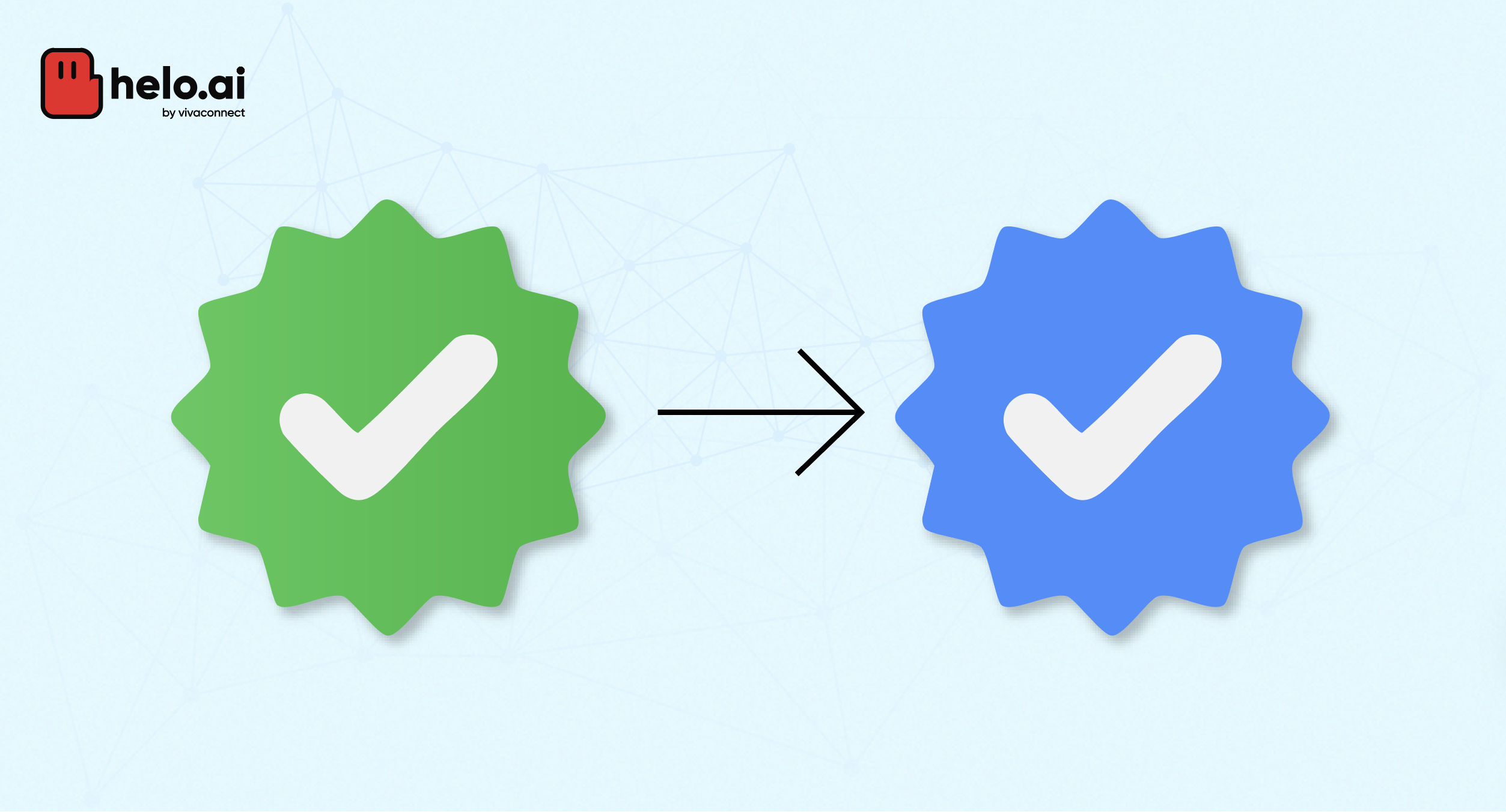
WhatsApp Green Tick vs. WhatsApp Blue Tick
Feature | Blue Tick (Current) | Green Tick (Earlier) |
|---|---|---|
Status | Active verification badge | Old version of verification |
Meaning | Verified WhatsApp business account | Same verification earlier |
Issued By | Meta | WhatsApp (before Meta branding update) |
Eligibility | Meta Verified or Official Business Account | Same criteria |
Purpose | Build trust and brand authenticity | Same purpose |
👉 Today, both refer to the same thing — an official verified WhatsApp business account.
The WhatsApp verification badge, which is the WhatsApp blue tick, was earlier known as WhatsApp green tick. Basically verified WhatsApp badge was earlier a green tick, but now it has changed to a blue tick. Meta changed this so it matches the look of Facebook and Instagram.
The badge means two things:
- Authenticity: Meta confirms your phone number and profile are real. They belong to your registered business.
- Noteworthiness: If you use the free API path, the badge also means your business is well-known or "notable".
Key Benefit: The blue tick makes your full business name show up in the chat. This happens even if the user did not save your number. This builds trust right away.
Eligibility Criteria to Get WhatsApp Blue Tick
Whether you’re applying for a free “notable” WhatsApp verification badge (businesses recognised by Meta) or a paid Meta Verified badge, your WhatsApp Business Account must meet a few common standards:
- Active WhatsApp Business Account: Your number must be connected to the WhatsApp Business API or WhatsApp Business app.
- Complete Business Profile: Include your legal business name, website, logo, and accurate business details.
- Meta Business Manager Verification: Your business must be verified in Meta Business Manager with valid business documents (like a registration certificate, GST, or similar proof).
- Authentic Presence: The brand should represent a real, legally registered entity — no impersonation, fan, or unofficial accounts.
- Compliance with Meta Policies: Your account must follow the Meta Terms of Service, WhatsApp Business Policy, and Commerce Policies.
- Consistent Branding: The business name on WhatsApp should match the one on your website and other Meta assets.
Why These Criteria Matter
- Consistent branding: Helps Meta match your business across platforms and approve faster
- Business verification: Confirms your legal identity and reduces rejection chances
- Policy compliance: Prevents account bans and ensures long-term approval
- Online presence: Especially important for free verification (notability check)
👉 Tip: Before applying, make sure your website, social profiles, and WhatsApp details all match exactly.
👉Recommended Read: How To Create WhatsApp Business Account.
For Meta Verified (paid) accounts, the business must also have an active subscription for the WhatsApp number in Meta Business Manager.
For Notable (free) verification, Meta manually approves only brands considered authentic and publicly recognised.
Now let’s get into the actual action. As discussed, there are 2 ways to get the WhatsApp Blue Tick. Here are the detailed steps for the same.
Path 1: Pay for It (Meta Verified: The Fast Way)
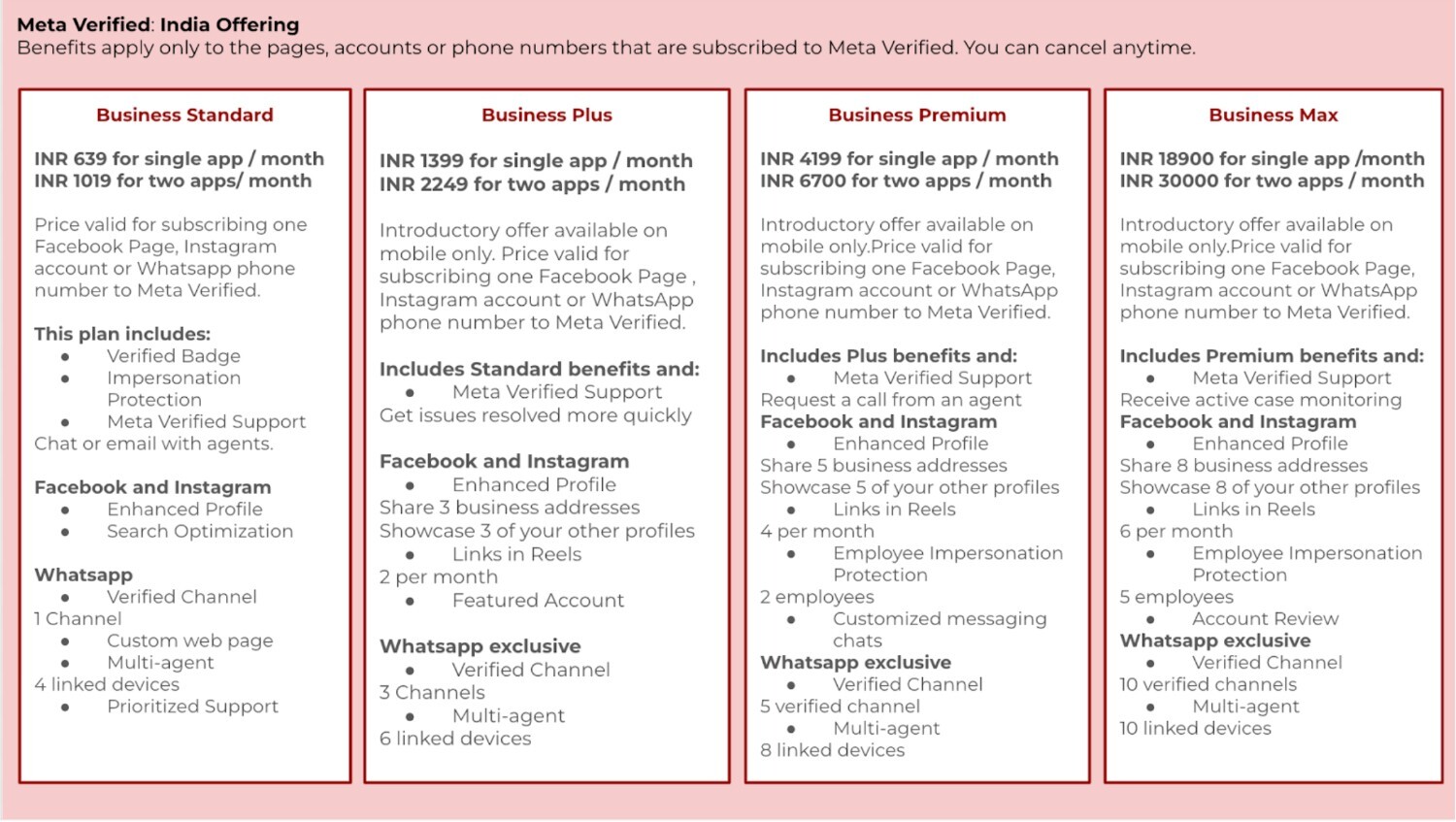
If you want the blue tick instantly, Meta now offers a paid verification plan called Meta Verified for Businesses. It’s the simplest way for new or small businesses to get verified — no waiting or public recognition needed.
Meta sells monthly subscription plans (Standard, Plus, Premium, and Max). The WhatsApp Blue Tick comes with any of these paid packages.
Note on Availability: In 2025, Meta Verified is still rolling out. It is mainly in countries like India, Brazil, Colombia, and Indonesia. Check your App settings for the Meta Verified option to see if you can use it. |
Meta Verified pricing differs by country and platform.
As of now (November 2025), Meta’s official plans are roughly:
- ₹699/month (Android)
- ₹899/month (iOS)
- ₹1,599/month (Web/Business Manager)
(Pricing may vary slightly based on region and taxes. Check your Business Manager for local pricing before subscribing.)
Each WhatsApp number or account requires its own subscription. The verification badge will remain active only while the subscription is active.
Plan Tier | Core Benefits and Focus | Linked Devices | Verified Channels |
Business Standard | Badge, Impersonation Protection, Basic Support, Web Page. (Good for small teams). | Up to 4 | One |
Business Plus | Better In-App Support, Stronger Protection. (Good for growing teams). | Up to 6 | Three |
Business Premium | High-priority help protects more accounts. (Good for bigger businesses). | Up to 8 | Five |
Business Max | Maximum protection (up to 50 accounts), highest limits. (Good for large companies). | Up to 10 | Ten |
Step-by-Step: How to Get WhatsApp Blue Tick Step-by-Step Guide
- Open Meta Business Manager
Go to business.facebook.com and select your business account. - Verify Your Business First
Under Business Settings → Security Centre → Verification, upload your official documents (e.g., business registration certificate, GST, utility bill, etc.). - Go to Accounts Centre → Meta Verified → WhatsApp
Choose the number you want verified and start your subscription. - Add a Payment Method
Pay using a card or a linked account. The subscription renews monthly unless cancelled. - Meta Reviews Your Details
Meta automatically checks if your business name, logo, and website match your documents and online presence. - Get the Blue Tick
Once approved, your WhatsApp profile shows the verified badge within a few hours to a few days.
Things to Keep in Mind
- Subscription = Verification: The blue tick stays only while your Meta Verified plan is active.
- One Plan Per Number: If you manage multiple WhatsApp numbers, each must be verified separately.
- No Instant Refunds: Cancelling mid-month won’t refund unused days.
- Display Name Rules: Your WhatsApp name must match your legal business name or registered brand.
- Consistent Branding Helps: Use the same logo, name, and website as your other Meta assets for faster approval.
- Policy Compliance: Always follow WhatsApp Business Policy and Meta Commerce Policies.
Bonus TipIf you’re using the WhatsApp Business App, update it to the latest version — the Meta Verified option appears under Settings → Meta Verified. For API users, verification can be managed directly from Meta Business Manager. |
Path 2: Steps To Get Blue Tick With WhatsApp Business API
If you don’t want to pay for verification, there’s another way — the free “Notable Business” verification. This is the original and hardest method. It is usually for big, well-known companies around the globe. This is usually reserved for medium to large brands, government entities, or businesses with strong online visibility.
Overview & Prerequisites
This free path needs the WhatsApp Business API (Cloud or On-Premises). This platform handles huge message volumes and connects to CRM systems. The badge application is free. Setting up and keeping the API costs money.
The Crux: Show You Are Notable
Meta demands your business be "well-known" or "widely recognised" in the media. Proving this is the hardest step.
💡 Tip: News Coverage is Best. You must have real, strong news coverage. You need at least 5 links to articles from known media (like major news agencies or trade papers). |
Rule: Paid ads, company blogs, or paid articles are not accepted. They will cause your request to fail.
Proof: Other helpful things include a Google Knowledge Panel, strong web search results for your name, and verified social media accounts.
The Technical Foundation (Required)
You must meet these hard rules before applying for OBA status:
- Active WhatsApp Business API Account: Your number must be on the platform. A Business Solution Provider (BSP) or the Meta Cloud API usually runs this.
- Meta Business Verification: Your Meta Business Manager must be fully verified. This means giving legal business papers (like licenses or tax forms) and proving your domain ownership.
- Two-Step Verification: Turn this on for your WhatsApp phone number. It adds great security.
Step-by-Step: How to Apply
- Use WhatsApp Business API
Only accounts connected to the WhatsApp Business API (not the regular Business App) are eligible. - Complete Business Verification
Go to your Meta Business Manager → Security Centre → Business Verification and submit required documents (legal name, GST, business license, etc.). - Request Official Business Account (OBA) Status
Once verified, your WhatsApp Business Solution Provider (BSP) — like Helo.ai can submit a Blue Tick request to Meta on your behalf. - Wait for Meta’s Review
Meta checks if your brand meets its “notability” standards — meaning you have a strong digital presence, verified social pages, or consistent media coverage. - Get the Blue Tick
If approved, your number becomes an Official Business Account (OBA), showing the verified badge beside your name even if the user hasn’t saved your number.
Things to Keep in Mind
- No Direct Application: You can’t apply directly — it must go through your WhatsApp BSP or API provider.
- Notability is Key: Meta looks for a clear public profile — such as media mentions, brand website, and search visibility.
- Rejection Doesn’t Hurt: Even if declined, you can reapply after 30 days with improved brand presence.
- Free but Selective: Only a small percentage of businesses get approved under this category.
- One Number Per Brand: The Blue Tick applies only to the verified number, not all business numbers.
Step-by-Step Application (via Meta Business Manager)
1. Log in to Meta Business Manager
Go to business.facebook.com using the same account that manages your WhatsApp Business API.
2. Check Business Verification Status
In the left panel, open Security Center → Business Verification.
Ensure your business verification is complete — Meta won’t review Blue Tick requests otherwise.
3. Open WhatsApp Manager
From the main menu, go to Business Settings → WhatsApp Accounts → WhatsApp Manager.
4. Select Your Number
Under Phone Numbers, choose the number for which you want the Official Business Account (OBA) badge.
5. Submit an OBA Request
Click Submit Request for Official Business Account.
A form will appear asking for details like:
- Reason for verification (why your brand deserves the Blue Tick)
- Supporting evidence (up to 5 links) — Meta requires authentic, public references proving brand notability, such as:
- Articles or features from credible media outlets
- Verified social media profiles (Instagram, Facebook, LinkedIn, X)
- Your official website and contact details
- Press releases or awards
6. Wait for Meta’s Review
Meta manually reviews your application. The review can take 3–7 working days. If approved, your number will automatically display the Blue Tick badge.
.png&w=3840&q=75)
Common Rejection Reasons and How to Fix Them
Even good businesses can fail if the request is not perfect. Here are the top reasons for failure and what to do:
Problem | Why It Happens | How to Fix |
|---|---|---|
Inconsistent business details | Name, website, or address mismatch across platforms | Ensure all details match exactly everywhere |
No media presence | Brand is not publicly recognized | Get real press coverage and industry mentions |
Incorrect documents | Missing or invalid business proof | Upload valid legal documents (GST, registration, etc.) |
Policy violations | Restricted or non-compliant business category | Review Meta policies and adjust business category |
Weak online presence | Low brand visibility | Improve SEO, social profiles, and website authority |
👉 Tip: Always fix the root issue before reapplying — Meta reviews are strict.
Reapplication Window
If Meta says no (for the OBA path), remember you can try again. You must wait 30 days before sending a new OBA request. Use that time to fix the issue and make your online name stronger.
Want Help Getting Your WhatsApp Business Verified?
Getting a verified WhatsApp business account can be confusing — especially with API setup, business verification, and notability requirements.
With Helo.ai, you can:
- Set up WhatsApp Business API quickly
- Get guidance on improving approval chances
- Automate messaging, campaigns, and customer engagement
👉 Capture more leads and build trust with a fully verified WhatsApp presence.
Explore how it works →
Final Thoughts
Getting a verified WhatsApp business account is no longer limited to large brands — businesses of all sizes can now apply using Meta Verified or the API route.
If you want fast results, Meta Verified is the easiest path.
If you’re building a strong brand, the Official Business Account route offers long-term credibility.
The blue tick builds trust — but how you use WhatsApp determines your growth.
Now that you know how to get verified, the next step is using WhatsApp to drive real business results.
Wrap-up and Next Steps
The WhatsApp Blue Tick is a trust signal that any real business can get. It is no longer just for the biggest companies.
You have a clear choice:
- Meta Verified: The fast, paid badge for growing businesses using the standard App.
- OBA/Notability Route: The free, high-status badge for known brands using the API.
The badge starts the trust. Good conversations build it. Now you know how to get verified. How will you use your new status to help customers?
FAQ
Q: Is the WhatsApp Blue Tick available for all businesses?
A: No. The WhatsApp Blue Tick is currently available through Meta Verified or WhatsApp Business API, depending on region and eligibility.
Q: Do I need WhatsApp Business API for the Green Tick?
A: Yes. The Green Tick is only issued to businesses using WhatsApp Business API with verified documentation.
Q: How long does WhatsApp verification take?
A: Verification typically takes 3–7 days depending on Meta’s review process.
Q: Is Meta Verified paid?
A: Yes. Meta Verified requires a paid subscription which varies based on location and business type.


.jpeg&w=96&q=75)