



The small blue tick on WhatsApp is one of the most misunderstood features on the app. Some people love the transparency it brings. Others find it intrusive. And many simply want a break from the pressure of “replying immediately.
If you want to remove the blue tick from WhatsApp, you need to turn off read receipts. This way, others won't see when you read their messages.
The good news? It’s simple.
The better news? This guide shows you how to disable blue ticks on Android, iPhone, WhatsApp Web, and even WhatsApp Business. Plus, what actually changes when you turn them off?
Let’s start by understanding what the blue tick really means.
What the Blue Tick Actually Means (Quick Breakdown)

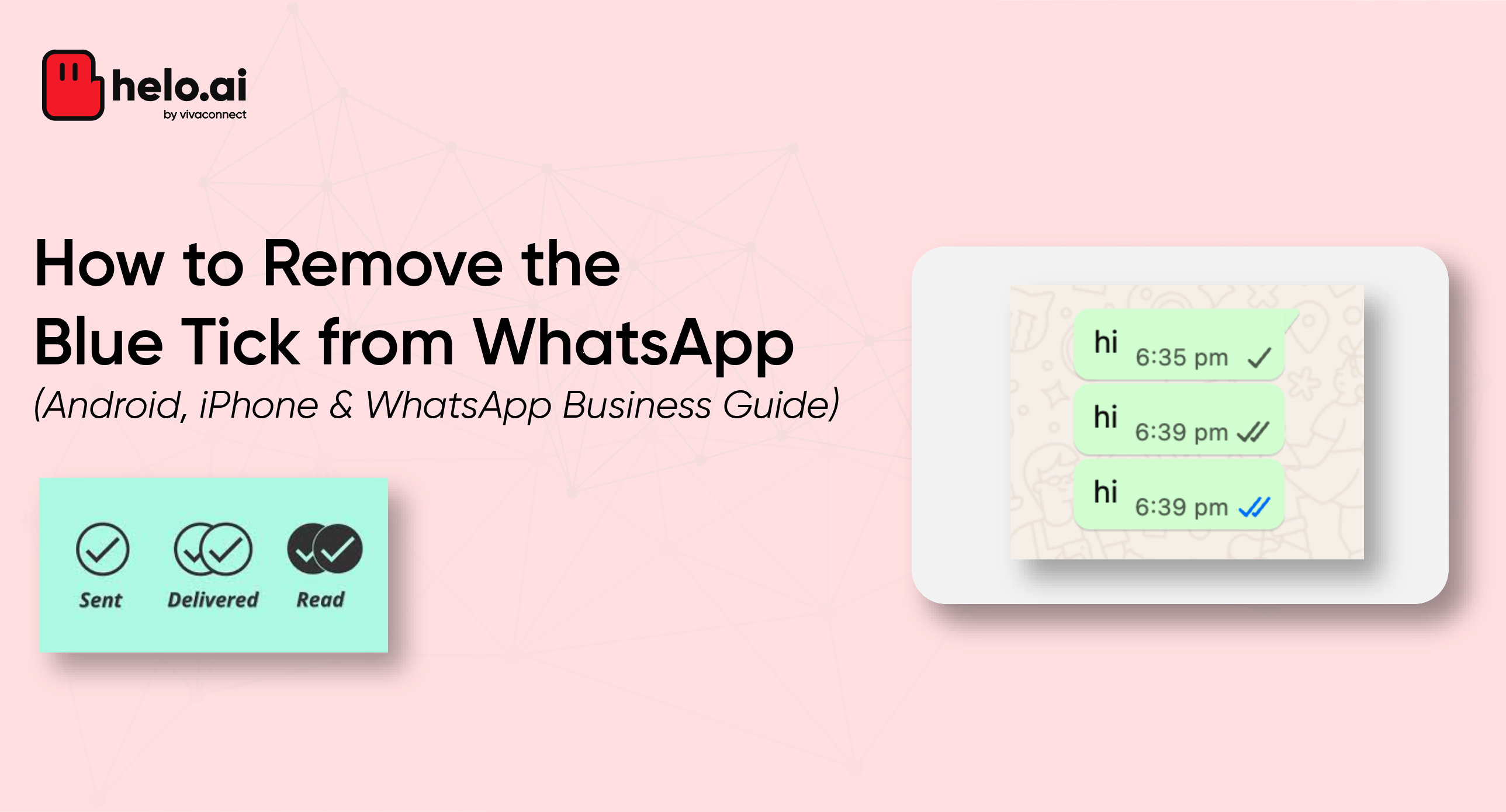
WhatsApp has a simple message status system:
- Rounded square with clock → Message not sent
- One grey tick → Message sent
- Two grey ticks → Message delivered
- Two blue ticks → Message read
Blue ticks = Read receipts.
Once you turn off read receipts, the two grey ticks will never turn blue even after you read the message.
But the big rule you need to know is this:
👉If you disable read receipts, you also won’t be able to see when others read your messages.
It works both ways.
Now that the basics are clear, let’s get into the actual steps.
If you’re an Android user, here’s the simplest way to disable blue ticks:
How to Remove Blue Ticks on WhatsApp (Android)
If you’re an Android user, here’s the simplest way to disable blue ticks:
Quick Fix
Open WhatsApp > Tap three dots (top-right) > Go to Settings > Select Privacy > Toggle Read Receipts → OFF |
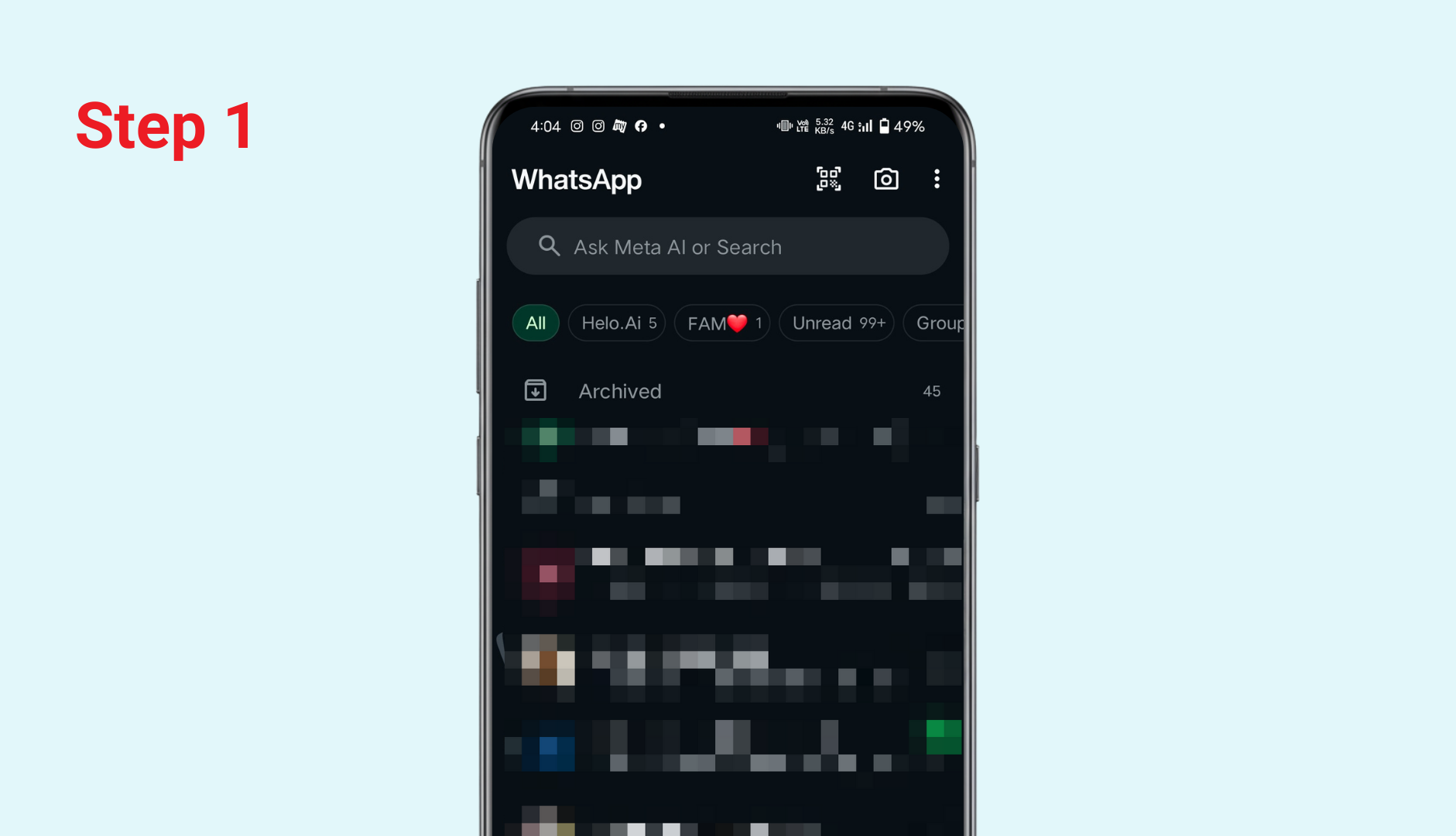
Step 1: Open WhatsApp on your phone.
Step 2: Tap the three dots (top right).
.png)
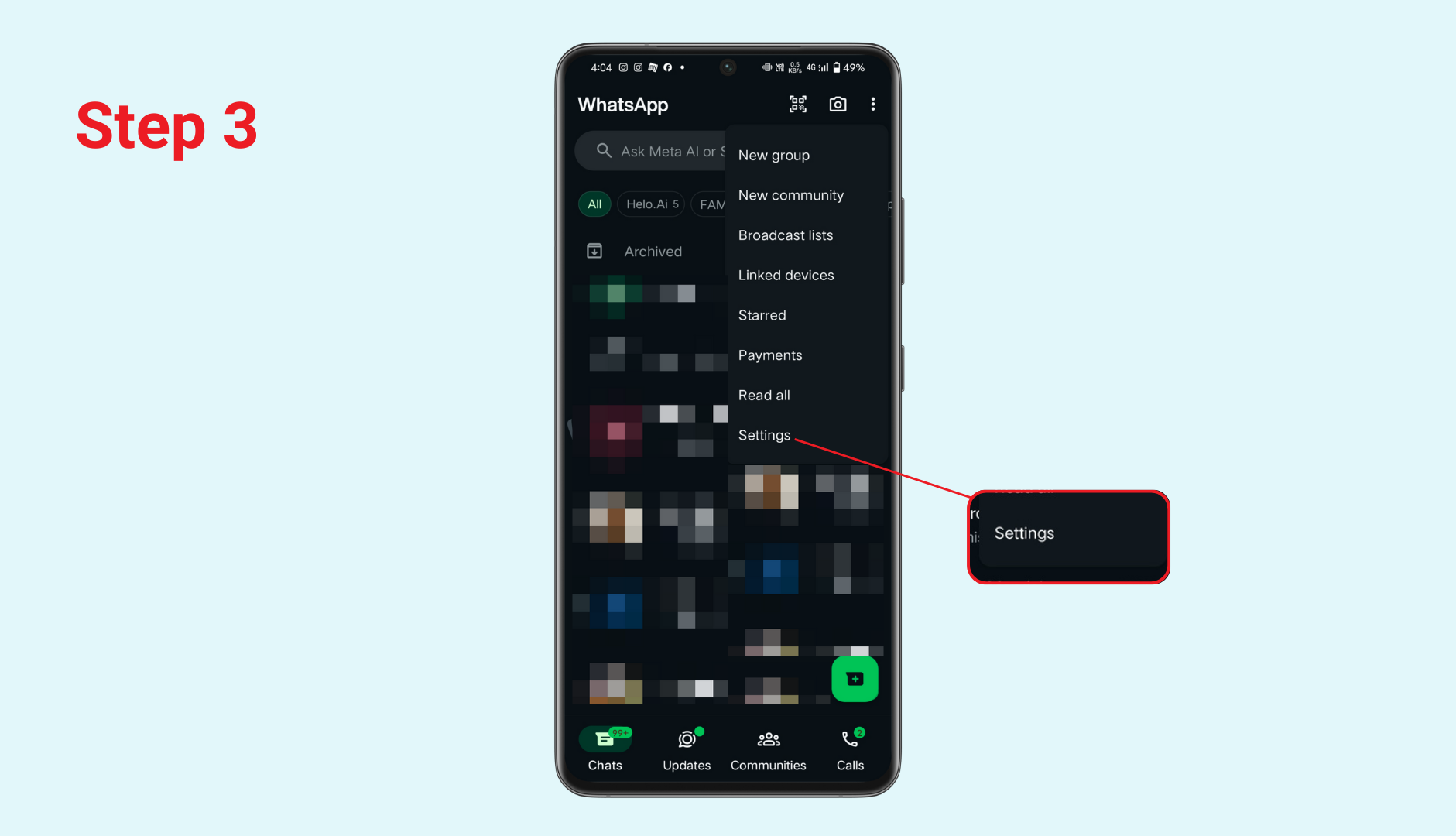
Step 3: Select Settings.
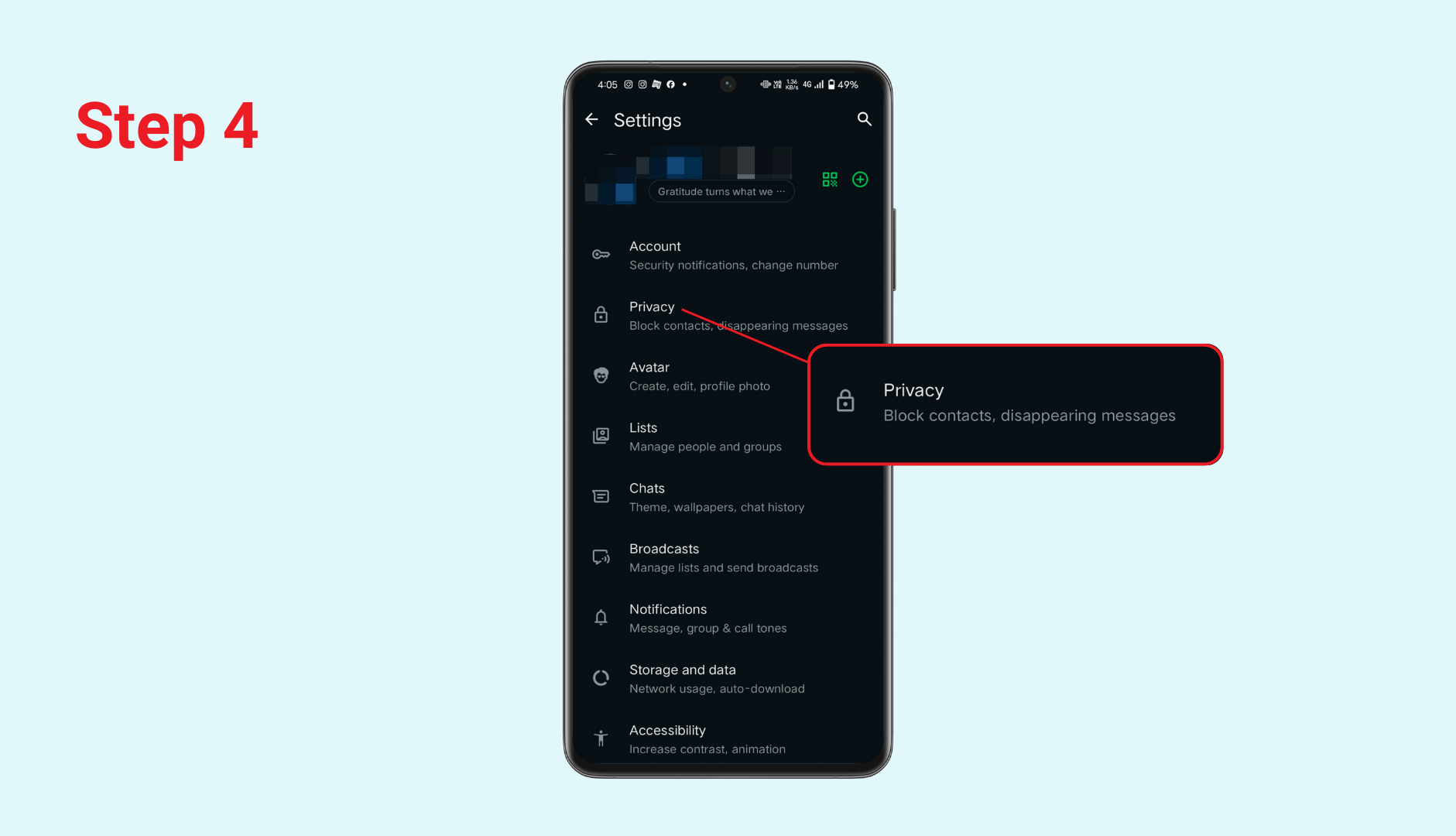
Step 4: Go to Privacy.
Step 5: Find the option Read Receipts and turn it OFF.
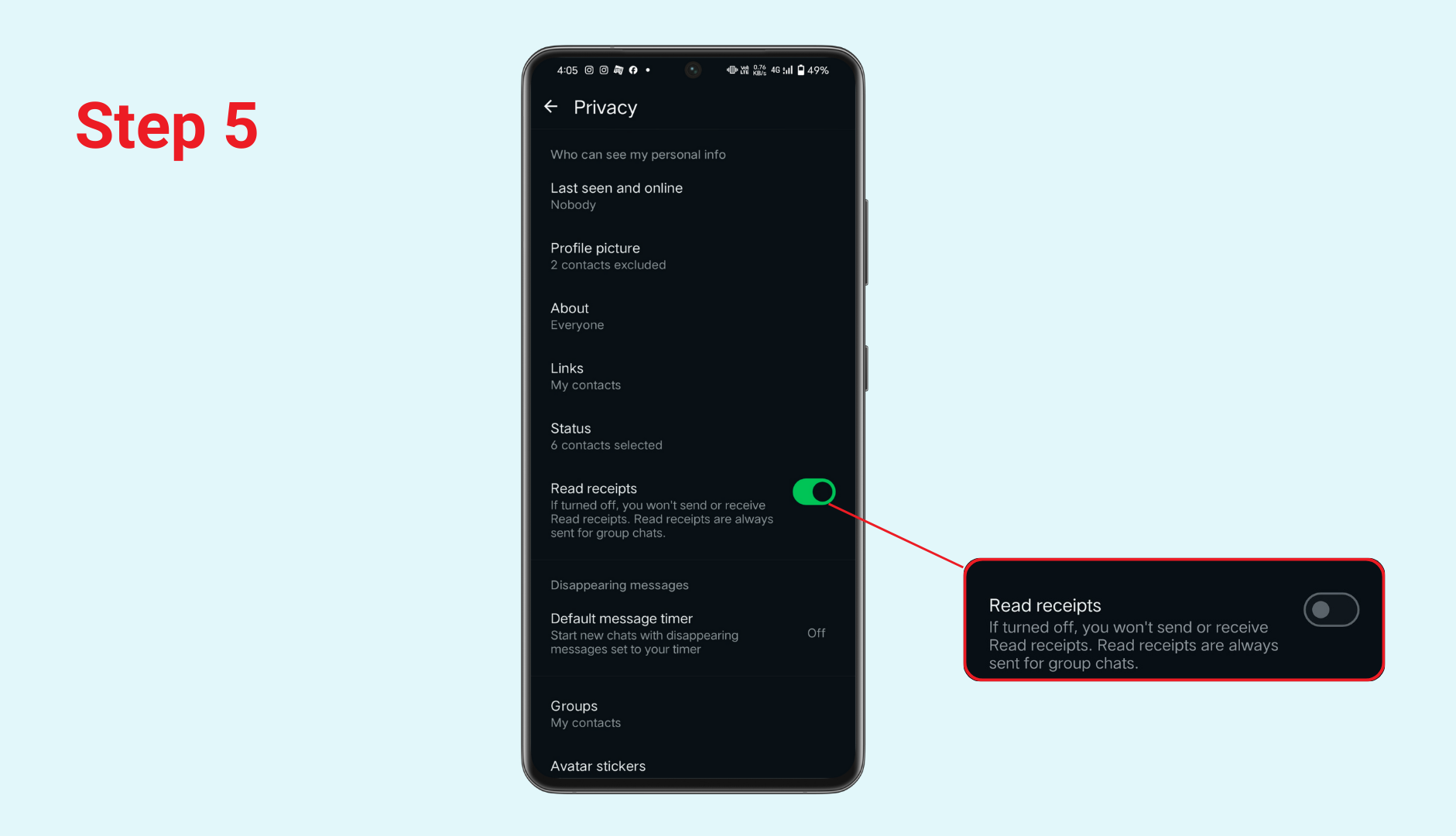
That’s it. No more blue ticks on your chats.
Important Notes for Android Users
- The change applies instantly to all chats.
- You won’t see blue ticks from others anymore.
- Group chats will continue to show blue ticks (WhatsApp doesn’t allow disabling this).
- Voice messages will still show the blue mic icon once played.
How to Remove Blue Ticks on WhatsApp (iPhone)
On iPhone, the steps look slightly different, but the logic is the same.
Quick Fix
Open WhatsApp > Tap Settings (bottom-right) > Choose Privacy > Toggle Read Receipts → OFF |
Step 1: Open WhatsApp and tap Settings in the bottom-right corner.
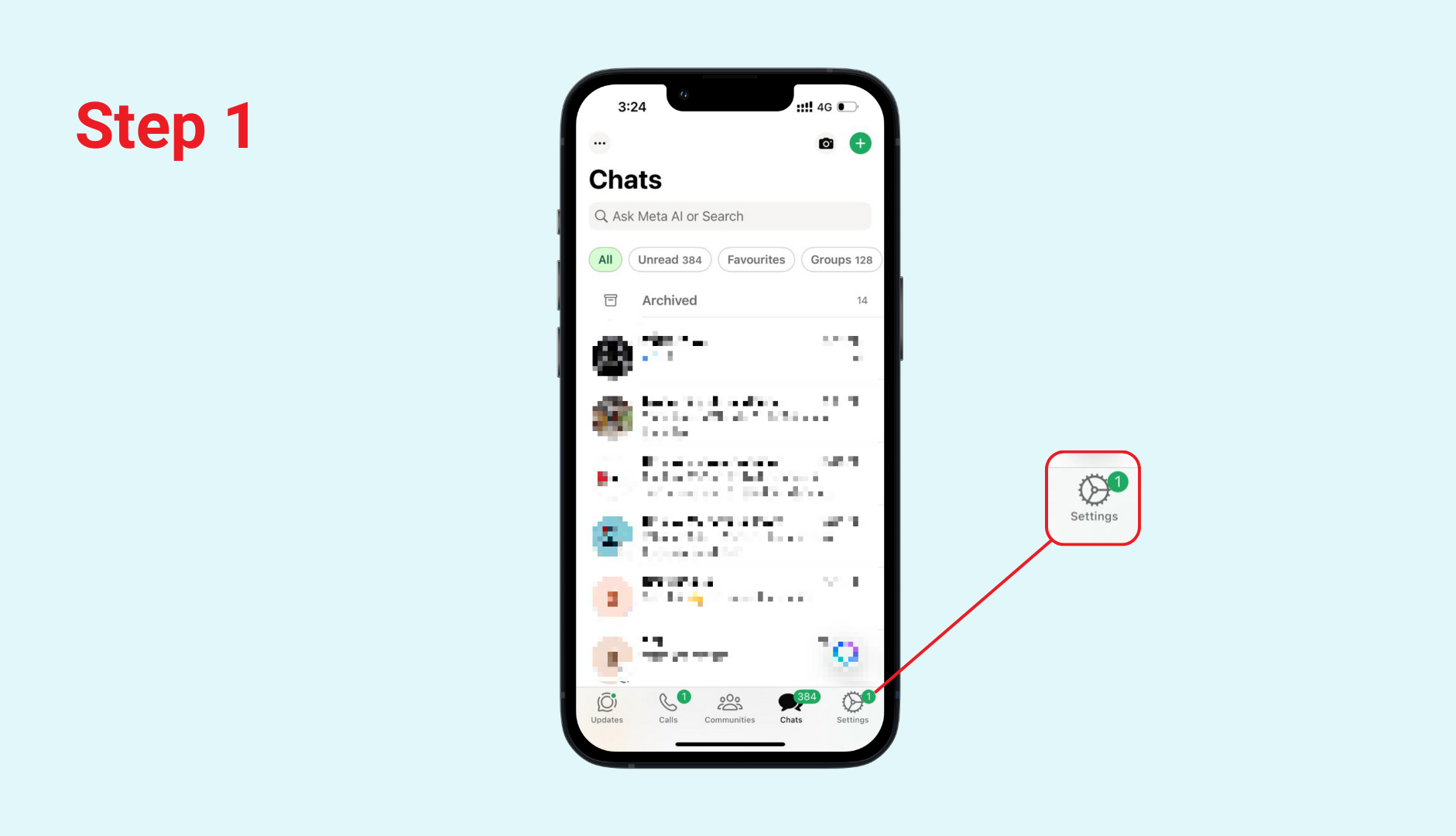
Step 2: Select Privacy.
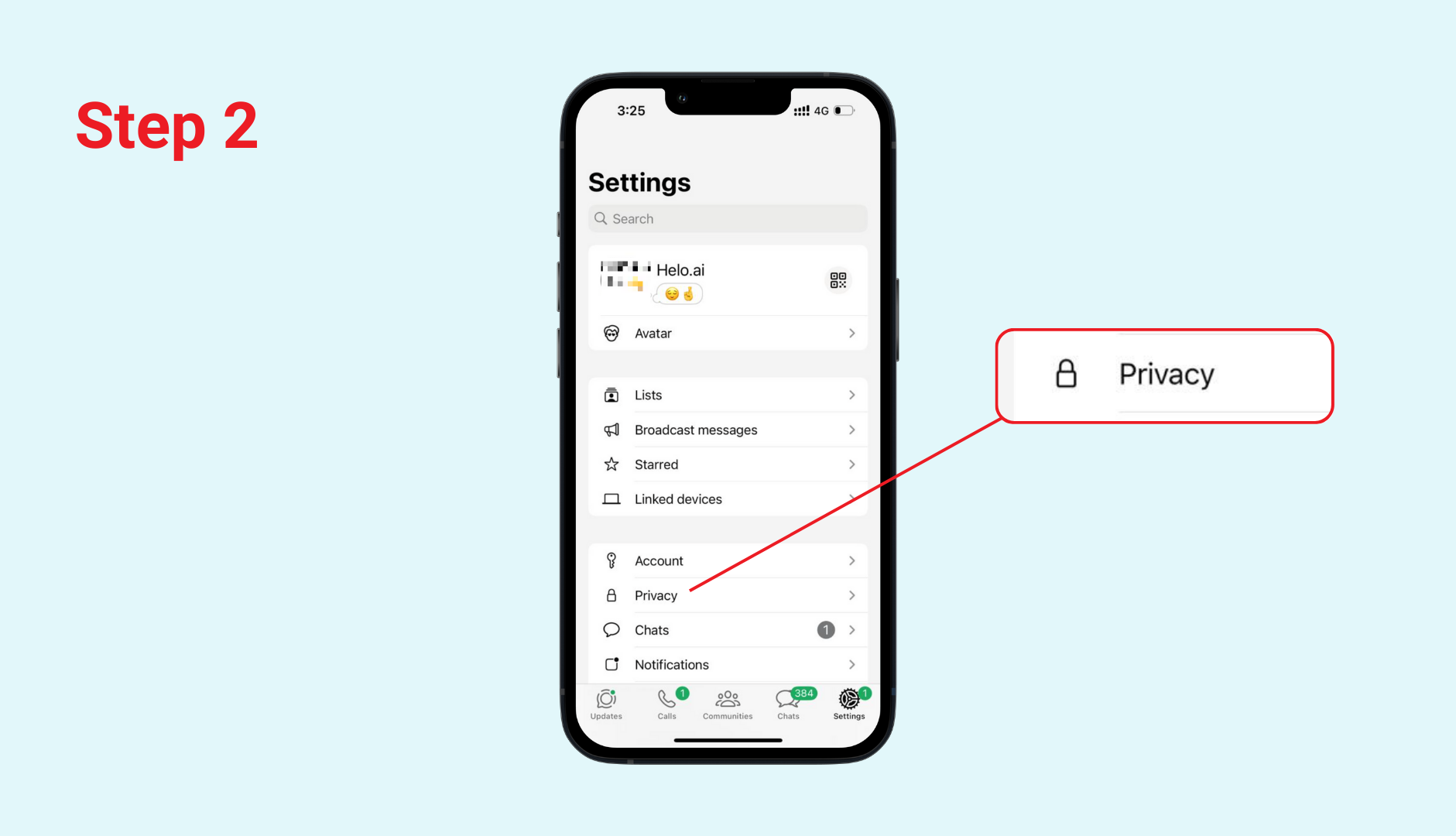
Step 3: Scroll down to find Read Receipts and toggle it OFF.
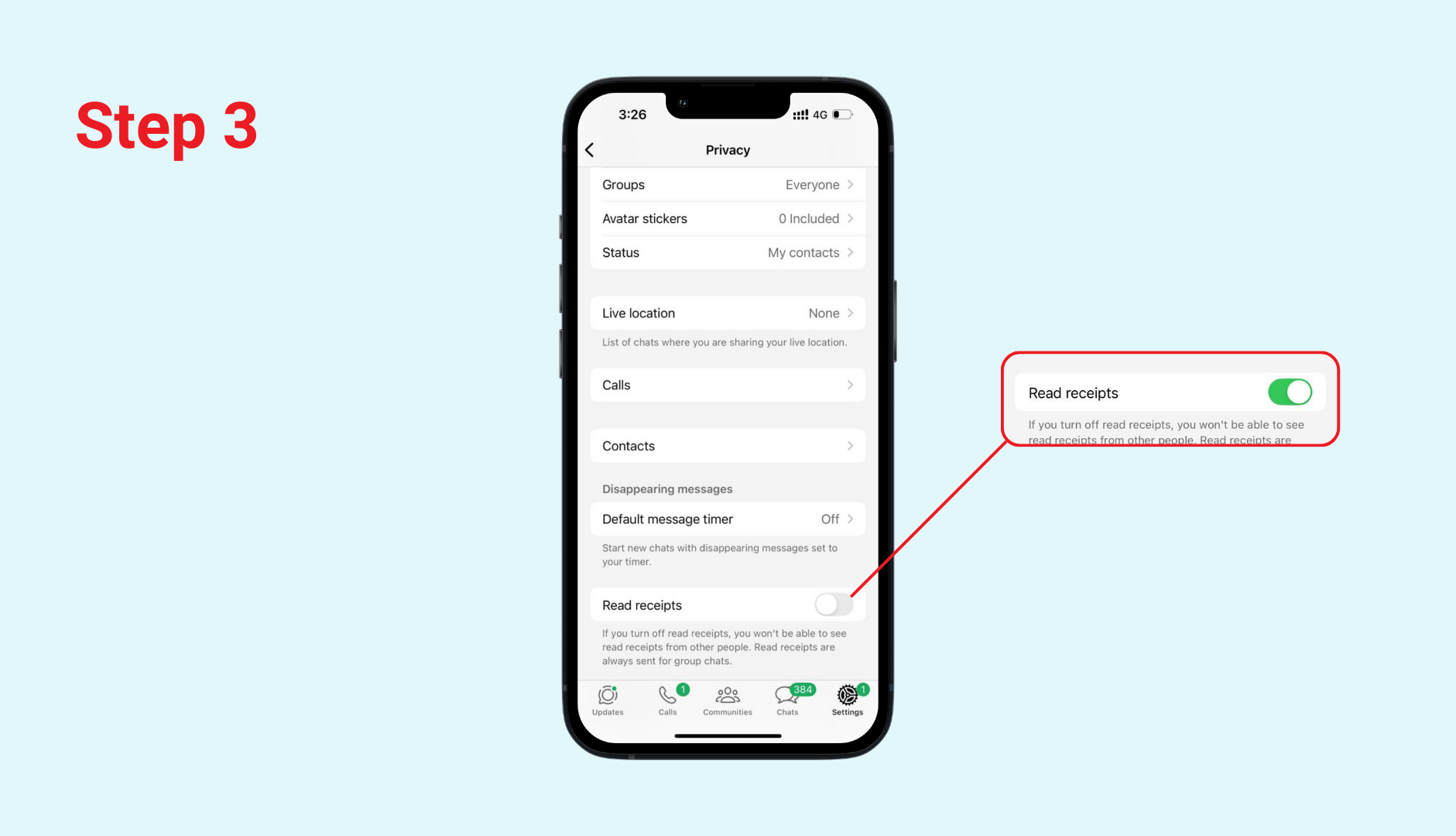
Done. You’ve removed read receipts on your iPhone.
Important Notes for iPhone Users
- You will still see delivery updates (single tick, double tick).
- Disabling read receipts does not hide your “Last Seen” or “Online” status — those are separate settings.
- Group-read receipts still remain visible.
How to Remove Blue Ticks on WhatsApp Web / Desktop
WhatsApp Web doesn’t have its own toggle for read receipts.
Instead:
👉 Whatever privacy setting you choose on your phone automatically applies to WhatsApp Web and Desktop.
So if you turn off blue ticks on your mobile device, you’ve effectively turned them off everywhere.
There is no separate switch on the web version.
Can WhatsApp Business Users Turn Off Blue Ticks?
Yes.
The WhatsApp Business app has the same read receipt toggle as the normal WhatsApp app.
How to Disable Read Receipts in WhatsApp Business
- Open WhatsApp Business
- Go to Settings
- Select Privacy
- Toggle Read Receipts OFF
But should a business turn off blue ticks?
This depends on how you serve customers.
Here’s the truth:
- If you run support, sales, or service-based conversations, keeping blue ticks ON often builds more trust.
- Customers feel acknowledged when they see that you’ve read their message.
- Turning off read receipts may create doubt or frustration in customer-facing communication.
If your business uses WhatsApp just for one-way announcements or internal messages, turning off read receipts is fine.
In short:
- Yes, you can turn them off.
- Whether you should depends on your customer experience approach.
What Happens When You Disable Blue Ticks? (Pros & Cons)
Turning off read receipts sounds like a small setting change, but it affects the way you communicate on WhatsApp. Here’s what changes:
Pros | Cons |
More privacy People won’t know whether you have read their message or when. | You lose the ability to see blue ticks from others Read receipts are mutual; disabling them hides read statuses on both sides. |
No pressure to reply instantly You get to read messages at your pace, without expectations. | Group messages still show blue ticks WhatsApp has no option to disable read receipts in groups. |
Useful for busy schedules You can read messages while in meetings or when you need more time to respond. | Voice messages still reveal when you’ve listened The microphone icon turns blue once played, even with read receipts off. |
Avoids misunderstandings: Prevents potential awkwardness if you see a message but are unable to reply right away. | Not ideal for business or customer support Customers rely on read receipts as a trust signal. |
Why You Can’t Disable Blue Ticks in Group Chats
WhatsApp keeps read receipts mandatory in group chats for one reason: group transparency.
People need to know:
- Who has seen the message
- Who has not
- Whether important updates have reached everyone
Even with read receipts OFF, group messages will always show the blue ticks.
There is currently no workaround or setting to change this across Android, iPhone, business, or web.
Why Voice Messages Still Show Blue Indicators
Voice messages behave differently from text messages.
When you listen to a voice note:
- The mic icon turns blue
- The sender can see that you listened
- This happens even if read receipts are OFF
This is by design. WhatsApp considers “listening to a voice note” a different action than “reading a message.”
So yes, blue indicators for voice notes cannot be removed.
How Blue Ticks Affect Personal Communication
Removing blue ticks can be a helpful boundary.
Here’s when people commonly disable them:
- They want more privacy
- They read messages but reply later
- They want to avoid misunderstandings
- They manage multiple group chats
- They want to control expectations
Ultimately, it's about peace of mind.
How Blue Ticks Affect Business Communication
Blue ticks mean more than read receipts in business chats.
They signal:
- The brand is attentive
- Messages are being seen
- There is progress
- The customer isn't ignored
When a customer sends a complaint or urgent query, the blue tick reassures them that someone has acknowledged the issue.
This is why most brands, especially those using the WhatsApp Business App or WhatsApp API, keep read receipts ON.
Recommended Read: WhatsApp Business App vs WhatsApp Business API
Frequently Asked Questions
1. Will disabling blue ticks hide “typing…” or “online” status?
No. Those are separate privacy settings. Only read receipts get disabled.
2. Can I turn off blue ticks for some people and not others?
No. It’s an all-or-nothing setting.
3. Do scheduled messages or broadcast messages show blue ticks?
Yes if read receipts are ON. Otherwise, you’ll only see grey ticks.
4. If I turn off read receipts, will the other person know?
Not directly. But they may guess if your ticks never turn blue.
5. Does disabling read receipts work for WhatsApp Business API?
No. The WhatsApp Business API uses a different infrastructure. Delivery and read statuses are shown based on system reports, not manual toggles.
6. How to Remove WhatsApp Blue Tick but Still Receive Messages
Disabling read receipts lets you receive and read messages without sending blue ticks to senders, while keeping notifications active. Go to WhatsApp Settings > Privacy > turn off Read receipts; messages arrive normally, but you won't see others' read status either.
7. How Can I Read WhatsApp Messages Without Ticks Going Blue?
Use Airplane Mode: Enable it, open WhatsApp to read, force-close the app, clear cache if needed, then disable Airplane Mode. This prevents the read receipt from sending, keeping ticks grey.
8. How Do You Know If Someone Is Secretly Reading Your WhatsApp Message?
You can't directly detect it if they disable read receipts, as no blue ticks appear. Check if they reply without ticks on your end or use typing indicators; mutual disabling blocks visibility for both.
9. Why Do People Hide Blue Ticks?
Users hide blue ticks to avoid reply pressure, maintain privacy during busy times, or read messages without seeming to ignore them. It reduces anxiety from instant expectations in personal or work chats
10. What Happens If I Turn Blue Ticks On and Off?
Toggling read receipts on/off changes immediately: off hides your reads (and others' from you), on restores full visibility. It doesn't affect past messages, groups stay on, and frequent changes may confuse contacts
11. Can You Disable Blue Ticks for Specific Contacts or Groups?
No, WhatsApp's read receipts toggle applies account-wide, not per contact or group. Groups and voice notes always show blue ticks regardless.
12. How to Remove Blue Ticks on WhatsApp Web or Desktop?
On Web/Desktop, read receipts mirror your phone's setting—disable on mobile (Settings > Privacy > Read receipts off) to sync across devices. No independent toggle exists for Web/Desktop.
Final Thoughts
Disabling the blue tick on WhatsApp is simple and sometimes necessary. Whether you want more privacy, fewer expectations, or just cleaner communication, the read receipt toggle gives you full control.
For personal use, it’s a great way to reduce pressure. For business use, it’s something to think twice about, especially when customer trust is at stake.
At the end of the day, WhatsApp should work around your lifestyle, not the other way around.
A small toggle, a much calmer messaging experience.



.png&w=828&q=75)