.jpeg)


Your SMS campaign is ready. The audience is selected, the message is approved and the campaign is scheduled. But when you check the delivery report, a large number of messages show as failed.
One possible reason is a DLT error.
In India, commercial SMS messages are checked against details registered on the Distributed Ledger Technology (DLT) platform. If the Principal Entity (PE) ID, sender header, content template or other required information is missing or does not match, a message may be rejected during scrubbing.
The challenge is that the same underlying problem can appear under different error codes or status descriptions, depending on the telecom operator and SMS provider.
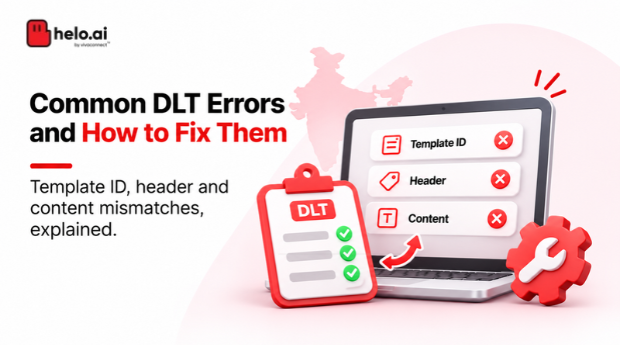
This guide explains common DLT errors and how to fix them, including missing Template IDs, header mismatches, content mismatches and PE ID failures. It also covers STPL DLT troubleshooting, how to read SMS delivery reports and what to check before escalating a failed campaign.
A DLT error means an SMS failed a check against its registered PE ID, sender header, Template ID or approved content. Read the exact error in the delivery report, compare the message with the DLT record, then correct the SMS platform setup. Code numbers differ by provider.
What is a DLT error in SMS?
A DLT error occurs when a commercial SMS fails one or more checks against the applicable sender registration and messaging requirements.
Before a commercial SMS is delivered in India, the telecom ecosystem checks details such as:
- Principal Entity (PE) ID: Identifies the registered business sending the message.
- Sender header: The registered sender ID used for the communication.
- Content Template ID: Identifies the approved message format.
- Telemarketer details: Identify the registered messaging chain involved in sending the message.
- Message content: The actual SMS text must match the registered template, allowing only permitted variable values.
This checking process is commonly called DLT scrubbing or content template scrubbing.
If the required information is missing, invalid, inactive or inconsistent, the message may be rejected instead of proceeding for delivery.
A DLT error does not always mean that the business registration itself is wrong. Sometimes the registration is correct, but the SMS provider's panel or the business's API request is not using the right information.
How does DLT scrubbing work?
Understanding the process makes it easier to identify where a failure may have occurred.
A typical business SMS delivery flow looks like this:
- The business creates a message using an approved content template.
- The SMS platform receives the message and the required DLT details.
- The messaging chain submits the message towards the telecom network.
- The applicable checks validate the sender, entity, template and message details.
- If the checks pass, the message proceeds for delivery.
- If a required check fails, the message may be rejected or marked with a failure status.
The failure may originate from DLT registration, the SMS provider's configuration, the API request or the actual message content.
This is why checking only the DLT portal is not always enough. The business should also check how its SMS platform is configured.
Common DLT errors and how to fix them
The following are common failure patterns businesses encounter. The exact error code or status label can differ across operators and SMS providers.
1. DLT Template ID missing
What it means
The SMS is being submitted without the required DLT Content Template ID.
A business may have registered and received approval for a template on its DLT portal, but the ID has not been configured in the SMS panel or passed in the API request.
Common reasons
- The Template ID was not added to the SMS platform.
- The API request does not include the required Template ID parameter.
- The campaign is using an older template configuration.
- The wrong template has been mapped to the message.
- The template was approved on DLT but not updated in the provider's panel.
How to fix it
- Log in to the DLT portal and find the approved content template.
- Copy its exact Template ID.
- Open the SMS provider's panel and locate the template configuration.
- Map the correct DLT Template ID to the corresponding message.
- If sending through an API, check that the required Template ID parameter is included in every applicable request.
- Send a test message and check the delivery report.
Developer check: Verify that the Template ID is being passed in the correct API field. For example, Exotel's documentation uses the parameter DltTemplateId. Other providers may use a different field name.
2. Header mismatch or sender ID not registered for the template
What it means
The sender header used while sending the SMS does not match the header registered or mapped against the selected content template.
For example, a business may have registered a template against header ABCDEF, but its campaign is configured to send using XYZABC.
Even if both headers belong to the same business, the mismatch can cause the message to fail.
Common reasons
- The wrong sender ID is selected in the campaign.
- The header is not linked to the selected content template.
- The header belongs to a different Principal Entity.
- The header is inactive, suspended or blacklisted.
- The SMS platform has an outdated header mapping.
How to fix it
- Find the failed message in the delivery report.
- Note the sender ID and Template ID used in the request.
- Log in to the DLT portal and open the corresponding template.
- Check which sender header is linked to that template.
- Confirm that the header belongs to the correct Principal Entity.
- Update the header mapping on the DLT portal if required.
- Make sure the same header is selected in the SMS provider's panel or API configuration.
Do not change the sender ID randomly to make a campaign work. First confirm that the intended header is registered and approved for that template.
3. Template content mismatch
What it means
The SMS text being sent does not match the content template registered on the DLT portal.
A small change can be enough to cause a mismatch. This may include an extra word, different punctuation, altered sentence structure or an unexpected line break.
Example
Registered DLT template:
"Dear {#var#}, your order {#var#} has been shipped. Track your order at {#var#}. - Brand"
Message being sent:
"Dear Rahul, your order 12345 has been shipped! Track your order at https://example.com. - Brand"
The exclamation mark has replaced a full stop. If that change falls outside an approved variable, the message may not match the registered template.
Common reasons
- Extra words have been added to the message.
- Punctuation or spacing has changed.
- The message contains a different brand name or footer.
- A line break has been added or removed.
- The wrong Template ID has been selected.
- The actual message has been changed without updating the registered template.
How to fix it
- Download or copy the approved template from the DLT portal.
- Compare it with the message being sent.
- Check spaces, punctuation, brand name, URLs and line breaks.
- Confirm that only the approved variable portions are changing.
- Update the SMS platform's template content to match the approved version.
- If the business needs a permanent content change, register the revised template and use its approved ID.
A useful practice is to maintain one approved version of each template and use it as the reference for campaign and API configurations.
4. PE ID missing or incorrect
What it means
The Principal Entity ID is missing from the message submission or does not match the registered entity.
The PE ID connects the SMS to the business that owns the sender header and content template.
Common reasons
- The PE ID has not been configured in the SMS panel.
- The API request is missing the entity ID parameter.
- An incorrect PE ID has been copied into the configuration.
- The selected header or template belongs to another entity.
- The entity has a registration or status issue.
How to fix it
- Log in to the DLT portal.
- Find the Principal Entity ID associated with the business.
- Compare it with the ID saved in the SMS provider's account.
- Check the API request or campaign configuration.
- Confirm that the selected header and template belong to the same entity.
- Ask the SMS provider to check the entity mapping if the IDs match but the error continues.
Developer check: Confirm that the entity ID is passed in the field required by the provider's API. Do not use a Telemarketer ID in place of a PE ID.
5. Template is inactive, suspended or blacklisted
What it means
The Template ID exists, but it is not currently available for use.
A template may be inactive, suspended or blacklisted on the DLT platform. In that situation, passing the correct ID will not necessarily make the message deliverable.
Common reasons
- The template has been suspended.
- The template has been blacklisted.
- The business has deactivated or withdrawn the template.
- The template has been flagged for misuse.
- The template is no longer valid under the applicable platform status.
How to fix it
- Search for the Template ID on the DLT portal.
- Check its current status.
- Review any available rejection, suspension or blacklisting remarks.
- Contact the relevant access provider if the reason is unclear.
- Correct the underlying issue and follow the prescribed reactivation or fresh-registration process.
- Update the SMS platform with the active, approved Template ID.
Do not assume that a previously approved template will remain usable indefinitely. Check its current status before using it in a campaign.
6. Variable length exceeded
What it means
The value inserted into a variable field is longer than the limit accepted for that registered template or provider implementation.
For example, a template may allow a short customer name or transaction reference, but the business inserts a long URL or a full description into the same variable.
Common reasons
- Long URLs are being inserted into a single variable.
- Customer names or product descriptions exceed the configured length.
- The application sends a complete address where the template expects a short value.
- The registered variable structure does not match the values generated by the application.
How to fix it
- Identify the variable causing the failure.
- Check the variable structure and applicable length restrictions on the DLT platform and with the SMS provider.
- Keep the inserted value within the permitted limit.
- Use an approved short link where a long URL is not necessary.
- If the message requires more dynamic content, redesign the template with suitable variable fields and register the revised version.
Do not assume every variable can accept unlimited text. Some provider documentation specifies limits for variable replacement values. For example, Exotel documents a 30-character limit for a {#var#} replacement in its implementation guidance. This should not be treated as a universal limit for every operator or provider. Confirm the current requirement for the route and platform being used.
7. PE-TM chain or Telemarketer ID mismatch
What it means
The Principal Entity and Telemarketer relationship required for the message submission is missing, inactive or incorrectly configured.
The PE-TM chain establishes the authorised messaging path between the business and the telemarketer involved in delivery.
Common reasons
- The business has not initiated the required Telemarketer chain.
- The telemarketer has not completed the mapping.
- The PE ID is linked to a different telemarketer.
- The chain is inactive or suspended.
- The Telemarketer ID passed in the request is incorrect.
How to fix it
- Check the Telemarketer ID configured with the SMS provider.
- Log in to the relevant DLT portal and review the PE-TM chain.
- Confirm that the intended telemarketer has been added.
- Ask the telemarketer to complete or confirm the mapping on its side.
- Check the chain status before retrying the campaign.
- If the configuration appears correct but the error continues, share the failed request details with the provider.
TRAI's traceability framework makes the correct telemarketer chain an important part of commercial SMS delivery. A valid PE ID and Template ID alone may not resolve a chain-related failure.
8. Incorrect message category or provider route configuration
What it means
The message category selected in the SMS platform does not match the registered classification or the actual purpose of the message. Alternatively, the provider may be using an incorrect route configuration.
These are related troubleshooting areas, but they are not necessarily the same type of DLT rejection.
Common reasons
- The wrong message category was selected during template registration.
- The SMS platform has an incorrect category mapping.
- The provider has configured an incompatible route.
- Promotional content has been added to a service or transactional message.
How to fix it
- Check the category assigned to the template on the DLT portal.
- Review the actual purpose and content of the SMS.
- Compare the DLT category with the configuration in the SMS platform.
- Ask the provider to confirm that the message is being submitted through the correct route.
- If the registered category itself is incorrect, follow the portal's process for registering the appropriate template.
Do not classify a message based only on the route you want to use. Its actual purpose and content must fit the applicable regulatory definition.
STPL DLT portal: Where to check your registration
STPL, or Satzilio Telecom Private Limited, is an access provider associated with the SmartPing DLT portal.
If your business uses STPL DLT, it is one of the places to check when an SMS fails because of an entity, header or content-template issue.
Before contacting support, review these records:
| DLT record | What to check |
|---|---|
| Principal Entity | PE ID, entity details and registration status |
| Sender header | Approval status and association with the intended entity |
| Content template | Template ID, approved text, message category and current status |
| Header-template mapping | Whether the intended header is associated with the selected template |
| PE-TM chain | Whether the required telemarketer relationship is correctly configured |
The exact portal labels and navigation can change. Use the current SmartPing DLT interface and its support documentation rather than relying on screenshots or instructions from an older portal version.
If your business uses another operator's DLT portal, the same registration checks apply, although the interface and error descriptions may differ.
For a complete registration walkthrough, see our DLT Registration in India guide.
DLT error codes: A quick reference
Error codes can help narrow down the problem, but there is no single universal error-code list shared by every SMS provider and telecom operator.
The examples below are drawn from specific published references. They should be treated as troubleshooting clues, not as a common code dictionary.
Airtel published error-code examples
| Example code | Issue described in the reference | What to check |
|---|---|---|
| 613 | Invalid Template ID | Template ID and registration status |
| 614 | CLI/header mismatch with the template | Header-to-template mapping |
| 666 | SMS content mismatch | Actual message against approved text |
STPL provider error-list examples
| Example code | Issue described in the reference | What to check |
|---|---|---|
| 633 | Template text mismatch | Actual message and approved template |
| 634 | Header not registered for the template | Header-template mapping |
| 635 | Variable length exceeded | Dynamic field length |
| 637 | Invalid Template ID | ID format and API mapping |
| 812 | PE-TM hash missing | Telemarketer chain configuration |
| 813 | PE ID mismatch | Entity ID and provider mapping |
Reading these lists: Published lists overlap but are not identical. Exotel's published list gives the same meanings for 633, 634, 635 and 637. It shows 613 to 619 as reserved for telemarketers and 666 as reserved for consent, so those codes vary by provider. Check your own provider's list.
Some Airtel references also use codes such as 25 and 26 for missing Template ID and PE ID tags. These are specific to that documented implementation.
Important: An error code shown in one provider's report may mean something different in another system. Always use the exact error description shown in your own delivery report as the starting point. If a code is not documented by your provider, ask its support team to confirm the meaning before changing your DLT configuration.
Not every SMS failure is a DLT error
This distinction is important when reading delivery reports.
An SMS may fail before it reaches the DLT scrubbing stage, during validation, or later in the delivery process. A failed status by itself does not prove that DLT caused the problem.
| Failure type | Possible cause | Where to investigate |
|---|---|---|
| DLT rejection | Missing PE ID, invalid Template ID, header mismatch or content mismatch | DLT portal and SMS provider configuration |
| API submission failure | Missing or incorrectly formatted API parameter, authentication issue or invalid request | Application logs and API documentation |
| Operator rejection | Network-side policy or message validation issue | SMS provider and telecom operator |
| Recipient-related failure | Invalid, unreachable or unavailable destination number | Recipient data and delivery report |
| Temporary delivery failure | Network congestion, handset availability or temporary routing issue | Provider delivery report and retry policy |
The exact status descriptions vary by platform. Check the provider's documentation to understand whether a failure happened during submission, scrubbing or delivery.
This prevents businesses from repeatedly changing approved templates when the actual problem is unrelated to DLT.
How to troubleshoot DLT failures step by step
If a campaign has a high failure rate, avoid changing several settings at once. Follow a consistent troubleshooting process so the actual cause can be identified.
Step 1: Download the delivery report
Open your SMS provider's dashboard and download the campaign delivery report.
Look for fields such as:
- Message ID or campaign ID.
- Recipient number.
- Sender ID or header.
- Template ID.
- PE ID, where available.
- Delivery status.
- Error code or failure description.
- Submission time.
The exact report fields depend on the provider.
Step 2: Group failures by error type
Separate the failed messages into groups, such as:
- Missing Template ID.
- Invalid or inactive Template ID.
- Header mismatch.
- Content mismatch.
- PE ID issue.
- Telemarketer chain failure.
- Variable-length issue.
- Category or route mismatch.
- Non-DLT delivery failure.
If hundreds of messages have failed, grouping them by reason is more useful than inspecting every message individually.
Step 3: Check the DLT portal
Log in to the portal where the relevant entity, header or template is registered.
Check:
- Is the entity active?
- Is the header approved and active?
- Is the content template approved and active?
- Is the header linked to the correct template?
- Does the template belong to the correct entity?
- Is the message category correct?
- Are there any suspension or rejection remarks?
If you use the STPL DLT portal through SmartPing, check the entity, header and content-template records in the relevant account. The same basic checks apply, although portal navigation and labels may differ from other access providers.
Step 4: Compare the message with the approved template
Take one failed message and compare it with its registered template.
Check the fixed text, punctuation, spaces, line breaks, brand name, URL and variable positions.
If the actual message has been changed in the application or campaign, compare the generated text rather than only the template saved in the SMS panel.
Step 5: Check the SMS provider configuration
A template can be approved on DLT but still fail if its details have not been mapped correctly in the SMS provider's system.
Confirm that:
- The PE ID is configured correctly.
- The Template ID is mapped to the right message.
- The approved sender header is selected.
- The message category is mapped correctly.
- The telemarketer chain is active.
- The API is passing the required DLT parameters.
Step 6: Send a controlled test
After correcting the configuration, send a small test using an approved template and a permitted test recipient.
Check the delivery report to confirm whether the DLT-related failure has been resolved.
Do not immediately resend the entire failed campaign. First confirm that the underlying issue is fixed.
Step 7: Escalate with the right information
If the error continues, raise a ticket with your SMS provider or the relevant telecom operator.
Share:
- Campaign ID and approximate submission time.
- A sample failed Message ID.
- Sender header.
- PE ID and Template ID.
- Exact error code and description.
- The registered template text.
- The actual message submitted.
- Relevant API request fields, with credentials and sensitive data removed.
This gives the support team enough information to investigate the registration, mapping or network-side issue without repeatedly asking for basic details.
Need help with a DLT setup?
Get support with entity, header and template registration, so your SMS platform uses the same approved details.
DLT troubleshooting checklist for businesses
Before launching your next SMS campaign, use this checklist to catch common configuration issues.
DLT registration
- Principal Entity registration is active.
- The correct PE ID is available.
- The sender header is approved and active.
- The content template is approved and active.
- The header is linked to the intended template.
- The PE-TM chain is correctly configured.
Template and message configuration
- The correct Template ID is mapped in the SMS platform.
- The actual message matches the approved template.
- Only permitted variable fields are changing.
- Variable values remain within applicable limits.
- The message category matches its actual purpose.
- The selected sender header is the one approved for the template.
API and delivery checks
- Required PE ID and Template ID parameters are passed.
- API field names and values match the provider's documentation.
- Campaign reports are checked after submission.
- Failed messages are grouped by error type.
- DLT failures are separated from other delivery failures.
- A small test is completed after configuration changes.
How to prevent recurring DLT errors
Fixing a failed campaign is useful, but preventing the same issue from happening again saves more time.
- Maintain a central template register. Keep the approved template text, Template ID, message category, associated header and current status in one controlled record.
- Avoid editing approved content directly in campaigns. Use the approved template as the source for all campaign and API configurations.
- Review dynamic fields before launch. Test the longest expected customer name, order reference, URL or other variable value to identify length issues before sending at scale.
- Keep DLT and SMS panel configurations aligned. Whenever a template or header is updated, ensure the corresponding configuration is updated with the SMS provider.
- Monitor delivery reports regularly. A sudden increase in DLT-related failures can point to a mapping change, inactive registration or application-side update.
- Document API changes. If the development team changes message generation or API parameters, include DLT validation in the release checklist.
How Helo.ai helps with DLT registration and SMS delivery
DLT errors often start before a campaign is sent. A missing registration, incorrect header mapping or unapproved template can affect every message that depends on it.
Helo.ai helps businesses with DLT registration, including entity, header and content-template registration, alongside their business SMS requirements.
This can help teams manage the registration process with support instead of handling every step on their own.
If your business is preparing to start bulk SMS or needs help with its existing DLT setup, explore Helo.ai DLT Management.
Frequently asked questions about DLT errors
Why is my SMS failing due to a DLT error?
An SMS can fail because the PE ID, sender header or Template ID is missing, incorrect or inactive. It can also happen when the message does not match the approved content template or the required telemarketer chain is not configured correctly.
What does Template ID missing mean in DLT?
It means the required DLT Content Template ID was not included in the message submission or was not mapped correctly in the SMS provider's panel. Check the API request or campaign configuration and confirm that the correct approved ID is being passed.
Why does my DLT template show as approved but SMS is still failing?
Approval on the DLT portal is only one part of the setup. The Template ID may not be mapped in the SMS platform, the sender header may not be linked to the template, the PE ID may be incorrect or the actual message may not match the approved text.
How do I fix a DLT header mismatch?
Check the sender ID used in the failed campaign against the header linked to the selected Template ID on the DLT portal. Correct the mapping or select the approved header in the SMS provider's panel.
What causes DLT template mismatch?
A template mismatch can occur when the actual SMS contains different fixed text, punctuation, spaces, line breaks or brand details from the approved template. It can also happen when dynamic variable values do not follow the registered format or length restrictions.
What is DLT scrubbing failure?
DLT scrubbing failure means a message did not pass one or more applicable checks against its registered sender, entity, template or other required messaging details. The exact cause should be identified from the error code and delivery report.
What is STPL DLT?
STPL refers to Satzilio Telecom Private Limited, an access provider associated with the SmartPing DLT portal. Businesses using the STPL DLT portal should check their entity, header and content-template records there. Error labels and portal navigation may differ from those used by other operators.
Can I send SMS without a Template ID?
Applicable commercial SMS traffic in India must carry the required registered content-template details. If the Template ID is missing or not correctly passed, the message may fail DLT scrubbing.
How do I check whether a DLT template is active?
Log in to the relevant DLT portal, search for the Template ID and review its current status. If it is inactive, suspended or blacklisted, check the portal's remarks and follow the prescribed process before using it again.
Does changing the SMS provider fix DLT errors?
Not necessarily. If the problem is an incorrect PE ID, inactive template, unlinked header or content mismatch, changing providers will not automatically resolve it. The underlying DLT registration and message configuration must be corrected.
Why do some SMS messages get delivered while others fail?
Different messages may use different headers, templates, message categories or variable values. A configuration that works for one template may fail for another. Compare the failed messages against their individual registration and delivery details.
Final takeaway
A DLT error does not always mean that the business registration is wrong. Sometimes the issue is as small as a missing Template ID in an API request, a different sender header or an extra character in the message.
The best way to troubleshoot is to start with the delivery report, identify the exact failure, compare the message with its approved DLT details and then check the SMS provider's configuration.
When the DLT portal, SMS panel and API all use the same approved information, businesses can reduce avoidable scrubbing failures and keep their SMS campaigns running more reliably.
Fix the setup, not just the campaign
Tell the Helo.ai team which DLT errors you see and how you send SMS, and they can help you review the setup.
Note. This article is an editorial guide and general information, not legal advice. Error codes, labels and portal screens vary by provider and change over time, so check your own provider and DLT portal. Helo.ai is a CPaaS provider and publishes this guide. Facts were checked on 16 November 2026.