.jpeg)
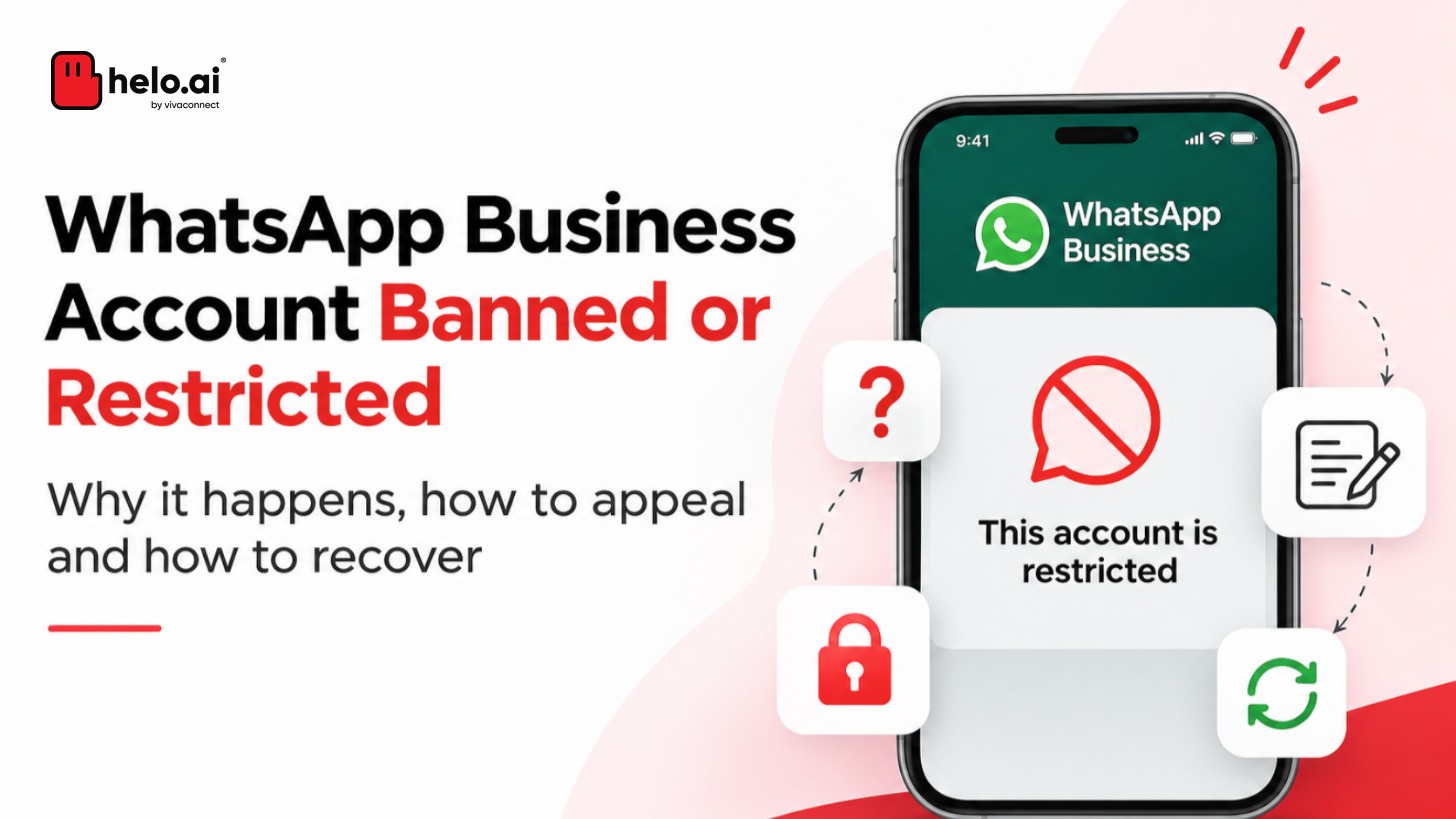


A WhatsApp Business account ban can disrupt customer communication, ongoing campaigns, support conversations and business operations. If WhatsApp has blocked your number, restricted your account or temporarily stopped you from sending messages, the first thing you need to do is identify the type of restriction.
Not every WhatsApp ban is permanent. Some restrictions are temporary, while others may require an account review. The recovery process also differs between the WhatsApp Business App and WhatsApp Business Platform.
If WhatsApp has banned your account, this guide explains why it happens, how to check the reason, how to request a review and what you can do to prevent another restriction.
If WhatsApp has banned or restricted your account, check the restriction message first. Identify the affected account, stop any activity that may have triggered the restriction, and follow the review process available to you. Account restoration is not guaranteed.
A WhatsApp Business ban or restriction needs a different response depending on its type. Check the exact notice first, stop the activity that may have triggered it and request a review if the option appears. Meta says Business Platform reviews typically take 24 to 48 hours, and restoration is not guaranteed.
What Does a WhatsApp Business Account Ban or Restriction Mean?
A WhatsApp Business account ban or restriction means WhatsApp or Meta has limited or disabled certain activities on your account.
Depending on the issue, you may be unable to send messages, initiate business conversations, use certain messaging features or access your WhatsApp Business account.
A restriction can apply to a phone number, messaging activity, a specific feature or the wider business account. This is why checking the exact account status is important before attempting to recover it.
WhatsApp Ban vs. Restriction vs. Temporary Block
| Account status | What it means | What you should do |
|---|---|---|
| Temporary restriction | Certain messaging activities are limited for a specified period | Check the restriction message and follow the instructions |
| Messaging restriction | You may be unable to initiate certain types of messages or conversations | Check the messaging limit or restriction details |
| Account restricted | WhatsApp or Meta has limited your account's activity | Check the violation details and available actions |
| Account banned or disabled | Your access to WhatsApp or its business services has been suspended | Check whether you can request a review |
| Account review in progress | Your review request has been submitted and is being evaluated | Monitor the review status and wait for the decision |
The exact restrictions depend on your account type, the reason for enforcement and the action WhatsApp or Meta has taken.
Source check: Meta’s policy enforcement page describes escalating steps for WhatsApp Business Platform accounts. A warning comes first, then a 1-day or 3-day block on templates, then a 5-day, 7-day or 30-day block on all messages. After that comes an indefinite account lock that only a successful appeal lifts, and finally disabling. Severe harms such as scams can lead to immediate removal. The page does not cover the WhatsApp Business app.
Why Does WhatsApp Business Ban or Restrict Accounts?
WhatsApp may restrict or ban accounts when it detects activity that violates its policies, creates a poor customer experience or raises concerns about how the platform is being used.
Here are some common reasons businesses may face restrictions.
1. Sending Messages Without Proper Consent
Sending promotional messages to people who have not agreed to receive them can result in negative feedback, blocks and reports.
Businesses should contact customers who have clearly agreed to receive WhatsApp communication and respect their preferences.
2. Too Many Spam Reports or Blocks
If recipients frequently block your number or report your messages, it may signal that your communication is unwanted.
This can happen when businesses send irrelevant offers, message customers too frequently or contact people who do not remember signing up.
3. Violating WhatsApp Business Policies
Messages, products, services or business activities that violate WhatsApp's Business or Commerce Policies can lead to account restrictions.
Businesses should review the policies relevant to their industry and messaging use case.
4. Using Unofficial WhatsApp Tools
Unofficial applications, modified WhatsApp versions, extensions or tools that automate activities outside permitted methods may put your account at risk.
Businesses should use official WhatsApp products and authorised integrations for their communication.
Source check: WhatsApp’s unofficial apps page says unofficial apps violate its Terms of Service and that an account might be temporarily or permanently banned. Its temporarily banned page links the “Temporarily banned” message to unofficial versions of WhatsApp and to scraping.
5. Poor Messaging Practices
Sending repetitive messages, irrelevant promotions, excessive communication or misleading content can affect customer experience and messaging quality.
Even if a campaign is delivered, that does not mean customers find it useful or welcome.
6. Business Information or Account Issues
Incorrect business information, verification issues, a website that does not accurately represent the business or other account-related concerns may create problems during onboarding, reviews or account usage.
If your account has been restricted, always check the specific reason displayed by Meta rather than assuming what caused it.
What WhatsApp Ban Message Are You Seeing?
The next step depends on the message WhatsApp displays and the type of account you use.
| What you see | What it may mean | What to do |
|---|---|---|
| "This phone number can't use WhatsApp" | Your number has been banned from using WhatsApp | Use the Request Review option if available |
| "Temporarily banned" | WhatsApp has temporarily limited your account or activity | Check the timer or instructions; stop the activity that may have triggered the restriction |
| Account restricted in WhatsApp Manager | Your WhatsApp Business Platform account or messaging activity has been restricted | Check the violation and next steps in Meta Business Support Home |
| Messaging limit reached | You may have reached a messaging limit rather than being banned | Check your messaging limit and account status |
| Template rejected or paused | The issue may relate to a specific message template rather than the entire account | Review the template status and relevant policy |
| Review request submitted | WhatsApp or Meta is evaluating your appeal | Monitor the review status and wait for the decision |
A failed message, rejected template or messaging limit does not automatically mean your WhatsApp number is banned. Check the actual account status before taking recovery action.
Wording check: The table quotes “This phone number can’t use WhatsApp”. WhatsApp’s account bans page gives the notice as “This account is not allowed to use WhatsApp.” I could not open WhatsApp’s Business app ban page, so check the exact wording on your own screen.
Limit check: Meta’s messaging limits page defines a messaging limit as the number of unique people you can message outside a customer service window in a moving 24 hours. It is set at business portfolio level, and new portfolios start at 250. Hitting it is not a ban. Meta’s template pacing page describes a paused template as a template-level status, not an account action.
How to Check Why Your WhatsApp Business Account Is Banned
Before trying to recover your account, identify the reason for the restriction.
For WhatsApp Business Platform accounts
- Log in to Meta Business Suite using an account with access to your business.
- Open Business Support Home.
- Select the relevant Business Portfolio or account.
- Locate the affected WhatsApp Business Account.
- Open the violation or restriction details.
- Review the policy involved and the recommended action.
- Check whether the option to request a review is available.
You may find information about the policy involved, the restriction applied to your account and the steps Meta recommends.
Source check: Meta’s policy enforcement page says each violation in Business Support Home shows the policy, active restrictions, how to avoid a repeat and how to appeal. Notices also reach the Business Manager Notifications Center, a WhatsApp Manager banner and the email of Business Manager admins, so keep admin emails current.
For WhatsApp Business App accounts
If you're using the WhatsApp Business App and see a ban message when opening the application, read the message carefully.
If you believe the ban was applied incorrectly, use the Request a review option displayed in the app, where available, and provide the requested information.
The recovery process for the WhatsApp Business App is different from the process for accounts using the WhatsApp Business Platform.
How to Unban a WhatsApp Business Account
If your account has been banned or restricted, follow these steps before submitting an appeal.
Step 1: Identify the Reason for the Ban
Check the account notification, WhatsApp Manager or Meta Business Support Home to find the reason for the restriction.
Avoid making assumptions about the cause before reviewing the official account details.
Step 2: Review Your Recent Messaging Activity
Look at your recent campaigns and communication practices.
Check for:
- Messages sent to contacts without clear consent
- High-volume campaigns that may have generated negative feedback
- Repeated promotional messages
- Irrelevant or misleading content
- Unofficial tools or integrations
- Incorrect business details
- Policy violations related to your business or messages
If you identify a potential issue, correct it before submitting your review.
Step 3: Gather Information for Your Appeal
Prepare the information that helps WhatsApp or Meta understand your business and how you use the platform.
You may need:
- Business name
- Website URL
- Business description
- WhatsApp Business Account details
- Explanation of your WhatsApp use cases
- Relevant supporting information about your messaging practices
- Evidence of customer consent, if relevant to the issue
Keep the information accurate and specific.
Step 4: Request a Review
For WhatsApp Business App bans:
- Open the WhatsApp Business App.
- Read the ban notification.
- Tap Request Review, if the option is available.
- Provide the information requested.
- Submit your review request.
For WhatsApp Business Platform restrictions:
- Open Meta Business Suite.
- Go to Business Support Home.
- Select the affected WhatsApp Business Account.
- Open the violation details.
- Click Request Review, if available.
- Explain why you believe the restriction should be reconsidered.
- Submit the request and monitor its status.
Not every restriction is eligible for an appeal. If the review option is unavailable, follow the instructions provided for that restriction.
Appeal check: Meta’s policy enforcement page says an appeal ends as “Unchanged” or “Reversed”, and that not all spam violations can be appealed. WhatsApp’s account bans page says each appeal covers one phone number and that sending more requests does not speed up the review.
Step 5: Wait for the Review Outcome
After submitting your review, monitor the relevant account and notifications for a response.
WhatsApp states that most reviews of banned WhatsApp Business App accounts are completed within 24 hours. Business Platform reviews may have different timelines, and some third-party support documentation indicates they can typically take 24–48 hours.
These are indicative timelines, not guarantees. The actual time may vary depending on the account and review.
Avoid repeatedly submitting appeals without new information or creating additional accounts to bypass an active restriction.
Timeline check: The draft says WhatsApp states that most Business app reviews finish within 24 hours. WhatsApp’s account bans page gives no fixed timeframe, and I could not open its Business app page, so please confirm that line. The 24 to 48 hour range comes from Meta’s own enforcement page for Business Platform decisions, not only from third-party documentation.
What to Write in a WhatsApp Ban Appeal?
A good appeal should be clear, factual and professional. Avoid aggressive language or generic requests to unblock your number.
Explain what your business does, how you use WhatsApp, why you believe the restriction may have been incorrect and what corrective actions you have taken.
WhatsApp Business Account Appeal Template
Subject: Request for Review of WhatsApp Business Account Restriction
Hello WhatsApp Support Team,
Our WhatsApp Business account associated with [Business Name / Phone Number] has been restricted.
We use WhatsApp to communicate with our customers regarding [briefly explain your business use cases, such as customer support, order updates, service notifications or opted-in promotional communication].
We have reviewed our recent messaging activity and the relevant WhatsApp Business policies. We are also reviewing our communication practices to ensure that our messages are relevant, sent to the appropriate recipients and aligned with WhatsApp's policies.
We believe the restriction may have been applied in error and would appreciate a review of our account.
Our business details are:
- Business Name: [Business Name]
- Website: [Website URL]
- WhatsApp Number / Account: [Account Details]
- Business Use Case: [How WhatsApp is used]
Please let us know if any additional information is required.
Thank you for your time and assistance.
Regards,
[Name]
[Business Name]
Only use this template if you genuinely believe your account was restricted incorrectly. If you have identified a violation, explain the issue and the corrective action taken honestly.
What to Do If Your WhatsApp Number Is Temporarily Banned
If WhatsApp shows that your number is temporarily banned, don't immediately attempt to bypass the restriction.
Instead:
- Read the restriction notice carefully.
- Check whether WhatsApp has displayed a timer or duration.
- Stop the activity that may have triggered the restriction.
- Remove unofficial tools or methods that may be violating WhatsApp's terms.
- Follow the instructions provided in WhatsApp.
- Request a review if the option is available and you believe the restriction is incorrect.
- Wait for the restriction period or review outcome where instructed.
A temporary restriction does not necessarily mean your account will be permanently banned. However, repeating the activity that caused it may lead to further enforcement.
WhatsApp Banned My Number for 72 Hours. What Should I Do?
If WhatsApp shows a 72-hour temporary ban, first confirm that the duration is displayed by WhatsApp itself.
During this period:
- Stop the activity that may have triggered the ban.
- Do not try to bypass the restriction using unofficial apps or automation.
- Check whether WhatsApp provides a review option.
- Follow the instructions shown in the app.
- Wait for the restriction to expire or for the review decision, as instructed.
A 72-hour restriction does not automatically mean your number is permanently banned. However, the duration and recovery options depend on the enforcement action applied to your account. Do not assume that every temporary ban follows the same process.
Source check: For Business Platform accounts, Meta’s policy enforcement page lists a 3-day block on templates and on adding phone numbers, which matches 72 hours in length. WhatsApp’s temporarily banned page states no duration for the app message.
What Businesses Should Do Immediately After a WhatsApp Restriction
For businesses using WhatsApp to manage customer communication, an account restriction can affect active campaigns, support teams, reminders and ongoing customer journeys.
If your business account is restricted, take these steps immediately.
1. Pause Campaigns Linked to the Affected Account
Review scheduled campaigns and pause those that may continue sending through the affected account, where applicable.
2. Identify the Affected Account and Number
Confirm which WhatsApp Business Account, phone number, campaign or messaging activity is affected.
3. Review Recent Messaging Activity
Check recent campaign audiences, message content, frequency, templates and customer feedback to identify any potential issues.
4. Assign an Internal Owner
Make sure someone from marketing operations, compliance or the relevant messaging team is responsible for investigating the restriction and managing the review.
5. Inform Relevant Teams
Customer support, marketing and operations teams should know which communication activities are affected so that they do not rely on a channel that is currently unavailable.
6. Prepare an Alternative Communication Plan
For critical customer updates, consider other channels such as SMS or email, where available and appropriately configured.
7. Monitor the Review
Keep track of the review request, notifications and account status. Resume communication only when the relevant account or messaging activity is available again.
Planning for critical customer updates?
See how Helo Broadcast manages campaigns across WhatsApp, SMS, RCS and email.
What Happens If Your WhatsApp Ban Appeal Is Rejected?
If WhatsApp or Meta does not reverse the restriction, review the decision and the violation details again.
Depending on your account and the type of restriction, you may be able to:
- Correct the policy issue and follow any instructions provided.
- Wait for a temporary restriction to expire.
- Contact the relevant support channel if additional assistance is available.
- Reassess your messaging practices before resuming communication.
If the account remains disabled, don't assume that registering a new number or account will resolve the issue. Creating another account to bypass an enforcement action may create additional problems.
Your next steps should be based on the restriction details and the options Meta makes available.
How to Prevent WhatsApp Business Account Bans
Recovering an account can be stressful. Preventing restrictions in the first place is a better approach, especially for businesses that rely on WhatsApp for daily customer communication.
1. Maintain Clear Customer Consent
Make sure customers understand that they are agreeing to receive WhatsApp messages from your business.
Keep your consent records organised and respect opt-out requests.
2. Send Relevant Messages
Send communication that matches the customer's interests, relationship with your business and expected communication.
Avoid sending the same promotion to every contact.
3. Monitor Message Quality
Pay attention to customer blocks, reports, campaign engagement and feedback.
If a campaign is receiving negative responses, review the audience, message content and frequency before continuing.
4. Avoid Excessive Messaging
Plan your communication carefully.
Too many messages in a short period can frustrate customers, even when the information itself is relevant.
5. Use Official Tools and Integrations
Use official WhatsApp solutions and authorised platforms rather than unofficial applications or automation methods.
6. Review Your Templates and Campaigns
Before launching a campaign, check the message content, recipient list, purpose and applicable template requirements.
7. Keep Your Business Information Updated
Ensure your website, business details and account information accurately reflect your business and its activities.
8. Monitor Account Health Regularly
Don't wait until a campaign stops working to check your account.
Monitor account status, messaging quality, template status, policy alerts and other relevant indicators so that potential issues can be identified early.
For a deeper understanding of messaging policies and requirements, refer to our guides on WhatsApp API Compliance, WhatsApp Quality Rating and WhatsApp Business API Messaging Rules.
Source check: Meta’s messaging policy requires opt-in and says businesses must respect opt-out requests. Meta’s policy enforcement page says excessive negative feedback can lead WhatsApp to limit or offboard a business, and it gives no thresholds.
WhatsApp Business Account Health Checklist
Before your next campaign, review these areas to help identify potential messaging risks.
- Customer consent is recorded and relevant to the communication.
- The audience is appropriate for the campaign.
- Message content is relevant and expected.
- Messaging frequency is reasonable.
- Templates are reviewed and approved where required.
- Business details are accurate and up to date.
- Account status and messaging quality are monitored.
- Customer blocks and reports are reviewed.
- Campaign performance and customer feedback are tracked.
- An internal owner is assigned for messaging issues.
- Critical communication has an alternate channel plan.
- Teams know how to escalate an account restriction.
How Businesses Can Reduce WhatsApp Communication Risks at Scale
For businesses sending thousands or millions of messages, an account restriction can affect more than one campaign. It can disrupt customer support, service updates, payment reminders and other business communication.
A structured messaging process can help businesses reduce operational risks.
- Maintain organised customer consent records.
- Segment audiences before sending campaigns.
- Review content and templates before launch.
- Monitor account and messaging quality.
- Track campaign performance and customer response.
- Establish escalation processes for account or delivery issues.
- Plan alternate communication channels for critical updates, where available and appropriately configured.
WhatsApp should not be the only channel for critical business communication. Depending on the message and customer, businesses may also use SMS, email or other channels to maintain communication continuity.
How Helo.ai Helps Businesses Manage WhatsApp Communication
A WhatsApp restriction can disrupt more than a campaign. For businesses that depend on messaging for customer communication, it can affect reminders, updates, support and ongoing customer journeys.
Managing communication across channels, monitoring campaign activity and maintaining visibility into messaging operations become important when businesses operate at scale.
Helo.ai helps enterprises manage customer communication across WhatsApp, SMS and RCS, with tools for campaign management, customer engagement and communication analytics.
For businesses running communication at scale, having a structured approach to campaigns, audience management, monitoring and reporting can help improve control over messaging operations.
The goal is not simply to send more messages. It is to send relevant communication, maintain customer trust and manage messaging operations responsibly.
Scope check: The Helo Broadcast page lists SMS, WhatsApp, RCS and email from a single control plane. Helo.ai’s campaign management page lists SMS, WhatsApp, RCS and voice, with segmentation and live analytics. Neither page describes account health monitoring, consent record storage, or help with restoring a restricted WhatsApp account, so confirm those before keeping any such wording.
Managing messaging at scale?
Managing customer communication across WhatsApp and other channels? Talk to our team about managing enterprise communication at scale.
Frequently Asked Questions
1. Why has WhatsApp banned my account?
WhatsApp may ban or restrict an account for policy violations, suspicious activity, unwanted messaging, use of prohibited tools or other account-related issues. Check the restriction notice or Business Support Home to understand the specific reason.
2. How can I unban my WhatsApp Business account?
Check the reason for the restriction, correct any identified issue and request a review through the available option in Meta Business Support Home or the WhatsApp Business App, depending on your account type.
3. Can I recover a permanently banned WhatsApp Business account?
You may be able to request a review if WhatsApp provides that option. However, account restoration is not guaranteed. The outcome depends on the review and the enforcement decision.
4. How long does a WhatsApp ban last?
The duration depends on the type of restriction. Some restrictions are temporary and display a time period, while others require a review or may remain in place. Check the message shown on your account for the applicable information.
5. What should I do if WhatsApp banned my number for 72 hours?
Check whether WhatsApp has displayed a specific restriction period and instructions. Stop any activity that may have triggered the ban, avoid attempting to bypass the restriction and follow the recovery steps provided by WhatsApp.
6. How do I unblock my WhatsApp number?
If WhatsApp has banned your number, open the app and check the ban message. If Request Review is available, submit a review with accurate information. If the restriction is temporary, follow the instructions and duration displayed by WhatsApp.
7. Why is my WhatsApp account blocked even though I did nothing wrong?
Restrictions can sometimes be applied incorrectly. If you believe your account has been banned by mistake, use the official review process available to your account and explain your business activity clearly.
8. Can I create a new WhatsApp account if my number is banned?
Creating another account is not a guaranteed solution and may not resolve the underlying policy issue. First, understand the reason for the ban and follow the review or recovery process provided by WhatsApp.
9. Does using WhatsApp Business API prevent account bans?
No. Using the WhatsApp Business Platform does not automatically protect a business from policy enforcement. Businesses still need to follow applicable policies, maintain responsible messaging practices and monitor account health.
10. Can a WhatsApp Business Platform restriction affect my campaigns?
Yes. Depending on the restriction, certain messaging activities or the account itself may be limited. Check the specific violation and account status to understand what is affected and what action is available.
Conclusion
A WhatsApp Business account ban or restriction can disrupt customer communication, but the right response starts with understanding the reason behind it.
Check your account status, review the violation, correct any identified issues and request a review if you believe the restriction is incorrect.
For businesses using WhatsApp at scale, maintaining consent, relevant communication, responsible messaging frequency and regular account monitoring should be part of everyday messaging operations—not something to address only after an account gets banned.
Note. Helo.ai offers communication products and published this guide. Meta, WhatsApp and Helo.ai pages were checked on 25 November 2026. Enforcement rules, review timelines and WhatsApp policies change, so check your own account notice before acting.